Help Les hjelpen på norsk
How Elapse Velodrome works, from a new event to the finished results: the programme, the riders, each discipline, the timing equipment and the big screen. Help updated 13.11.2026 · 1.28.0
Search in the field or pick a section in the list. Names of buttons and tabs are written like this: Save. The # after a heading copies a link to it.
Quick start: from nothing to a finished race #
Eight steps. Each card takes you to the section that explains it.
Overview #
Elapse Velodrome runs in the web browser. Everybody works in the same event at the same time: one person keeps the start lists, one runs the races, one looks after the big screen. The results are worked out from the chip passings, and you can always correct them by hand.
In this sectionHow the parts fit togetherThe pages and tabsRoles: who can do whatSeveral people at the same timeRace statusThe track and its timing points
How the parts fit together #
- The server holds the events, riders, start lists and results. You reach it with a browser and log in. The venue needs internet during the meeting.
- Chip passings come from the MYLAPS X2 server. The small program Elapse X2 on the timing PC fetches them and sends them on. See The Elapse X2 reader.
- The TimerBox is plugged into the timing PC with USB. A browser window called TimerBox link talks to it: the countdown goes out to the start clock, and the start signal comes back. See The TimerBox link window.
- The big screen, the public page, the speaker page and the pursuit boards are web pages that only read. They need a link, not a login.
The pages and tabs #
The dark bar at the top is the same on every page. When you open an event, its own tabs come under the event name. The back button ‹ sits in front of the heading of the page (from 1.8.0; it was in the dark bar) and goes to the page you came from. On the Events page every event has a thin colour stripe for its venue (the colour is set under Admin › Venues), and when the events you see are at more than one venue, a row of buttons above the list filters on venue: All, each venue with its count, and No venue. The choice is remembered while you are logged in (1.8.2).
| Top menu | What it is for |
|---|---|
| Events | The list of events you have access to. Create, copy, download and delete events here. |
| Open track | Lap counting for training when no race is on. A green dot shows that it is counting. |
| Records | Track records per discipline, class name and distance. |
| Licences | The licence register, one file per year, and a search in it. |
| Chips | The chip register: which chip each rider has, kept from event to event. |
| Admin | Only Elapse users see it: users, venues, class templates, race presets, disciplines, branding, hardware, backup, security, and from 1.8.0 Usage (events and riders per venue, with signs of an event reused for several) and Update (install a new version from its zip). |
| Event tab | What you do there |
|---|---|
| Setup | Name, dates, venue, language, colour, logos, communiqué numbers, timing points and access. Create an event |
| Disciplines | Switch on the disciplines that are run at this event (toggle switches since 1.25.1; the same setting as before). Disciplines tab |
| Classes | The classes of the event. Classes tab |
| Riders | Add, import and check the riders. Riders |
| Programme | The races and breaks in running order. From here you open each race and its Run page. Programme |
| Results | Every race with its result, PDFs, export and the public page switch. Results |
| Staff | Line-up sheets, the list of communiqués, decisions and other sheets. Staff tab |
| Screen | What the big screen shows, and how it looks. Big screen |
| Log | Who did what in this event. The latest 500 entries. |
| Equipment | The TimerBox link and the X2 reader. Only organisers and Elapse see this tab. Equipment |
At the top right of an event there is a button to the public page: Public page ↗ when it is switched on, Public page: off when it is not.
Roles: who can do what #
Every user has one role. Elapse creates the users under Admin › Users, where they are listed in groups: Elapse, organisers, venue organisers per venue, and users (1.8.0).
| Role | Can do | Cannot do |
|---|---|---|
| User | Works in the events they are given access to: riders, programme, start lists, running races, results, big screen. Sees Open track, Records, Licences and Chips. | Create events. Open the Equipment tab. Reopen an official race. Change the registers and the records. |
| Organiser | Everything a user can, plus: create, copy, download and upload events, delete events they created, give other users access (Setup › Access), the Equipment tab, reopen official races, upload the licence register, change the chip register and the records, save programme templates, test with simulated passings. | Open Admin. Create user accounts. |
| Venue organiser | An organiser for one venue. Sees and works in every event held at that venue. Events they create are always at that venue. | Move an event to another venue. Open Admin. See events at other venues, unless they are given access. |
| Elapse | Everything, in every event, and the Admin page. Sets up venues and equipment, uploads the MYLAPS library, downloads backups. |
Elapse users always have access to every event. For the others, an organiser ticks who can work in the event under Setup › Access. Everybody who is logged in can open Open track.
Five wrong passwords for a user name pause that login for 15 minutes. Elapse can set a new password.
Several people at the same time #
- The names at the top right show who else is in the event right now.
- When somebody has a rider or a race open, the row is marked with their colour and the text … is working on this.
- If you open the same rider or race, a yellow line says … also has this open. Whoever saves last overwrites the other. Agree who saves.
- Every change is written to the Log tab with name and time. What the app sets from chip passings is logged with the name Passings (automatic).
Race status #
Every race has a status. The same colours are used on every page, on the public page and in the PDFs.
- Upcoming
- The race is in the programme. Its start list is a draft: it has no communiqué number, and the public page says that the start list is not ready yet.
- Start list ready
- You set this when the start list is final: open the race, open Race settings and status, choose the status and press Save race. The start list now gets its communiqué number when it is printed, and the public page shows it. A next round made by the app starts in this status.
- Live
- Set by itself the first time something happens on the Run page: a tap, a time, a countdown or a chip passing. The public page shows the standings as they come.
- Provisional
- The race is finished and the result is being checked. Reading of passings stops. The result list gets its communiqué number when it is printed.
- Official
- The result is final. Start list and results are locked. An organiser or Elapse can open the race again with Reopen on the Run page, or by setting the status back to Unofficial under Race settings and status.
The track and its timing points #
| Timing point | Where | Used for |
|---|---|---|
| Finish | The finish line, on the home straight. | Counts the laps in bunch races, sprint and keirin. Stops the time in the flying 200 m. Counts laps on the open track. |
| 200 m line | 200 m before the finish. | Starts the time in the flying 200 m. Gives the time of the last 200 m for the winner in sprint and keirin. On a track of 200 m or shorter this line is the finish line, so it is switched off. |
| 100 m line | 100 m before the finish. | The split time in the flying 200 m. |
| Pursuit red | The middle of the home straight. | Start position 1 in pursuits and time trials. Start and stop of the time for that rider, and split times every half lap. |
| Pursuit green | The middle of the back straight. | Start position 2. The same, for the rider on the other side. |
Each point has a MYLAPS loop and can have a TimerBox channel (a track contact). Elapse fills these in for the venue under Admin › Venues. The event shows them under Setup › Timing points. The loop names Finish, 200m, 100m, Red and Green from the X2 server are understood without any setup.
Create an event #
An event is one meeting: one or more days of racing at one venue. Everything else belongs to an event.
In this sectionNew eventSetup tab: name, dates, venue and languageEvent colour, logos and PDF designPrintouts and communiqué numbersAdd-ons: the paid modulesTiming pointsAccessCopy an eventDownload, upload, test events and delete
New event #
- Open Events in the top menu and press New event. Organisers and Elapse have this button.
- Type the Name and choose the Venue. The venue gives the track length and the timing points.
- If the velodrome is not in the list, choose Own setup (venue not in the list) and pick the track length: 250 m, 200 m or Other length.
- Press Create. You land on the Setup tab of the new event.
A new event has no disciplines switched on, no classes and no riders. Work through the tabs from left to right.

Setup tab: name, dates, venue and language #
- Name
- Printed on every PDF and shown on the big screen and the public page.
- From date, To date
- Fill in both for a meeting over several days. The dates give the weekday and date on the programme, and decide which licence register the riders are checked against. The big-screen link of a venue shows the event whose dates include today.
- Venue
- The track length, the timing points, the equipment and the big-screen link follow the venue. If you save with another venue, the timing points of the event are replaced with that venue’s.
- Organiser
- Printed on the PDFs together with the date and the venue.
- Demo event
- 1.21.4, organisers and Elapse: a demo for showing the system. It counts as on today, every day – the dates are moved to today each day by themselves, so it is “on now” on the public page, the venue’s screen and in the API without a date span of months. It is marked Demo on the lists. A real event at the venue on the same day goes before it on the venue’s screen, and no backup is mailed for it.
- Language on PDFs and the big screen
- English or Norwegian. One choice for the big screen, all PDFs and the public page. Rider names, class names and titles you type yourself are shown as you typed them.
Press Save at the bottom of the card. The same button saves the colour, the logos and the printout settings below.
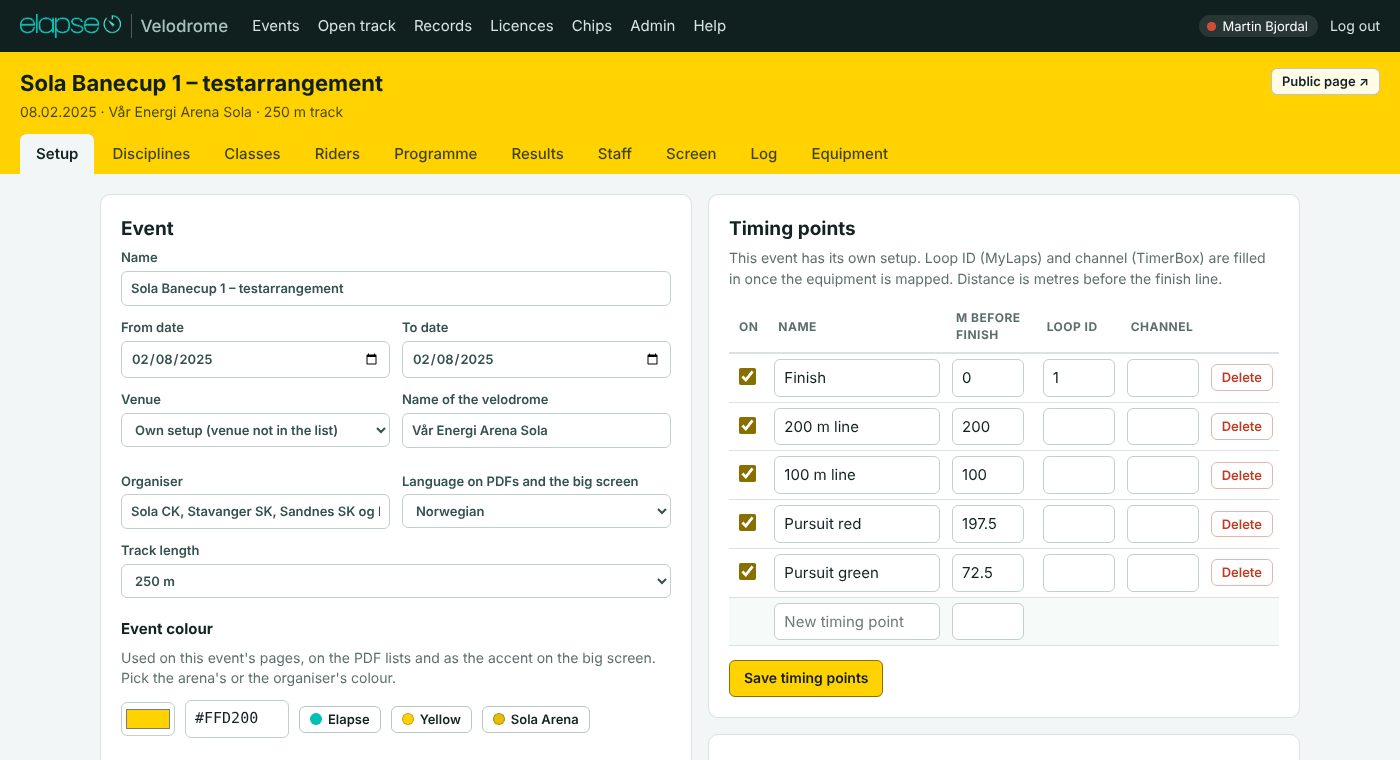
Event colour, logos and PDF design #
- Event colour: pick a colour or press one of the named buttons. It is used on the pages of the event, on the PDF lists and as the accent on the big screen.
- Two colours (1.23.3): the pages in here – header bar, buttons, tabs – always carry the venue’s colour (Admin › Venues › Venue colour): Sola is always yellow, Asker always brown, so you see at a glance where you are. The event colour on this tab is for what the public sees: the accent on the big screen, the public live page and the PDF lists – the organiser’s or the cup’s colour, or one of the presets. An event without a venue colour uses its event colour in here too.
- Event logo: shown on the PDFs, the big screen and the public page.
- Timer logo (timing company): printed at the bottom of the PDFs. The Elapse logo is used when you leave it empty.
- PDF background design (A4 portrait): an image behind the text on every PDF page. Keep the middle light. The top 30 mm holds the logos and the event name, the bottom 25 mm the footer.
For each image you can upload a file or paste a link to an image. It must be a PNG or JPG of at most 3 MB. Tick Remove this image and save to take it away.
Printouts and communiqué numbers #
Under Printouts (PDF) on the Setup tab:
- Number the start lists and result lists as communiqués: every list gets a running number in the heading and first in the file name, for example
C012-Men-Elite-Scratch-results.pdf. This is on for new events. - The first list gets number: type another number than 1 when the organiser’s own communiqués take the first numbers.
- Custom text at the bottom of start lists and result lists: for example the name of the chief commissaire or a sponsor line.
How the numbers are given is explained under PDFs, communiqué numbers and “Revised”.
Add-ons: the paid modules #
Everything needed to run a race – riders, programme, timing, results, PDFs, the public page, the big screen, the speaker page – is in the base and always on. The extras are modules, priced per event: DataRide export, UCI ranking and licence check, Screen Plus (show mode, sponsors, photo finish), Statistics and reports, and API access.
- Price summary (1.25.1): at the top of the tab, what this event costs: the Basic price per event (set by Elapse under Admin › Modules; “as agreed” when not set), one line per add-on that is charged, the modules included for the venue at NOK 0, and the total. Prices are per event, excl. VAT; a demo event is never charged.
- The Add-ons tab of the event lists them with their price and status: included for the venue, activated by whom and when, or not activated. An organiser, a venue organiser or Elapse presses Activate; the module opens at once and can be switched off again.
- An add-on is charged for the event from the moment it is activated (1.23.1) – also when it is switched off again later: the tab then says “Switched off … – activated by …, on the invoice”, and the organiser is told so before both activating and switching off. A module included for the venue costs nothing extra per event. A module that is used on an event without being activated or included (while the modules are not enforced) is charged as used.
- Elapse gets an e-mail on every activation and sees the invoice basis under Admin › Modules (used modules, who activated, the sum to charge). Elapse also sets the prices there and can give one event its own choice of modules under Setup.
- While the modules are not enforced (Admin › Modules, the master switch), every module is open for everybody; activations are still noted. 1.19.0.
Timing points #
When the event has a venue, the Timing points card only shows the points. Elapse changes them for the venue under Admin › Venues, and events that are not over yet follow.
An event with its own setup has the points on the Setup tab itself: switch a point on or off, and type its name, the metres before the finish line, the MYLAPS loop ID and the TimerBox channel. Press Save timing points. See The track and its timing points.
Access #
The Access card on the Setup tab lists the other users. Tick the ones who are going to work in this event and press Save access. Elapse users always have access. A venue organiser has access to every event at their venue. If nobody is listed, Elapse has to create the user accounts first.
Copy an event #
- On Events, press Copy on the event you want to start from.
- Type the Name of the new event.
- Tick Include the riders (number, class and chip) if the same riders come again.
- Press Copy.
The copy gets the track, timing points, disciplines, classes, the programme with its races and breaks, logos, footer text and access. Start lists and results are never copied. Sponsor logos are not copied either: add them again on the Screen tab. Remember to set the new dates.
Download, upload, test events and delete #
- Download on the Events page saves the whole event to one file (
.evz): setup, riders, start lists, results, passings, the change log and the images. Use it as your own archive, or to move an event to another installation. The file holds the riders’ personal data, so treat it that way. - Upload event file reads such a file in as a new event. Events that exist are never changed. If the name is taken, the new event gets “(uploaded …)” after its name. Access is not in the file: set it again. A file from a newer version of the program is refused.
- Create test event, in the same window as the upload, makes a made-up event for practice. The riders are invented and have the chips SIM-1, SIM-2 and so on, so you can run the races with Test: simulate passings.
- Delete removes an event with all riders, races and results. It cannot be undone. From 1.8.0 only Elapse deletes events, and types their own password first; an organiser’s Delete button says to contact Elapse. Download the event first if you may need it.
Disciplines and classes #
Before you add riders and races, tell the event which disciplines are run and which classes there are.
In this sectionDisciplines tabClasses tab
Disciplines tab #
Tick the disciplines that will be run and press Save disciplines. Only these can be added to the programme, and only these get a column in the rider import template. Laps and distance are set later, per race.
| Discipline | Decided by | Start |
|---|---|---|
| Flying 200 m | Time | Flying start |
| Sprint | Finishing order | Bunch start |
| Team Sprint | Time | Start gate + countdown |
| Time Trial | Time | Start gate + countdown |
| Individual Pursuit | Time | Start gate + countdown |
| Team Pursuit | Time | Start gate + countdown |
| Keirin | Finishing order | Bunch start |
| Scratch | Laps, then finishing order | Bunch start |
| Points Race | Points | Bunch start |
| Tempo Race | Points | Bunch start |
| Elimination | Elimination order | Bunch start |
| Longest Lap | Finishing order | Bunch start |
| Madison | Points | Bunch start |
| Omnium | Sum of four races | Bunch start |
Each name links to how that discipline is run. How a discipline is timed (which loop starts and stops the time, track contact or chip first) is set once by Elapse under Admin › Disciplines and applies to every event.
Classes tab #
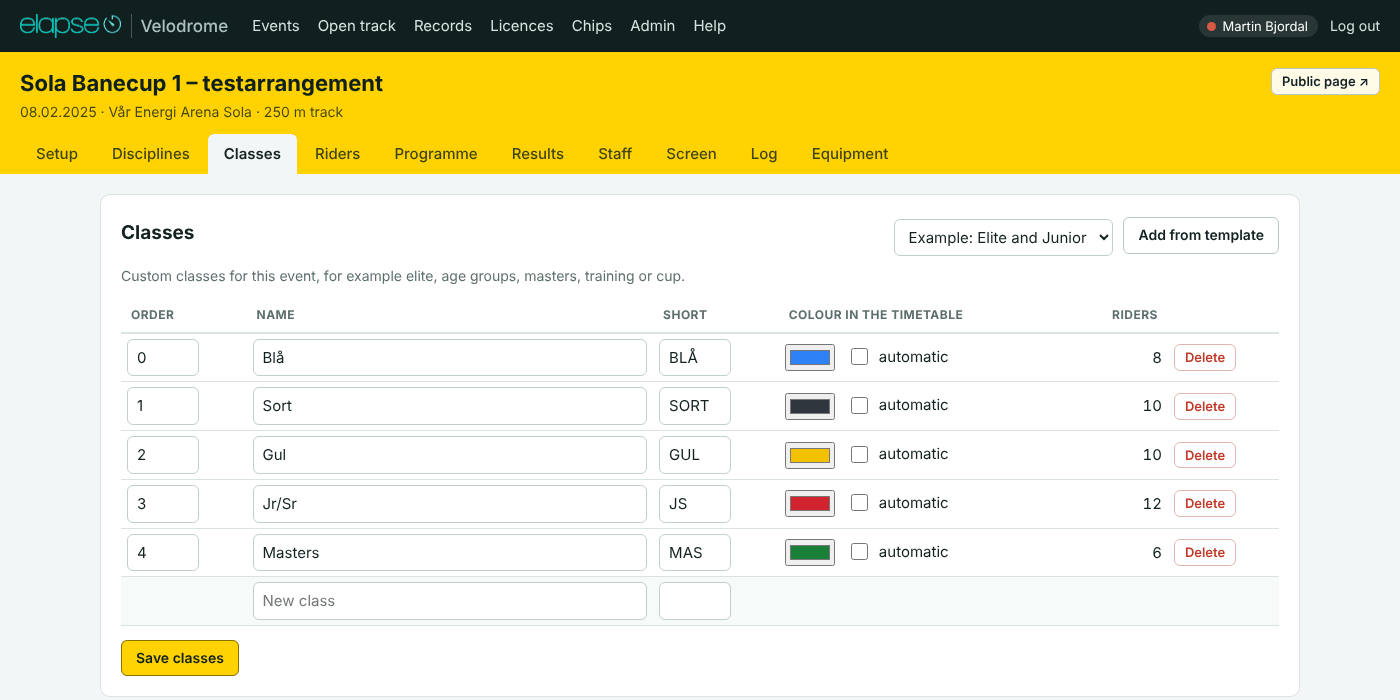
A class is a field of riders who race each other, for example Men Elite, Women Junior, Masters or a cup group. You make the classes yourself.
- Type a name in the row New class, add a short name if you like, and press Save classes. One class is added per save.
- Add from template adds a ready-made set of classes. Elapse makes the sets under Admin › Class templates. Classes you already have are not added twice.
- Order decides the order the classes are listed in.
- Gender (W, M or X = mixed/open), Category (Elite, Junior, M40, 13 – the class without the gender) and No placings (children’s classes whose result is published without places) go to the federation sites through the API (1.23.0). Leave gender and category empty and they are guessed from the name – the guess is shown greyed; set them when the guess is wrong (“Elite Women”, “Jenter 13” and “M40” are guessed right). Class templates (Admin) can carry them as
Name; Short; W; Elite; no placings. - Colour in the timetable is used when “colour by class” is on in the programme. Leave automatic ticked to let the app choose.
- Delete removes a class. Its riders stay, but are left without a class.
Class is the field the rider races in. It decides which races the rider can be put in. Age class is a text on the rider, for example M15-16. It is shown on start lists and results, and decides nothing. When two age classes ride together in one field, give them the same class and different age classes.
A rider who races in two fields at one event (one day in one class, another day in another) gets the other field as Second class on the rider – not a second rider with the same chip. Two riders with one chip would make every passing of that chip ambiguous as soon as both are in a race, split the rider’s results, records and personal bests in two, and give DataRide two riders with the same UCI ID.
Riders #
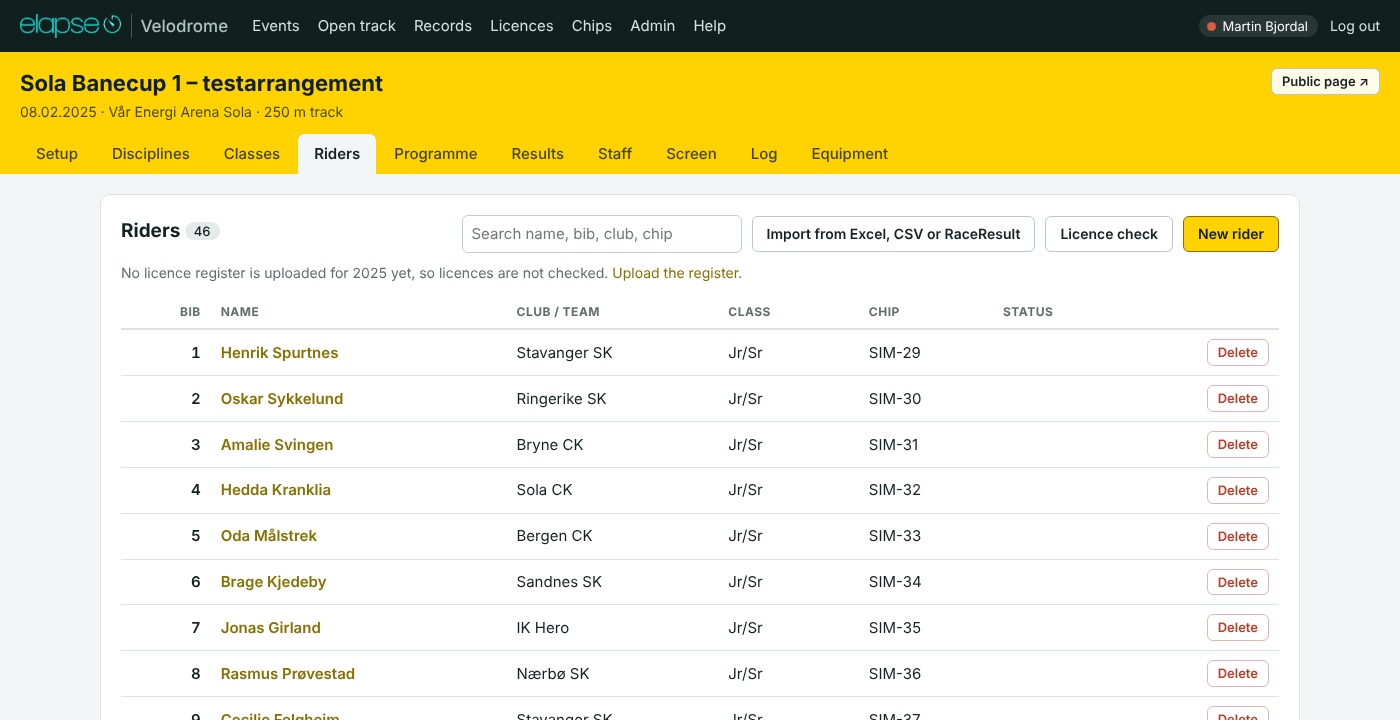
The Riders tab lists everybody in the event. Add riders one by one, import a file, or fetch them from RaceResult.
The search field above the list finds a rider by name, bib, club or chip as you type.
In this sectionAdd a rider by handImport from Excel or CSVImport from RaceResultLicence checkChips and the chip register
Add a rider by hand #
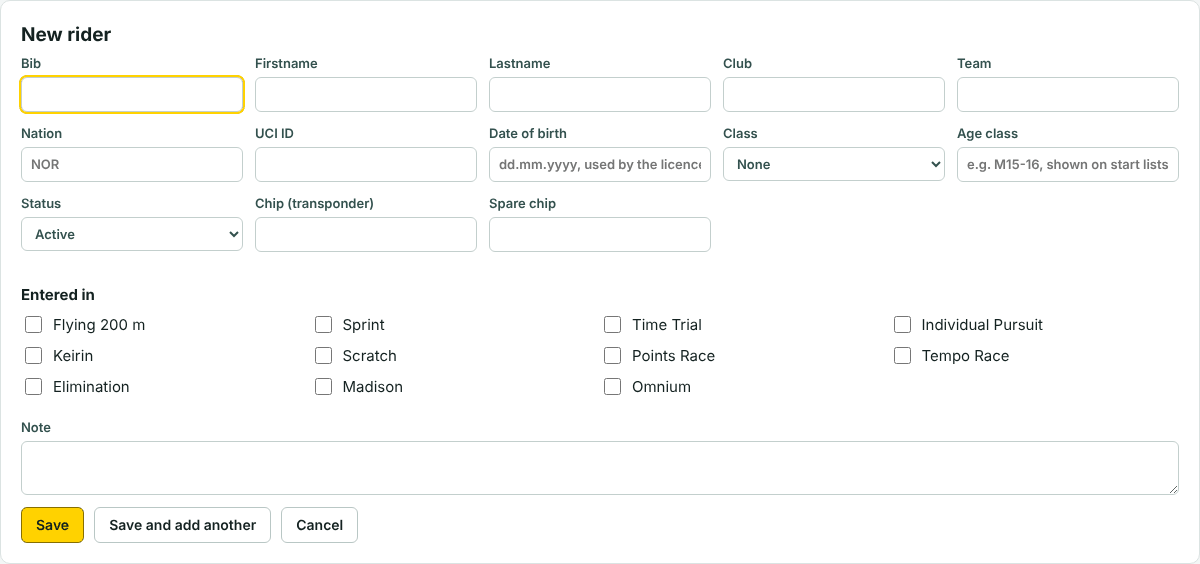
- On the Riders tab, press New rider.
- Fill in the fields. Only a name is required. Give every rider a Bib, which is the number you tap and type on the Run page, and a Chip, so the rider can be timed.
- Under Entered in, tick the disciplines the rider is going to ride.
- Press Save, or Save and add another to go straight on to the next rider.
| Field | What it is |
|---|---|
| Bib | The rider’s number. A bib can only be used once in an event. |
| Firstname, Lastname | The name. The last name is printed in capitals on lists and on the big screen. |
| Club, Team | The club is shown next to the name. The team is shown when there is no club. |
| Nation | Three letters, for example NOR. Gives the flag on the big screen. |
| UCI ID | 11 digits. Used by the licence check, the chip register and for personal bests. |
| Date of birth | dd.mm.yyyy. Used by the licence check. |
| Class | The field the rider races in. Choose one of the classes of the event. |
| Second class | For a rider who races in two fields at the same event, for example Friday in one class and Saturday in another. The rider is then offered for the races of both classes, is counted in both on the Classes tab, and the points scored in the second class’s races go to that class in the standings. One rider, one chip, one bib – do not make two riders with the same chip. |
| Age class | For example M15-16. Shown on start lists and results. |
| Status | Active, DNS (did not start) or Withdrawn. Only active riders are offered when you fill a start list. |
| Chip (transponder), Spare chip | The rider’s MYLAPS chip. A passing of either chip counts for the rider. Write the chip the way MYLAPS shows it, for example PS-61216. |
| Note | Your own note about the rider. |
Click a name in the list to open the rider again. At the bottom of the rider’s page you see every race the rider is in, with rank and result, and a button Edit that takes you to the results of that race.
Import from Excel or CSV #
- Switch on the disciplines first (Disciplines tab). The template gets one column for each of them.
- On the Riders tab, press Import from Excel, CSV or RaceResult.
- Press Download Excel template (or Download CSV template). The Excel file has a second sheet with instructions and example rows.
- Fill in one row per rider on the sheet “Riders”. Keep the first row with the column names.
- Choose the file and press Upload and preview. Nothing is saved yet.
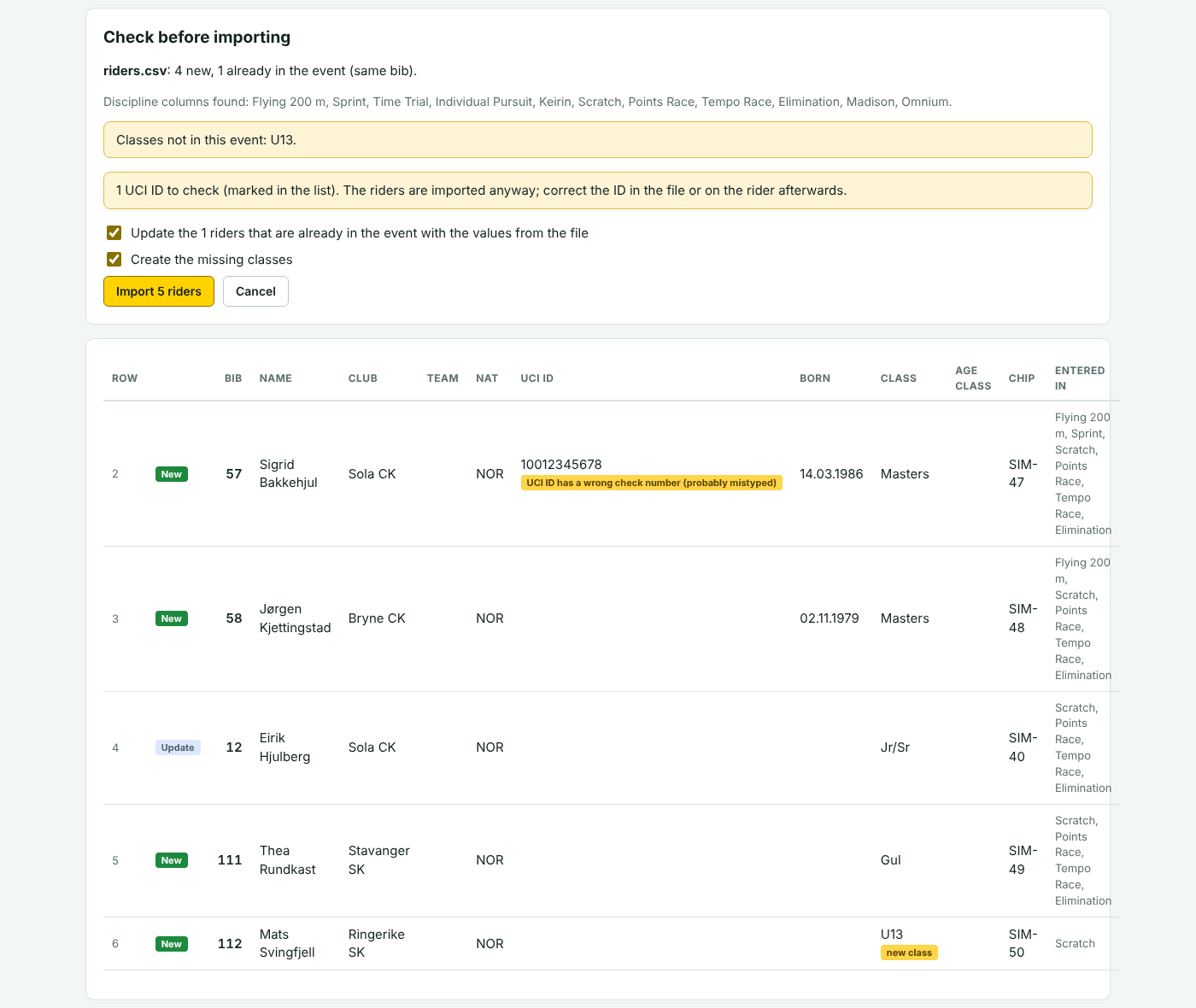
- Read the page Check before importing. Each row is marked New, Update or with a problem.
- Press Import … riders.
| Column | What to fill in |
|---|---|
| Bib | The rider’s number. A rider whose bib is already in the event is updated, not added again. |
| Firstname, Lastname | Required. One column called “Name” also works: the last word becomes the last name. |
| Club, Team, Nation | Optional. Nation as three letters, for example NOR. Team is used for team events and Madison. |
| UCI ID | Optional. 11 digits. The preview marks an ID that has the wrong length, a wrong check number, is used twice, or belongs to another name in the licence register. The rider is imported anyway. |
| Birth date | Optional. dd.mm.yyyy. |
| Class | The field the rider races in. It must match the name or the short name of a class in the event. A class that does not exist can be created during the import: leave Create the missing classes ticked. |
| Age class | Shown on start lists and results, for example M15-16. It does not decide who rides together: the Class does. |
| A column for the racing field | An entry list often has the age class in a column called “Class” and the field the rider races in in a column of its own, called “Field” or “Felt på fellesstarter”. When such a column is in the file, it is used as the Class and the column “Class” becomes the Age class. |
| Chip, Spare chip | The transponder numbers. |
| Note | Optional. |
| One column per discipline | Put an x where the rider is entered, for example in “Scratch” and “Elimination”. Leave the cell empty otherwise. Only disciplines that have a column in the file are touched. |
- The order of the columns does not matter. Columns the app does not know are ignored and listed in the preview.
- Norwegian column names work too: Nr, Fornavn, Etternavn, Klubb, Lag, Nasjon, Klasse, Aldersklasse, Fødselsdato.
- If the file has a column called “Felt” (or “Field”), that column is taken as the class, and the column called “Klasse” or “Class” becomes the age class.
- Old Excel files (
.xls) are not supported. Save the file as.xlsxor CSV. - After the import, riders without a chip get the chip they have in the chip register.
Example row: bib 12, Kari Nordmann, Sandnes SK, NOR, class Women Elite, age class K Junior, chip PC-12345, and an x under Scratch.
Import from RaceResult #
Use this when the entries are taken in RaceResult.
- In RaceResult, make a list with the fields below and create a link to it under Main window › Access rights / Simple API, in the format JSON or CSV.
- On the import page, paste the link in RaceResult link and press Fetch from RaceResult and preview.
- Check the preview and press Import … riders, as for a file.
The link is kept on the event, so the next import is one click. Riders already in the event (same bib) are updated. Only https links to raceresult.com are fetched.
Fields that are recognised: Bib FirstName LastName Club Nation.IOCName Contest.Name or AgeGroup1.Name (the class) DateOfBirth Transponder1 Transponder2 UCIID. A column named after a discipline, with x or 1, enters the rider in it.
Licence check #
ia, I/A, n/a or - in an entry file (the way some entry systems mark “no club”) is treated as empty on import, when a rider is saved, and wherever riders are shown. On the big screen with flags on, a rider without a nation gets a blank flag of the same size, so the names stay in line.The licence check runs by itself every time the Riders tab is opened, as soon as the register for the year of the event is uploaded. Each rider gets a tag in the column Licence:
- OK
- The UCI ID is in the register, or the name is there together with the same date of birth or club.
- Check
- The name is in the register, but the club or the date of birth differs, or several people share the name. Look at it by hand.
- Not found
- Nobody with that name or UCI ID. Names must be spelled as in the register.
The button Licence check opens the full list, with what the register says about each rider. Use Only those to look at to see just the riders that need attention.
The register
Open Licences in the top menu. An organiser or Elapse types the Year, chooses the file (.xlsx or .csv) and presses Upload. There is one register per year, used by all events. Uploading a year again replaces that year. The export from the NCF licence system works as it is. Look up a licence searches by name, club, licence number or UCI ID.
The register holds names and dates of birth. It is only shown to users who are logged in.
Chips and the chip register #
A rider is timed by the chip that is typed on the rider. No chip, no automatic times or laps for that rider.
- The Riders tab shows … without a chip when active riders lack one.
- The chip register remembers which chip each rider had, across events. It fills itself: every rider who has a chip in an event is put in it, and the newest event wins.
- Press Fill in chips from the register on the Riders tab to give every rider who is in the register their chip. An import does this by itself. Check the list afterwards.
- A rider is recognised by UCI ID. Without one, by the name, when only one rider in the register has that name.
Open Chips in the top menu to see the register. Organisers and Elapse can correct a row and press Save, add a rider with Add to the register, read every old event once with Read chips from all events, or upload a list with names and chips. If the same chip is on two riders, the page warns you: correct or delete the one who no longer has it.
For handing out numbers and transponders, print Numbers and chips from the Staff tab.
Programme #
The Programme tab is the running order of the meeting: every race, break and ceremony, with a start time on each row. It is also the door to each race: click a race name to open its start list, or press Run to run it.
In this sectionAdd a raceRounds and heatsOrder and start timesMinutes per race and standard timesBreaks and award ceremoniesSeveral daysClasses that ride togetherOmnium in the programmeProgramme templates and race presetsThe programme PDF and coloursStart times on the public programmeChange the name, class or status of a race in the table
Add a race #
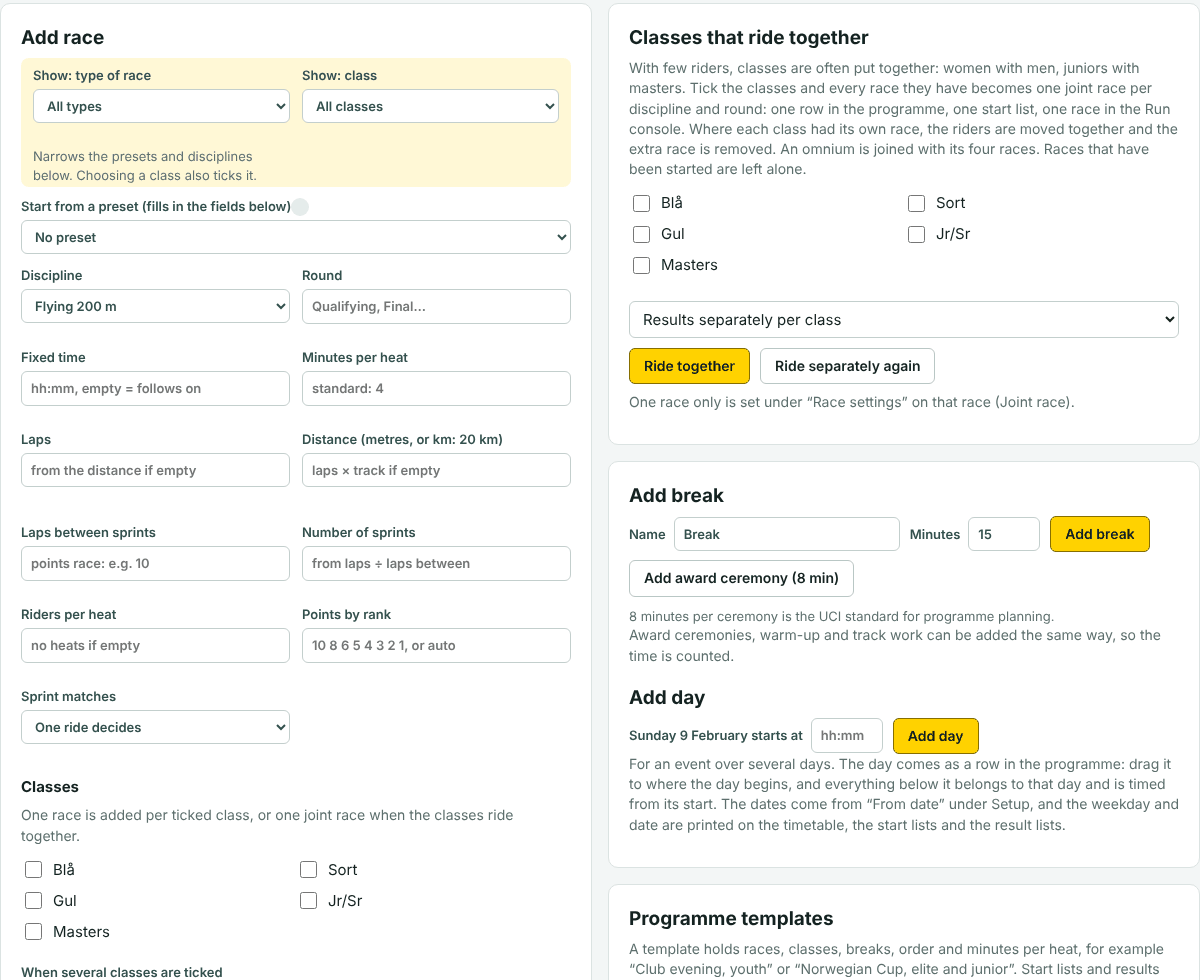
- Go to the card Add race under the programme table.
- Choose the Discipline. Only the disciplines switched on for the event are in the list.
- Type the Round if there is more than one, for example Qualifying or Final.
- Type Laps or Distance. One is enough: 3000 m on a 250 m track gives 12 laps by itself. A number up to 100 without a unit is read as kilometres, so “20” and “20 km” are the same.
- Tick the classes under Classes. You get one race per ticked class.
- Press Add race. The race is put last in the programme. Move it to its place.
| Field | When you need it |
|---|---|
| Start from a preset | Fills in the fields below from a ready-made race. Elapse makes the presets under Admin › Race presets. Show: type of race and Show: class narrow the list. |
| Fixed time | Only when the race must start at a set time (hh:mm). Leave it empty to let the race follow on from the one before. |
| Minutes per heat | Only when you want to set the time used yourself. See Minutes per race. |
| Laps between sprints, Number of sprints | Points race, tempo race and Madison. Type the laps between sprints and the number of sprints follows: 80 laps with a sprint every 10 laps gives 8 sprints. |
| Riders per heat | Timed races, sprint and keirin. The start list is divided into heats of this size. |
| Points by rank | Cup or series points for the final rank in this race, winner first: 10 8 6 5 4 3 2 1. Or the word auto. See Points by rank. |
| Sprint matches | Sprint only: One ride decides or Best of three. |
| When several classes are ticked | One race per class, or one joint race for the ticked classes, with separate results per class or one joint result. |
To change a race later, click its name and open Race settings and status. To remove it, press ✕ on its row. That deletes its start list and results too.
Rounds and heats #
- A round is its own race in the programme: “Keirin – Qualifying” and “Keirin – Final” are two rows. Add the later rounds as empty races so they have a time in the programme, or let the app make them when the first round has a result (see Next round).
- A heat is one start inside a race. Heats are made on the start list. Bunch races (scratch, points race, tempo race, elimination, Madison) are always one heat.
- Until a race has a start list, the column Heats shows a guess from the riders entered, marked ≈. Type your own number there if you know better.
- A sprint in best of three counts two rides per heat, shown as “× 2”.
- Sprint rounds planned ahead: add the later rounds as empty Sprint races with the round names “Quarter-finals”, “Semi-finals”, “Final” and “Final for bronze”, in the same class. When you make the next round from a result, the riders are put in the row that is already in the programme, and the row keeps its place, its minutes and its best of one or three.
Order and start times #
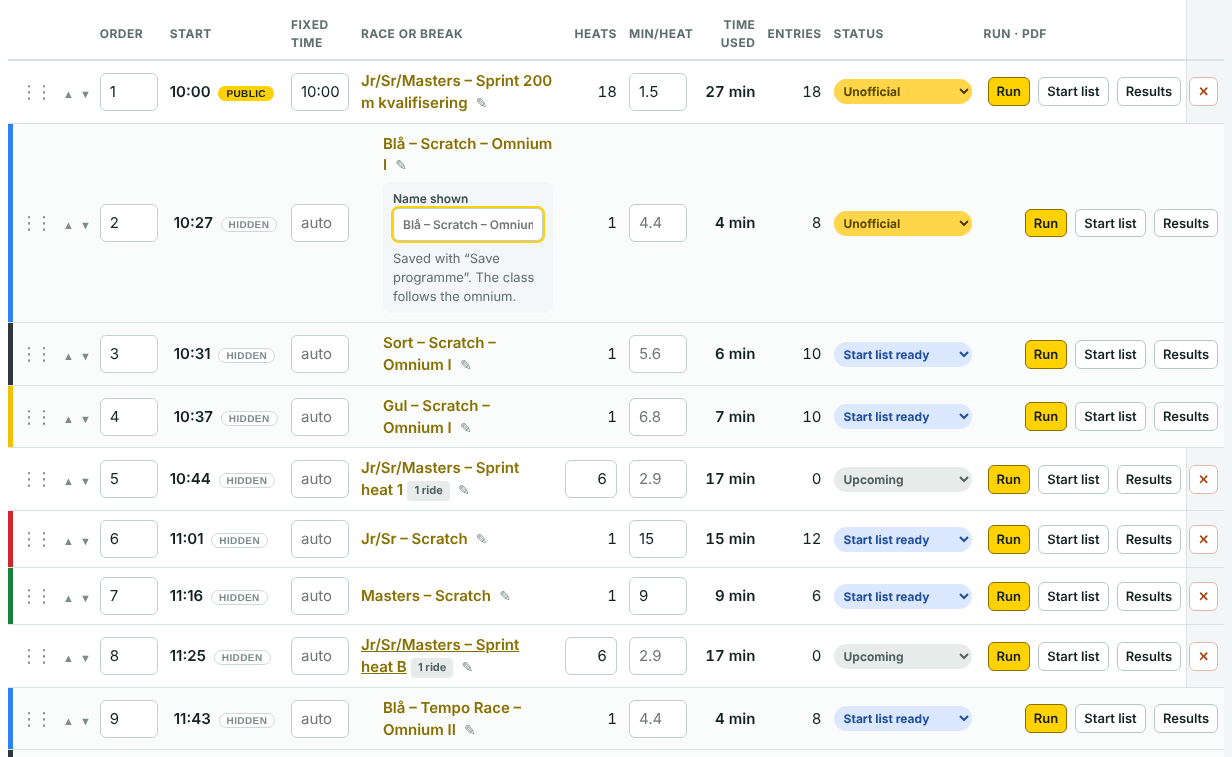
- Move a row: drag it by the handle on the left, use the small arrows, or type a new number in Order. The new order is saved at once. On a tablet, use the arrows or the number.
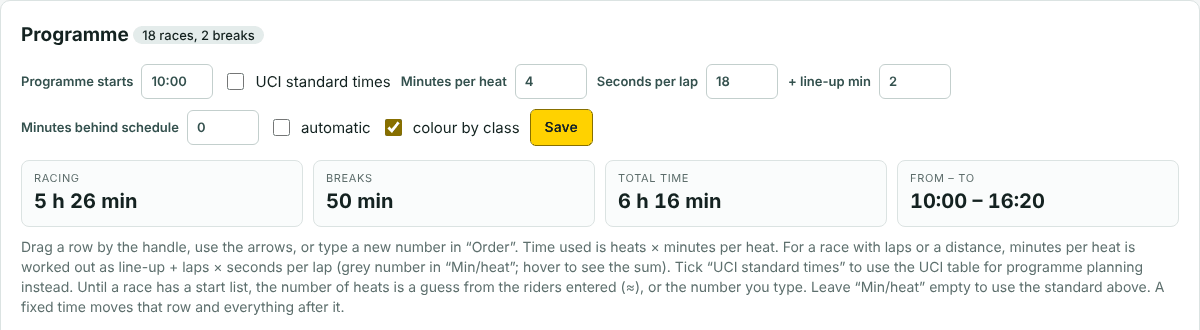
- Start times: type when the first race starts in Programme starts. Every row then gets a start time from the time used by the rows before it.
- Fixed time: a time typed in this column moves that row and everything after it.
- Saved as you go (1.8.0): a field in the table or in the settings above it (heats, minutes, fixed times, names of breaks, programme starts…) is saved the moment you leave it, as in RaceResult. There is no Save button. A floppy Save appears at the top right while something is not saved yet: changes made in the pencil panel of a row wait for that floppy, or are sent by themselves when you change tab or follow a link, so nothing is lost.
The boxes above the table show the racing time, the breaks, the total time, and from when to when the programme runs.
Minutes per race and standard times #
Time used by a race is the number of heats × minutes per heat. The minutes per heat come from the first of these that applies:
- The number you typed in Min/heat on the row. It always wins.
- The Standard times, when that box is ticked: the planning times from the UCI guide for commissaires, the 2026 championship programmes and the local youth distances, per heat for timed races, sprint and keirin, and per race for bunch races. They count the riders coming to the line, the race and the riders leaving the track. Examples: flying 200 m 2:00 per rider (1.26.1; the table says 1:30, Sola showed it is not enough – type a time per heat on the race to override), sprint 3:30 per ride, keirin 5:00, pursuit 4 km 6:40, scratch 2 km 6 minutes and 10 km 18, points race 20 km 32 minutes, elimination 5:50 plus 17 seconds per lap by the number of riders (24 riders: 20 minutes).
- For a race with laps or a distance: + line-up min plus laps × Seconds per lap. An elimination without typed laps counts two laps per rider.
- The event’s Minutes per heat.
The grey number in Min/heat is what the app worked out. Hold the mouse over it to see where it comes from. New events have the standard times switched on.
Minutes behind schedule moves the times on the big screen and the public page, not the printed programme. Tick automatic to let the app measure it: it compares when the latest race was set live with its time in the programme.
Breaks and award ceremonies #
- In the card Add break, type a name and the minutes and press Add break. Lunch, warm-up and track preparation are added the same way, so their time is counted.
- Add award ceremony (8 min) adds a ceremony of eight minutes.
- The break is put last. Drag it to its place. Name and minutes can be changed in the table.
- Start on screen on a break row makes the big screen count down from now until the break is over.
Several days #
- Set From date and To date on the Setup tab.
- On the Programme tab, under Add day, type when the next day starts and press Add day.
- The day comes as a coloured row last in the programme. Drag it to where the day begins. Everything below it belongs to that day and is timed from its start.
Day 1 is the From date, day 2 the day after, and so on. The weekday and date are printed on the timetable, the start lists and the result lists. You can print the programme for all days or for one day. The big screen and “now and next” follow the part of the programme that belongs to today.
Classes that ride together #
With few riders, classes are often put together: women with men, juniors with masters. There are three ways:
- For the whole programme: in the card Classes that ride together, tick the classes, choose Results separately per class or One joint result, and press Ride together. Every race the classes have becomes one joint race per discipline and round: one row in the programme, one start list, one race on the Run page. Ride separately again undoes it.
- When you add a race: tick several classes and choose one joint race under When several classes are ticked.
- For one race that exists: open Race settings and status and tick the other classes under Joint race.
With separate results, each class is ranked 1, 2, 3 … from the joint result, with the class as a heading on the result list. Races that have been started are left alone, and the app tells you which.
Omnium in the programme #
When you add an Omnium, the app adds its four races by itself: Scratch (Omnium I), Tempo Race (Omnium II), Elimination (Omnium III) and Points Race (Omnium IV). Untick one of them under Races of the omnium to ride it with three, as is often done for the youngest classes (1.6.0); a race can also be deleted from the programme afterwards as long as it has no result, and the others are numbered again. With several classes they come discipline by discipline: the scratch of every class, then the tempo race of every class, and so on. Move them as you like.
The omnium itself is not a row in the running order. It stands in the line Omnium standings above the table. Click its name there to open the omnium’s start list: riders are added there, and the four races get the same riders. Standings opens the total. See Omnium.
Programme templates and race presets #
- A programme template holds races, classes, breaks, the order and minutes per heat, for example “Club evening, youth”. Organisers save one with Save as template. Anybody can use it in another event: choose it and press Add to this programme. Missing classes are created and the disciplines are switched on. Start lists and results are never part of a template.
- A race preset is one ready-made race (discipline, round, laps, distance, sprints, riders per heat, points by rank). Elapse makes them under Admin › Race presets. You pick one in Start from a preset when you add a race.
The programme PDF and colours #
- Export programme as PDF makes the timetable, with time, discipline, class, round, riders, heats, distance and about how long each race takes. With several days there is also one button per day, and in the PDF for all days every day starts on a new page.
- Tick colour by class and save to get a colour block per class in the PDF, on the big screen and on the public page. The colours are set on the Classes tab.
- Show programme on big screen puts the whole programme on the big screen.
- On each race row, Start list and Results open the PDFs of that race.
- Staff PDF, all times is the same timetable with every start time, for the people who run the meeting. You must be logged in to open it.
Start times on the public programme #
The start times in the programme are estimates. To avoid promising a time that will not hold, the public page, the public PDF and the big screen show the clock time only on some rows. The other rows show the number of heats and about how long the race takes, in a column on the right.
- The standard: the first row of each day, a row with a time typed in Fixed time, and the first row after a break show their time.
- One row: next to the start time of each row there is a small mark, public or hidden. Press it to switch. It is saved at once.
- All rows: Show every time puts the clock time on every row. Back to the standard removes your own choices.
- Staff: the Programme tab, the Staff tab and Staff PDF, all times always show every start time.
Change the name, class or status of a race in the table #
- Name, round and class: press the pencil ✎ after the name of the race. Type the name in Name shown (leave it empty to get class – discipline – round), change Round or choose another Class, and press the floppy Save at the top right (or just change tab: it is saved first). You do not have to delete the race and add it again.
- Sprint, one ride or best of three: a sprint row shows 1 ride or Best of 3 after its name. Press it (or the pencil), choose under Sprint matches and press the floppy Save. It can be changed until the race is official; rides that are already entered are kept.
- The class decides which riders the start list takes. When you move a race to another class, the riders of that class who are entered in the discipline are put on its start list. Riders who were on the list already stay.
- Status: the status of each race is a list in the column Status. Choose for example Start list ready. It is saved at once.
- Many at once: the button Set … to Start list ready under the table sets every race that is Upcoming and has riders on its start list to Start list ready.
Start lists #
Every race has its own page. Click the name of the race in the programme. The page has three tabs: Start list, Results and Decisions.
In this sectionFill the start list from the entriesStart order and heatsRed and green in pursuits and time trialsLine-up at the fence and in the sprinters’ laneTeamsOmnium seeding“Start list ready”, PDFs and communiqués
Fill the start list from the entries #
The start lists follow the entries by themselves. A rider who is ticked for a discipline under Entered in (or has an x in the import file) is put on the start list of that discipline’s races for the rider’s class. You do not add the rider by hand.
- When: when a rider is saved or imported, when a race is added to the programme, and when the class of a race is changed. A rider who is unticked or moved to another class is taken off the start lists that no longer fit.
- Which races: the first round of each discipline, until the race is started. An omnium is filled on the omnium itself, and its four races follow. Finals, semi-finals and other later rounds get their riders from a result, and so do the sprint rounds after a flying 200 m.
- Riders who were there before: the Programme tab shows how many entered riders are missing on a start list. Press Fill start lists from the entries to add them all.
- Empty start list? The race must be for the rider’s class. The Programme tab says so in the line Entered, but no race for their class. Change the class of the riders or of the race, or put the classes together under Classes that ride together.
- Switch it off: for one race with Start list follows the entries under Race settings and status, for the whole event with Start lists follow the entries under Setup.
- A rider you take off a start list by hand stays off, as long as the rider’s entries are not changed.
By hand, for a rider who is not entered or a race that does not follow the entries:
- Open the race and stay on the tab Start list.
- The card Add riders lists the active riders of the class who are not on the list yet. Riders entered in this discipline are ticked already.
- Tick or untick, or press Tick all, and press Add ticked riders.
To take a rider off, open Start list as a table and press Remove on the row. A race without a class is open to every rider of the event. When a race is official, its start list is locked.
Start order and heats #
Timed races, sprint and keirin have the board Start order: one card per heat, in the order the heats ride.
- Tap two riders to swap them.
- Tap one rider and then a heat, or New heat, to move the rider there. With a mouse you can also drag.
- Reverse the heats makes the last heat ride first.
- Press Save start order. Nothing is saved before that.
Quick ways to make the order, under the board:
- Divide into heats: type the riders per heat and the list is renumbered in the order it has now. Pursuits, sprint and team sprint start with 2 per heat, keirin with 6, the others with 1.
- Random draw draws a new order.
- Set order: order the list by the result of another race in the same class, with best starts last or best starts first.
The same list is under the board as a table, with heat and position as numbers. Change the numbers there and press Save start list if you prefer that.
Sprint: riders with the same heat number meet. A rider alone in a heat goes through on a walkover. With an odd number of riders, choose who gets it and press Set walkover and pair the rest.
The Run page takes the heats in this order. A rider who already has a time keeps the heat they rode in.
Red and green in pursuits and time trials #
- In Individual Pursuit, Team Pursuit, Time Trial and Team Sprint, the first rider or team in a heat starts at the Red line and the second at the Green line. On the board the two have a red and a green edge.
- To change sides, tap the two riders to swap them and save. On the Run page you can also press Swap red and green line before the countdown.
- A rider alone in a heat starts at the red line.
Line-up at the fence and in the sprinters’ lane #
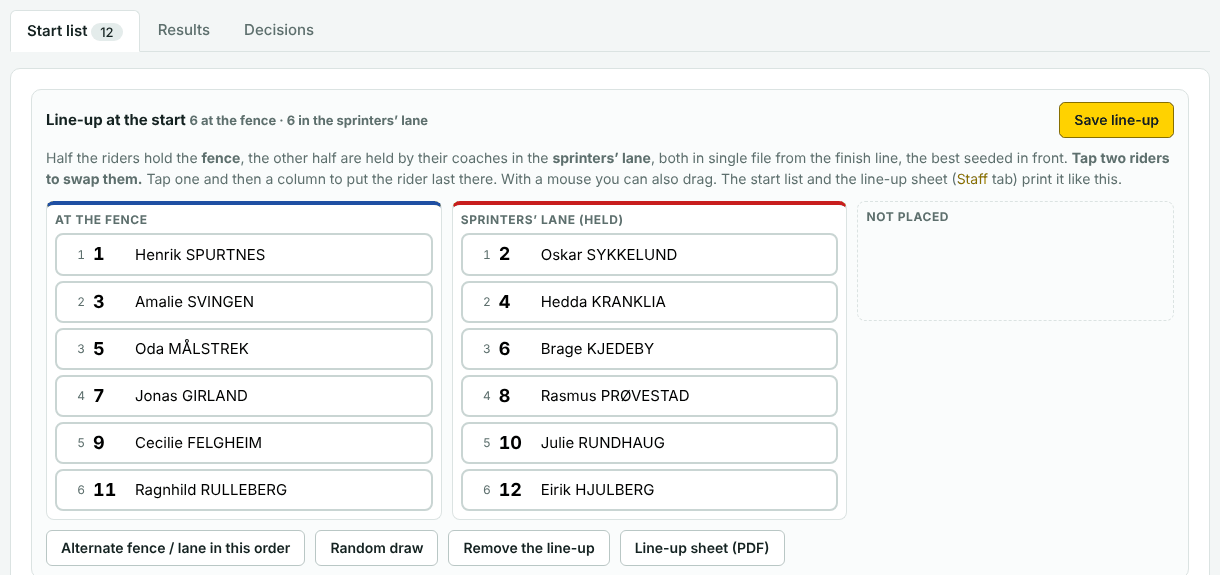
Scratch, Points Race, Tempo Race, Elimination and Madison start as a bunch. Half the riders hold the fence. The other half are held by their coaches in the sprinters’ lane. Both stand in single file from the finish line, the best seeded in front.
These races have the board Line-up at the start on the start list, with the columns At the fence, Sprinters’ lane (held) and Not placed.
- Alternate fence / lane in this order makes the line-up from the order the riders have now.
- Tap two riders to swap them. Tap one and then a column to put the rider last there. Press Save line-up.
- Random draw draws a new order. Set order orders the riders by the result of another race.
- Remove the line-up makes the start list a plain list again.
- Line-up sheet (PDF) prints the sheet for the people who line the riders up.
Until a line-up is made, the start list is a plain list. When it is made, the start list PDF and the big screen show the two groups. A rider added afterwards goes last in the shorter file.
Teams #
In Team Sprint, Team Pursuit and Madison, riders with the same Team code on the start list ride together and get one result row. The code is the team’s number: it is what you tap on the Run page and type in results.
- Open Start list as a table and type the same code on the riders of each team. Press Save start list.
- Or put the riders in order and press Make teams in start order. It numbers the teams with 2 riders per team in Madison, 3 in Team Sprint and 4 in Team Pursuit. You can change the number.
- Team name is typed on the first rider of each team. The team is then shown by that name, with the riders’ names underneath.
Omnium seeding #
- Riders are added and removed on the omnium’s own start list. The four races follow.
- Each of the four races has its own line-up board. The first race has no standings to go by: make its line-up yourself, for example with Random draw.
- When a race of the omnium is set to Unofficial or Official, the next race that has not started gets its line-up from the omnium standings: the leader first at the fence, the second first in the lane, and so on. Equal points are split on the place in the race just before.
- If you save a line-up by hand, the app leaves it alone. Press Seed from the omnium standings to set it from the standings again.
“Start list ready”, PDFs and communiqués #
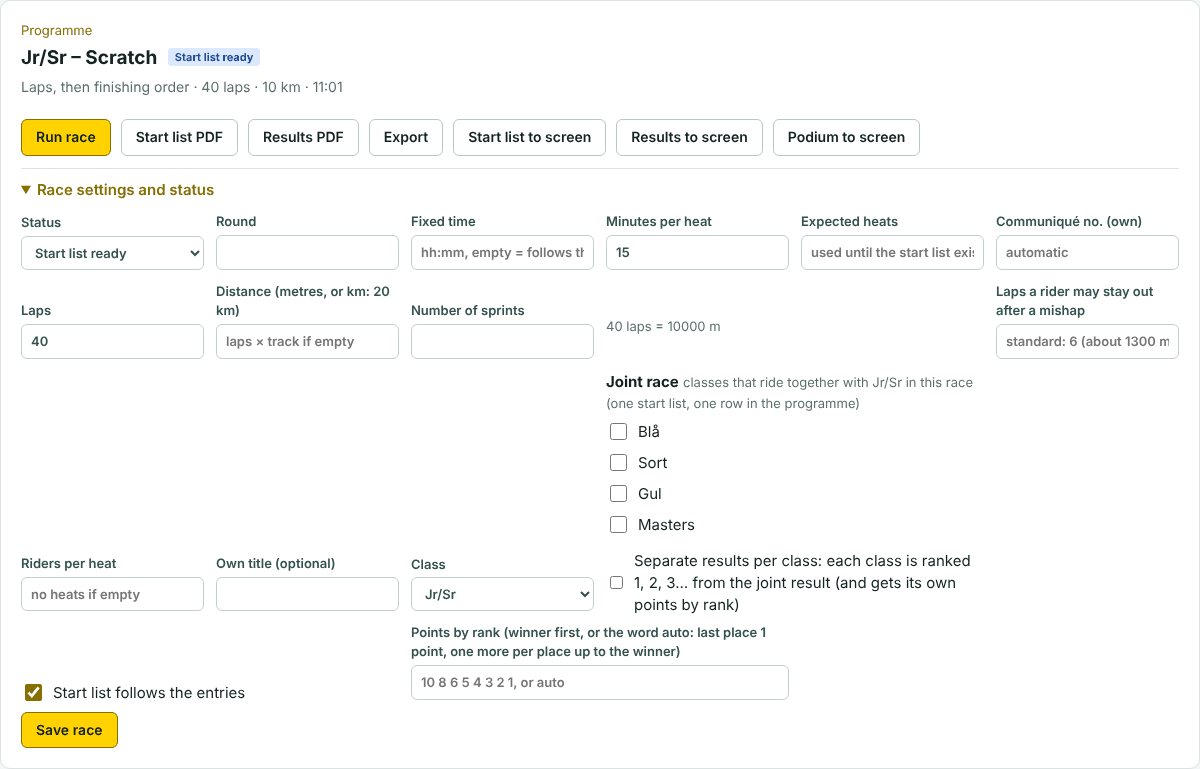
- When the start list is final, open Race settings and status at the top of the race page.
- Set Status to Start list ready and press Save race.
- Press Start list PDF to print it. With communiqué numbers on, the list gets its number now.
- Quicker: the status can also be chosen straight in the programme table, for one race or for all that have riders. See Change the name, class or status of a race in the table.
- Before the status is set, the PDF is a draft without a number, and the public page says that the start list is not ready yet.
- If you change the start list after it was printed, the next print is marked “Revised”. See PDFs, communiqué numbers and “Revised”.
- Start list to screen shows the start list on the big screen.
- All start lists in one file: All start lists in one PDF on the Results tab.
Equipment #
Two things connect the track to Elapse Velodrome: the TimerBox link for the start clock and the start gates, and the Elapse X2 reader for the chips. Both run on the timing PC and stay on during the whole meeting.
The Equipment tab is for organisers and Elapse. The equipment belongs to the venue, so one setup serves every event held there.
In this sectionThe TimerBox link windowWhat the status tags meanStart clock: countdown, start and stopInputs and the test buttonsThe Elapse X2 reader for MYLAPSReading periods: which race gets the passingsTest without equipment
The TimerBox link window #
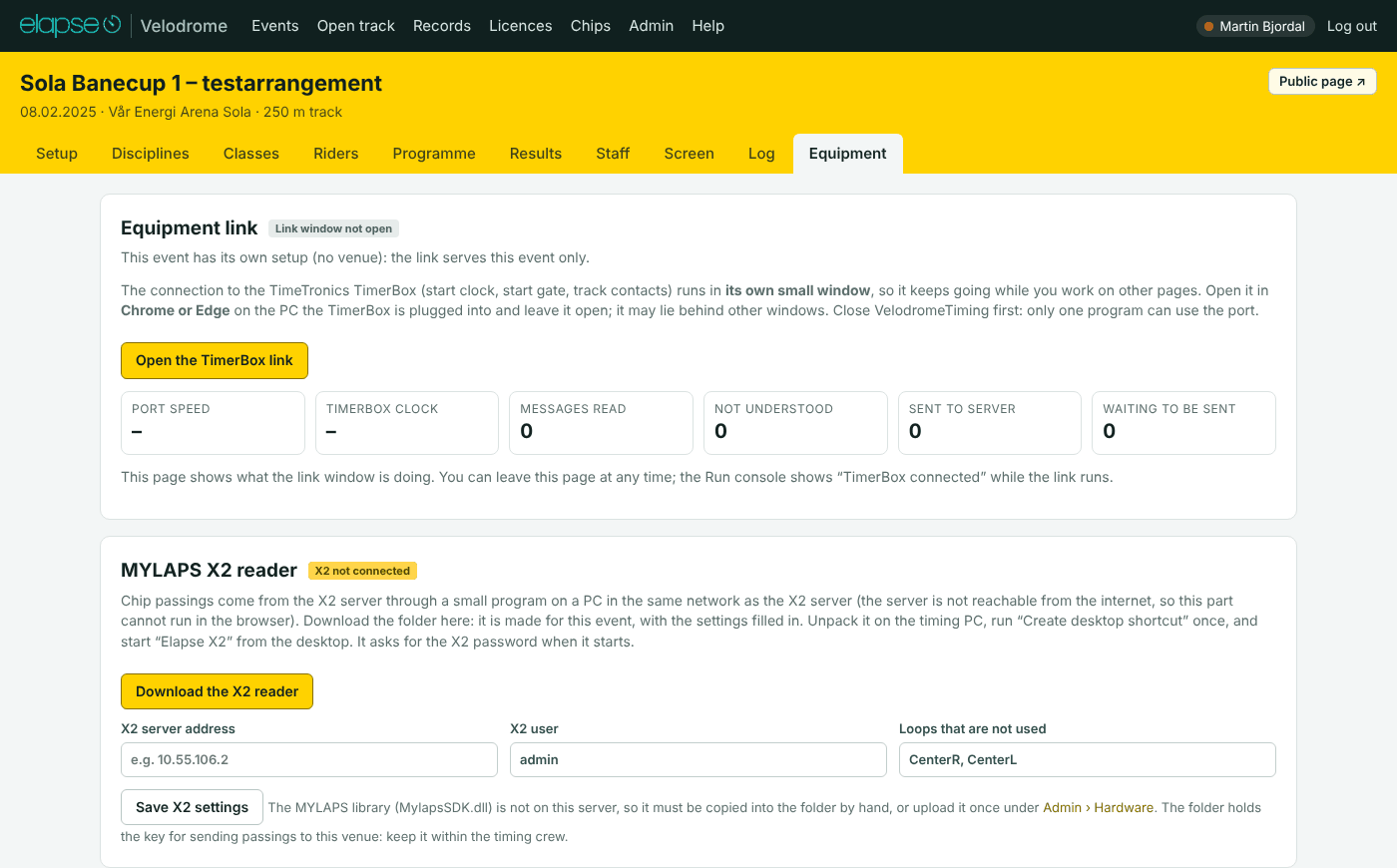
The browser talks to the TimerBox itself, through the USB cable. Nothing is installed. It only works in Chrome or Edge on a PC, and the site must be opened with https.
- Close VelodromeTiming if it is running. Only one program can use the port.
- On the PC the TimerBox is plugged into, open the event and the tab Equipment.
- Press Open the TimerBox link. A small window called TimerBox link opens. If nothing opens, allow pop-ups for the site.
- The first time on this PC: press Connect to TimerBox and choose the port called “USB Serial Port”. After that the window connects by itself every time it is opened.
- Wait for the tag Connected. The number under TimerBox clock now runs.
- Leave the window open during the whole meeting. It may lie behind other windows. Work on in the other window.
- The window is the connection. If you close it, the connection ends. The browser asks before it closes a connected window.
- The Equipment tab shows what the link window is doing. You can leave that tab at any time.
- There can be one link window per venue in a browser. A second one says that the link is already running and does nothing.
- The Run page shows TimerBox connected while the link runs. When it does not, the Run page has a link to open it.
Look for TimerBox connected on the Run page before the first start. If the link window has been minimised for a long time, bring it to the front once and check that the TimerBox clock is running.
What the status tags mean #
| Tag | Where | Meaning |
|---|---|---|
| TimerBox connected | Run page, races with a start gate | The link window has been heard from in the last seconds. The countdown goes to the start clock. |
| TimerBox not connected | Run page | No link window is running for this venue. The countdown runs on the Run page and the big screen only. |
| X2 connected | Run page and Equipment tab | The Elapse X2 reader is receiving from the X2 server. It reports every 5 seconds, also when the track is quiet. |
| X2 not connected | Run page and Equipment tab | Nothing heard from the reader for 15 seconds. It is not started, not connected to the X2 server, or has no internet. |
| Reading | Run page, the passings box | This race is reading: passings are stored on it. |
| Off | Run page, the passings box | This race is not reading. Passings are not stored on it. |
| Link window not open | Equipment tab | No link window is running in this browser. |
| Not connected | Link window | The window is open, but no port is chosen or it was disconnected. |
| Finding the speed… | Link window | The window is looking for the TimerBox on the port. Wait a few seconds. |
| Connected | Link window and Equipment tab | The TimerBox is answering. |
| TimerBox silent | Link window | Connected, but no messages for 3 seconds. The window tries to wake the TimerBox by itself. Check that it has power. |
| No TimerBox heard | Link window | Nothing understood on the port: wrong port, TimerBox off, or another program has the port. |
| Connection lost | Link window | The cable was pulled or the port failed. The window tries again after a few seconds. |
| Already running in another window | Link window | Use the other window and close this one. |
Start clock: countdown, start and stop #
Races with a start gate (pursuits, time trial, team sprint) have a green button on the Run page.
- Check who is on track and the number in Seconds. The standard is 50. Tick Use this time as standard for the event to keep another number.
- Press START COUNTDOWN.
- The countdown shows on the Run page and on the big screen. With the TimerBox connected it is sent to the start clock at the track, and the clock starts.
- At zero the race clock starts to run. When the start signal comes back from the TimerBox, the clock is set to that exact moment.
- False start or wrong rider: press Abort / reset clock. The start clock stops and is set back to the full time, ready for a new start.
- Starting the countdown also makes this race read passings.
- Without a start signal, the time is counted from the countdown on the web page. Such a time is marked Start taken from the countdown (approximate). Check it against the timing at the track.
- A command waits only a few seconds. If the link window was closed when you pressed the button, open it and press again.
Start and stop of the start clock from Elapse Velodrome have been tried on the real equipment and work. These parts are built in, but not yet confirmed on the equipment: the start signal coming back into a race, times from the track contacts, whether Stop the clock also keeps the start gates closed, and the lap counter at the track. Test them at your venue before you rely on them.
Inputs and the test buttons #
N004030 + three spaces for “30” and N004000 to clear it (field 004; fields 005 and 006 are also written, blank – probably other displays). So the TimerBox link window now sets the display by itself: every time the laps to go change in a live bunch race, it sends N004 + the number with three digits. Nothing to step by hand any more. Admin › Hardware has the display field (004) and the command can be overridden under “Set the lap counter”; the Equipment tab has Lap display with a number, Send and Clear to try it on the real display. The Run console’s “Track counter” box from 1.12.0 stays for a counter that does send.Inputs on the Equipment tab shows the eight inputs of the TimerBox, numbered as the TimeTronics channels: 1 Start, 2 200 m, 3 Finish, 4 Red, 5 Free, 6 Green, 7 200 m BU, 8 100 m (each lamp shows the number and the name; the small B0 to B3 and A0 to A3 is the input as the TimerBox reports it). An input lights up when its contact closes, and each lamp counts the impulses since the link window was opened, with the time of the last one.
- Press a track contact and see which channel lights up and counts. Choose that channel for the timing point in the list below.
- Use the TimeTronics channels sets the whole list at once to the standard wiring: start signal on channel 1, 200 m line on 2, finish on 3, pursuit red on 4, pursuit green on 6, 100 m line on 8. At Sola this is confirmed for the start, the finish and the 200 m line (port logs 08.10 and 16.10.2026).
- Start signal comes on tells which channel the start signal uses.
- Press Save inputs. The link window picks up the change by itself.
- Counters to zero sets the impulse counters of all lamps to zero, for instance before you test a contact.
- A lamp that flashes red for a moment without counting is a flicker: one 100 ms message said closed, but no event message came. It is logged as Flicker in one message only and gives no time. It is noise on an open line or a message lost on the way. A real impulse always comes as an event message, lights the lamp for as long as the contact is closed and counts.
- The TimerBox cannot tell whether a contact is connected: an input with nothing on it reads the same as a contact at rest. The counters are the way to check a contact: press it and see the count go up.
Test sends to the TimerBox at once, without a race. Make sure nobody is in the start gate.
- Start countdown on the clock starts a countdown of the seconds in the box.
- Stop the clock stops it and sets the clock back to those seconds.
- Own command is for Elapse, for trying commands.
The numbers at the top show the port speed, the TimerBox clock, messages read, messages not understood, and what is sent to the server or waiting to be sent. The dark box What happens is the log. In the link window, Download log saves it to a file you can send to Elapse.
The Elapse X2 reader for MYLAPS #
The X2 server cannot be reached from the internet. A small program on a Windows PC in the same network fetches the passings and sends them on. That program is Elapse X2.
First time on a PC
- Open the event, the tab Equipment, and find the card MYLAPS X2 reader.
- Check X2 server address and X2 user, and press Save X2 settings if you change them.
- Press Download the X2 reader. You get a zip file made for this venue.
- Unpack the whole folder Elapse X2 to a place where it can stay, for example
C:\Elapse X2. - Double-click Create desktop shortcut.bat. The shortcut Elapse X2 is now on the desktop.
Every time
- Connect the PC to the network of the X2 server. It needs the internet at the same time.
- Double-click Elapse X2 on the desktop, or Start X2.bat in the folder.
- Type the X2 password when the program asks. It is asked for every time and is not stored.
- Leave the window open during the meeting. It may be minimised. The Run page shows X2 connected.
- Stop with Ctrl+C or by closing the window.
| In the folder | What it is |
|---|---|
| Start X2.bat | Starts the reader: reads the passings and sends them to Elapse Velodrome. |
| Start X2 (bare se).bat | Look-only mode (“bare se” is Norwegian for “just look”). It shows what the X2 server sends. Nothing is sent on. Use it for a first test. |
| Create desktop shortcut.bat | Makes the shortcut on the desktop. Run it once, when the folder is where it is going to stay. |
| x2.ini | The settings, filled in for the venue: the address and user of the X2 server, the loops that are not used, the address of the site, the venue and its key. Download the folder again when something changes. |
| MylapsSDK.dll | MYLAPS’ own library, which the reader needs. Elapse uploads it once under Admin › Hardware, and it is then in every download. If it is missing, the card says so: ask Elapse. |
| README.txt | These steps, in short. |
- Windows may ask whether the file may run the first time: choose “More info” and “Run anyway”.
- If the internet drops, the passings wait on the PC and are sent when it is back, as long as they are not older than 30 seconds.
- Run the reader on one PC per venue. Two do no harm, since a passing is stored once, but one is enough.
- The folder holds the key for sending passings to this venue. Keep it within the timing crew.
- The loop names on the X2 server are matched to the timing points by themselves when they are called Finish, 200m, 100m, Red and Green. Loops that are not in use are listed in Loops that are not used.
Reading periods: which race gets the passings #
The chips are read all the time, also during warm-up. A passing is only kept when a race is reading. One race at a time reads at a venue.
- Read passings for this race (timed races) or Read passings (the others)
- START COUNTDOWN
- Race started: count from now, Heat started: count from now or Ride started: count from now
- you press Stop reading
- the race is set to Unofficial or Official
- another race at the venue starts reading
- six hours have passed
- A passing belongs to the race that was reading at the moment the rider passed, not when the passing arrived. A passing that arrives late, after a short internet drop, still lands in the right race.
- A passing from before reading started, or from after it stopped, is not stored on any race.
- With no race reading, nothing is stored. The only exception is lap counting on the open track.
- An official race takes no more passings.
- A chip that is not on the start list is stored too, and shown as Chip not on this start list.
- A rider who stands still on a loop is read again and again. Reads of the same chip on the same loop that come closer together than the fastest possible lap (10 seconds on a 250 m track) count as one visit to the line, not as laps.
Test without equipment #
- Simulated passings: on the Run page, organisers and Elapse have the button Test: simulate passings. It makes up the chip passings of the race (or of the heat on track) and reads them in the normal way, so the result is worked out exactly as with real passings. The riders need a chip number, and a bunch race needs at least two riders. Use it for testing only, never during a real race.
- Test events: Events › Upload event file › Create test event gives you a made-up meeting with invented riders and chips, ready for simulated passings.
- The start clock: the Test buttons on the Equipment tab send a countdown to the clock without a race.
- The chips: Start X2 (bare se).bat shows what the X2 server reads, without sending anything on.
Delete test results before the meeting, or practise in a test event. After testing with communiqué numbers on, press Start the numbering again on the Staff tab.
Running a race #
The Run page is the page you use while a race is ridden. It looks different for each kind of race, with big buttons for quick taps. One rule holds everywhere: what you enter by hand is never overwritten by the chip passings.
In this sectionThe Run page, step by stepPassings, laps and corrections on the Run pageFlying 200 mSprintTeam SprintTime TrialIndividual PursuitTeam PursuitKeirinScratchPoints RaceTempo RaceEliminationLongest LapMadisonOmnium
The Run page, step by step #
Open it with Run on the race’s row in the programme, or Run race on the race page.
- Before the start: check the start list, and the tags X2 connected and, for races with a start gate, TimerBox connected.
- Press Send live view to screen once. The big screen now follows what happens on this page.
- Start: press the start button of the discipline (see below). The race reads passings from now on, and its status becomes Live by itself.
- During the race: watch what the passings give. Tap or type where the commissaires see it differently.
- After the finish: press Finish: provisional. Check the result against the photo finish and the commissaires under Edit results.
- Press Official, or Official + podium to also show the top three on the big screen.
- The page reloads itself when the passings have changed the result, unless you are typing in a field.
- Every time, lap count and place shows where it came from: Chip, Track contact, Manual or Photo finish.
- To enter everything by hand in one race, untick set the result from the passings (or save the time from the passings by itself in timed races).
- An official race is locked. An organiser or Elapse opens it with Reopen.
Passings, laps and corrections on the Run page #
Bunch races, sprint and keirin have a box called Laps and result from passings (or Heat … from passings). Timed races have Times from passings.
- Lap now, To go after this lap
- Where the leader is. The next sprint or elimination is shown next to it, in red with THIS LAP when it is on the lap being ridden.
- Lap by lap
- One column per lap of the leader, newest first, with the order the riders crossed the line. −1 means one lap behind the leader. Sprint laps are yellow, elimination laps red. Tick show every lap to see all of them.
- The rider table
- Position, laps done, laps to go, the gap, and the last lap time of every rider.
- + now
- The chip was not read: adds a passing for this rider at this moment.
- + missed
- A lap is missing for this rider: adds it at the time the field crossed the line. The result is worked out again from all passings.
- Neutralise, Back in race
- After a mishap in a bunch race. The rider keeps the place in the race for the allowed laps (about 1300 m: 6 laps on a 250 m track), and the laps the field rides meanwhile are credited. Press Back in race when the rider is riding again. A rider who stays out longer loses the extra laps. A neutralised rider is not eliminated.
- Passings read for this race
- Every passing, newest first. Set aside takes one out of the calculation, Use again brings it back. Nothing is ever deleted.
- the first crossing is the start, not a lap
- Ticked as standard. The riders roll over the line at the start, or stand on it, and that crossing is not counted.
- “laps to go” follows the leader
- Ticked as standard. The laps to go on the big screen then count down by themselves.
Laps to go: bunch races and keirin have a dark box Laps to go at the top. With chips it follows the leader. By hand: press Show laps to go on screen, then − 1 lap each time the leaders cross the line. The big screen shows the number, “Last lap” at 1 and “Finish” at 0.
Wrong count while the chips are counting (1.6.0): press − 1 lap or + 1 anyway. The whole count moves with it: the sprint laps and the finish follow the corrected number, and a tag shows Lap count corrected by hand with a button back to the plain passings. Half a lap earlier: on the Screen tab, “Laps to go” changes at can be set to a loop on the far side of the track; the next number is then shown when the leader passes that loop instead of the finish line.
After the finish (1.6.0): the race is over when the first rider completes the race distance. Every other rider is placed at his next crossing of the line, and the laps ridden after that (cool-down) are not counted, so a leader who rides on does not put the field a lap down. Laps gained and lost are entered by hand only (+ lap / − lap); the app no longer works them out from the passings, but it takes what you enter into account when it judges sprints and the finish.
Flying 200 m Time Flying start #
Each rider rides alone, takes a run-up, and is timed over the last 200 metres. The fastest time wins. Equal times give the same rank. It is normally the qualifying for the sprint.
The time from the 200 m line to the finish line, from the track contacts (the rider is alone on the track) or the rider’s own chip, with a split at the 100 m line from either. Every pass of both lines gives a time, and the fastest is used, so the run-up laps do no harm. The speed, the rank, and the marks TR and PB. From 1.6.1 the big screen runs a clock from the 200 m impulse, shows the 100 m split when it comes and then the time with the rank; the split is kept with the result and stands in the column 100 m on the result list and the PDF.
- Press Read passings for this race.
- The rider under On track now rides. The time comes into the field in green.
- Press Save and go to next.
The next rider can start the run-up while the one before finishes: each time is taken from the rider’s own chip.
Type the time in the field (10.234) and save: it becomes Manual. Or press one of the other times listed under the field. Choose DNS, DNF or DSQ next to the field. To change a rider who is done, tap the row in Start order.
Afterwards, the sprint rounds are made from the result. See Sprint.
Sprint Finishing order Bunch start #
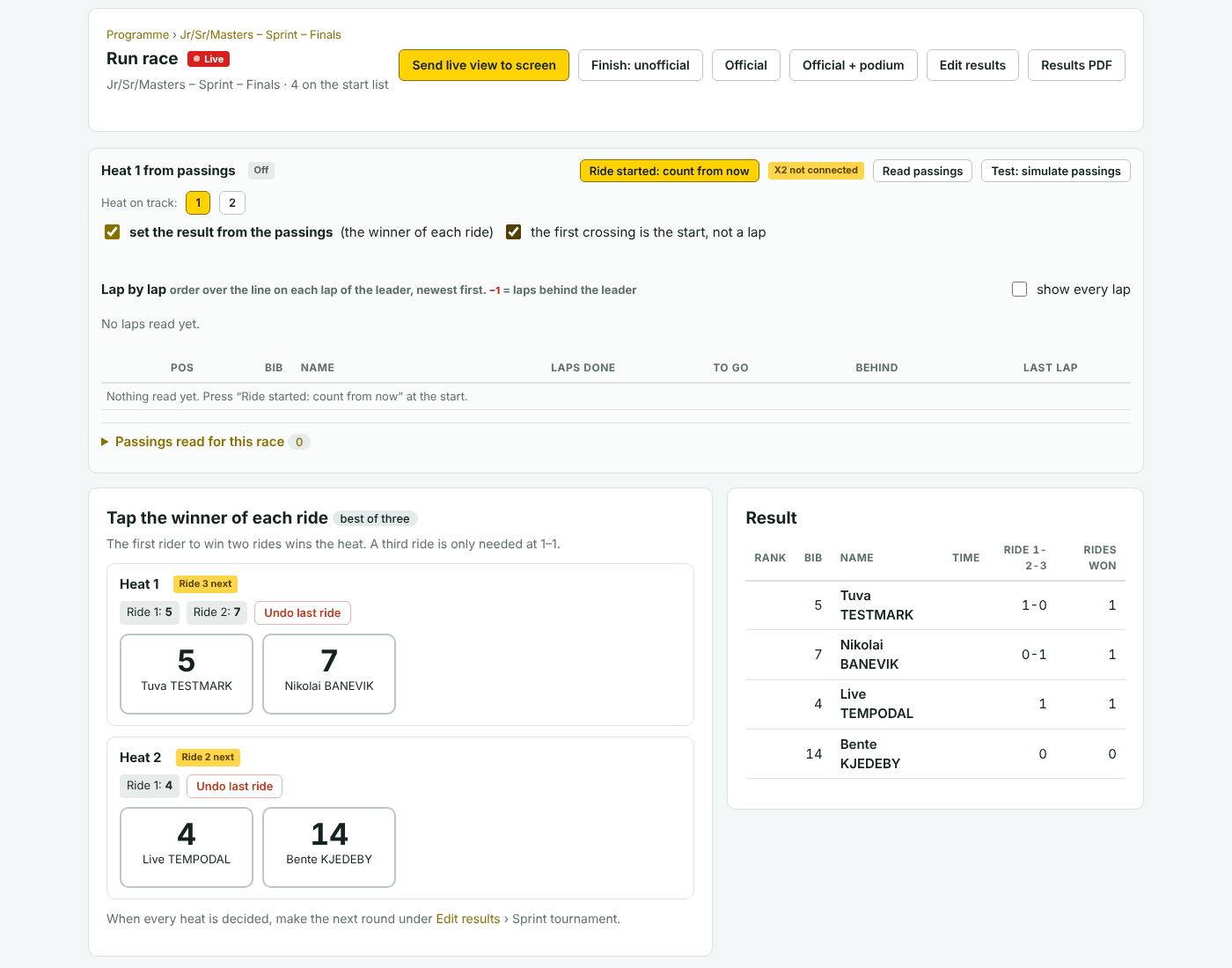
Two riders meet in each heat, over a few laps. The first over the line wins the ride. A heat is decided by one ride, or by best of three: the first rider to win two rides. A rider alone in a heat goes through on a walkover.
The winner of each ride, when the first rider has ridden the laps of the race. The winner’s time over the last 200 m. In a heat with three or more riders decided by one ride: the whole finishing order. The race needs Laps for this.
- With several heats, choose the one that rides under Heat on track.
- Press Ride started: count from now when the riders start.
- The winner is set from the chips, or you tap the winner under Tap the winner of each ride.
- In best of three, do the same for the next ride. The heat shows Ride 2 next, then Decided 2–0 or 2–1.
Undo last ride takes the last ride of a heat away. Then tap the right winner. Under Edit results you can type the finishing order of all heats, the winner first in each heat, and set a rank.
Best of three, one ride at a time
At many meetings the three rides of a round are not ridden straight after each other: ride 1, then other races, then ride 2, and a third ride only where it stands 1–1.
Set it up in the programme
- On the Programme tab, press Best of 3 (or 1 ride) after the name of the sprint round. In the box, press Rides as rows of their own.
- The race’s own row is now Ride 1, and two new rows come right after it: Ride 2 and Ride 3 (if needed). Drag them to where they are ridden. Each row takes the time of one ride of every heat.
Run ride 2 and ride 3: the same way as ride 1
The three rows are one race with one Run page. Nothing special is switched on for a later ride: the page remembers what has been ridden and counts on from there.
- Press Run on the ride row. It opens the same Run page as ride 1. Each heat shows where it stands, for example Ride 2 next.
- Other races have been run in between, so press Read passings again. Only one race reads the chips at a time.
- Choose the heat that rides under Heat on track. Do this before every start: the page does not move to the next heat by itself while a heat is undecided.
- Press Ride started: count from now when the riders start. The winner is set from the chips, or you tap the winner under Tap the winner of each ride.
- Do the same for the next heat. A heat that stands 2–0 after ride 2 shows Decided 2–0 and is not ridden again. Only the heats that stand 1–1 ride the third time.
- Between the rides, leave the race as Live and go on with the next race in the programme. Do not set it to Provisional before the last heat is decided: that ends the race and stops the reading.
- When every heat is decided, set the race to Provisional and make the next round.
- A wrong winner: Undo last ride on the heat takes the last ride away, also a ride from earlier in the day as long as it is the last one of that heat.
- The public page, the PDF and the big screen show the rides as rows of their own, for example “Sprint – Semi-finals – Ride 2”. A ride row is marked as done when every heat has had that ride or is decided, so “Ride 3 (if needed)” is done at once when all heats ended 2–0.
- The result list shows, for each rider, the rides in order (1 = won, 0 = lost, for example 1-0-1) and the number of rides won. The big screen draws a trophy for each ride won. The rider is ranked in the heat when the heat is decided.
- The ✕ on a ride row puts all rides back in the race’s own row. Setting the round to one ride removes the ride rows too.
Making the rounds
- Heat names and heat order on the board (1.11.2): on the start list of a sprint or keirin race, every heat on the Start order board has a name field and ▲ ▼ arrows. Name the finals fills in Final for gold, Final for bronze, Final 5–6, 7–8… in riding order (in the screen language); the arrows move a whole heat earlier or later, and the name follows it. Press Save start order. The Run console then says “Final for gold” with the two riders, instead of “Heat 1”, and so do the big screen, the lists and the PDFs.
- Finals straight from the qualifying (1.11.0, the Banecup way): under the same card, Make the finals: the fastest (2, 3 or 4) go straight to the final for gold – a walkover past every earlier round – and the rest ride finals for the places after them, 3–4, 5–6… (or bigger finals, 3–6, 7–10…). One race “Finals” with one named heat per final, ranked across the heats, so the sprint tournament standings run 1, 2, 3… for the whole class. A leftover rider joins the last final. The Programme tab shows a Sprint tournaments card per class – the qualifying and its rounds with their status, like the omnium cards – with the button to make the finals once the qualifying is official, and the standings and PDF after.
- First round: open the Flying 200 m, the tab Results, and find Sprint tournament. Choose how many riders go through, and one ride or best of three, and press Create sprint round. The fastest meets the slowest qualifier, the second fastest the second slowest, and so on.
- Next round: when every heat has a winner, open the sprint round’s Results tab and press Create next round. From the semi-finals you get both the Final and the Final for bronze.
- Sprint heats where everybody rides: press Create sprint heats by ranking instead. The riders are put in heats of 2 to 6 with those nearest in time. Nobody is knocked out. After each round, Create next sprint heats moves the winner of a heat up one heat and the last rider down one.
Team Sprint Time Start gate + countdown #
Teams, normally of three riders, start from the gate, one team on each side of the track. Each rider leads one lap and then pulls off. The time is taken on the last rider.
The team’s time from the start signal to its own line (red or green) on the last lap. With chips it is the chip of the last rider of the team over the line. Split times every half lap.
The same as in a pursuit: check who is on track, press START COUNTDOWN, let the times come in, press Save and go to next.
Type the time, or pick another of the listed times. Places 5 to 8 after a first round are not worked out: set them with Rank under Edit results.
Rounds: under Next round on the Results tab, the app offers the first round with the 8 fastest teams (4 v 5, 3 v 6, 2 v 7, 1 v 8), and then the finals: of the four heat winners the two fastest ride for gold, the other two for bronze. With fewer teams it offers finals straight from the qualifying.
Time Trial Time Start gate + countdown #
The rider starts from the gate and rides a set distance alone, for example 500 m or 1 km. Two riders can be on the track at once, one on each side. The fastest time wins.
The time from the start signal to the rider’s own line, on the crossing that ends the distance. Split times every half lap, compared with the best time so far, or with the rider on the other side.
- Check the riders under On track now. If others are at the start, open Choose who is on track, tick them and press Put the ticked on track.
- Press START COUNTDOWN.
- The time comes into the field in green when the rider finishes.
- Press Save and go to next.
Finish now takes a hand time from the running clock. Or type the time. After a false start, press Abort / reset clock and then New start: set this heat’s passings aside.
The race needs Laps or Distance, so the app knows which crossing is the finish. Crossings in the first 5 seconds after the start are the start itself.
Individual Pursuit Time Start gate + countdown #
Two riders start on opposite sides of the track and ride the same distance. In the qualifying the times count. In the finals each heat is a duel: the rider who catches the other, or has the best time, wins.
Each rider’s time from the start signal to the rider’s own line. Split times every half lap with the gap to the opponent. A catch: one rider reaches a line before the other, although that rider started half a lap behind. In finals: the ranking heat by heat.
- Check Red and Green under On track now. Swap red and green line changes sides.
- Press START COUNTDOWN.
- Follow the split times. The finish times come into the fields in green.
- Press Save and go to next.
Type a time or use Finish now. The buttons after Caught by the opponent mark a rider as caught, or take the mark away. A rider marked as caught gets OVL on the lists.
- In the qualifying a caught rider rides on and gets a time. A catch is shown as a warning, but changes nothing.
- For finals, tick these two under Race settings and status: Final: each heat is a duel. The last heat rides for gold, the heat before for bronze and A rider or team that is caught has lost. Finals made by the app have them ticked already.
- Rounds: under Next round on the Results tab of the qualifying, the app offers the finals from the four fastest riders: 3 v 4 for bronze, then 1 v 2 for gold.
- For the coaches at the track there are pursuit boards for tablets.
Team Pursuit Time Start gate + countdown #
Like the individual pursuit, with teams, normally of four riders. The team’s time is taken on its third rider.
The team’s time on the chip of the third rider over the team’s own line, the split times every half lap on the third rider, and a catch. All riders of the team need a chip for this.
The same as in the individual pursuit. Make the teams on the start list first: see Teams.
Type the time, or pick another of the listed times: there is one per rider of the team. Places 5 to 8 after a first round are set with Rank.
Rounds: under Next round the app offers the first round with the 8 fastest teams (6 v 7, 5 v 8, 2 v 3, 1 v 4), and then the finals: the winners of heats 3 and 4 ride for gold, the two fastest of the other teams for bronze. With fewer teams it offers finals from the four fastest.
Keirin Finishing order Bunch start #
A small group of riders per heat (the app starts with six) follow a pacer for the first laps and then sprint for the line. The finishing order of the heat decides. The first riders of each heat go on to the next round.
The finishing order of the heat, when the leader has ridden the laps of the race, and every rider’s time over the last 200 m (from 1.6.0, not only the winner’s). The race needs Laps: set the whole race, 6 laps on a 250 m track, so laps to go and the finish are right; nothing is timed before the last 200 m anyway. Laps behind the derny under race settings shows Derny under the laps to go on the screen while the field is behind it.
- Choose the heat under Heat on track.
- Press Heat started: count from now at the start. The big screen then shows that heat only (start list, live positions and result), not both heats page by page. All heats next to the screen button shows them all.
- The order is set from the chips, or you tap the riders in finishing order. While the heat is on, the screen shows the riders in the order they last crossed the line.
Undo last takes away the last rider you placed. Under Edit results, type the finishing order of all heats, the winner first in each heat. A relegation is entered under Decisions.
Next round: on the Results tab, open Next round. Type how many of each heat go on and to which round, for example the first 2 to “Final 1–6” and the next 2 to “Final 7–12”, and press Make next round. Riders can also be added to a race that exists, such as a repechage.
Scratch Laps, then finishing order Bunch start #
A bunch race over a set number of laps. The first rider over the line after the last lap wins. A rider who has gained a lap is ahead of those who have not.
The laps of every rider, laps to go, and when the leader has ridden the distance: the finishing order, every rider’s time from the start (1.6.0) and how many laps down each rider is. Laps ridden after the finish are not counted. The race needs Laps. On the big screen the riders are shown in the order they last crossed the line while the race is on.
- Press Race started: count from now at the start.
- Follow the laps to go and the lap chart.
- At the finish the order is set from the chips, or you tap the riders in finishing order.
Undo last, then tap. Under Edit results: the finishing order, Laps +/− per rider, and the status. A rider who did not cross the line after the winner gets no place: set DNF yourself.
Points Race Points Bunch start #
A bunch race with sprints at set laps. The first four over the line in a sprint get 5, 3, 2 and 1 points. The final sprint gives double points. A rider who gains a lap on the field gets 20 points, a rider who loses a lap loses 20. Most points wins. Equal points are split on the place in the final sprint.
Every sprint, when the head of the race completes the sprint lap, and the finishing order. Laps gained and lost are not worked out from the passings (from 1.6.0): enter them with + lap / − lap, and the sprints and the finish are judged with them. The race needs Laps and Number of sprints; the sprint with the number of sprints is the final sprint and gives double points.
- Press Race started: count from now at the start.
- The box Sprint 1 of … fills from the chips. If it does not, tap the riders in the order they scored, or press Sprint result from lap reading.
- Press Next sprint › when you tap by hand. With chips the page moves on by itself.
- Use + lap and − lap under Laps gained and lost when the commissaires give or take a lap. The riders are shown on the big screen in a green box.
- The big screen shows a sprint when all four places are in, once. A correction after that is not shown until you press Show sprint … on screen. Riders without points have blank cells in the standings until they score.
- If the number of sprints was not set, press This is the final sprint on the last one: double points, and the race is set to end with it.
Undo last removes the last rider of the sprint. ‹ Previous goes back to an earlier sprint. Under a lap in the lap chart, → sprint … takes the order from exactly that lap. Under Edit results there is one field per sprint, Laps +/− and Points adj.
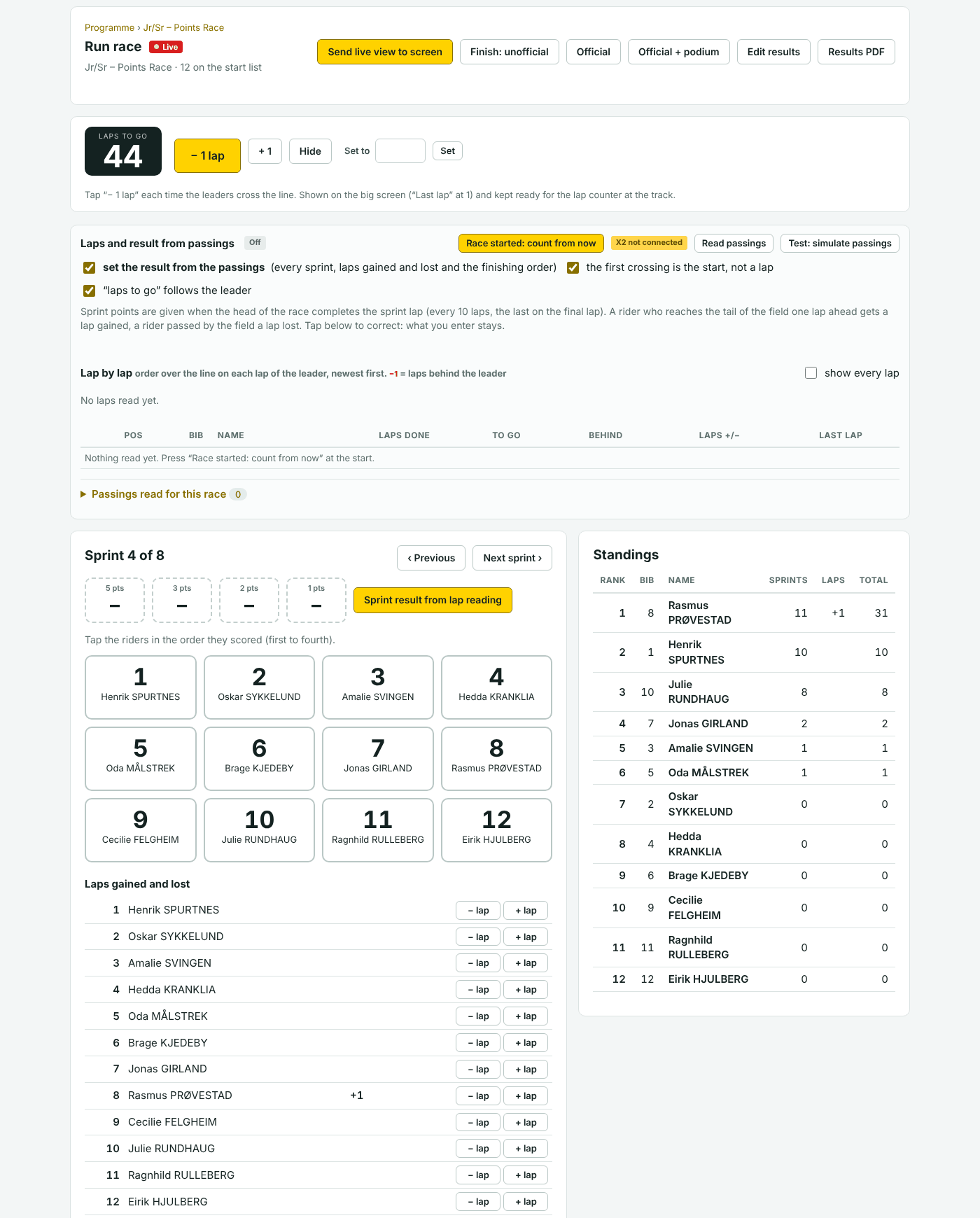
Tempo Race Points Bunch start #
A bunch race where the first rider over the line on a sprint lap gets 1 point. A lap gained gives 20 points, a lap lost takes 20 away. There are no double points at the finish.
The same as in the points race, with one scorer per sprint. As standard there is a sprint on every lap, counted back from the finish. So 40 laps with 36 sprints means that the first four laps give no points.
The same as in the points race. Each sprint has one box: tap the first rider over the line. Set Laps and Number of sprints on the race.
The same as in the points race: Undo last, + lap, − lap, and the sprint fields under Edit results.
Elimination Elimination order Bunch start #
A bunch race where the last rider over the line on every second lap is out. It goes on until one rider is left: the winner. The result is the reverse order of elimination.
On every elimination lap: the last rider over the line. The rider is eliminated as soon as all the others have crossed, and fills the big screen for 15 seconds. The standard is every 2 laps. Change it with Laps between eliminations on the race.
- Press Race started: count from now at the start.
- Watch Next elimination and the red columns in the lap chart.
- Without chips, or when the commissaires decide: tap the rider under Tap the rider who is eliminated. The box turns red.
- If the rider does not leave the track, tap the red box. The name is shown on the big screen once more. The result is not changed.
- If the commissaires cannot decide who was last, press No elimination this lap: the screen says so for 15 seconds and nobody goes out on that lap.
On the screen (1.6.0) the result so far is listed next to the riders still in, the last one out with the best place, and the winner is shown in green.
Undo last puts the last eliminated rider back in the race. Then tap the right one. If you tap a rider yourself, the passings do not eliminate anybody else on that lap. A mistake further back is corrected under Edit results, in the field Eliminated, in order (first out first).
Longest Lap Finishing order Bunch start #
Every loop round the track reads the chips, so the app knows which loop each rider passed last and how fast he rode the sector before. On the screen the riders move on from that loop at that speed – never past the next loop until it has read them – and a rider in a track stand stays where he is. The sector before the finish line is marked in the event’s colour. Above the list: Would win now – the rider with the shortest way to the line – and the time the lap has taken so far.
When the gun goes, the screen flashes SHOT and runs a clock until the first rider is in; then the winner, the time from the shot, the length of the lap and – when it beats every official Longest Lap at the venue – NEW RECORD. The venue’s longest lap is printed under the list.
The result: finishing order after the shot, each rider’s From shot (the time from the gun to the line), At shot (metres to go when the gun went) and Lap time. A rider who crossed the line before the shot is marked EARLY; with the “first over the line” rule he is ranked after the finishers, with the full lap he is ranked by his finish like everybody else. During the sprint the list shows how far each rider has to his finish (the rest of the lap and the extra lap) and the red panel names who leads it.
The start (a rider’s start is the moment his chip left the finish line, where he stood or rolled), the positions, the finishers and their times, the early crossers, the distance at the shot and the lap time. A start impulse from the TimerBox more than 5 seconds after the riders left the line is taken as the shot (the gun on the TimerBox input – not tested on the equipment yet).
The loops need their Distance before finish under Admin › Venues (or Setup › Timing points for an event with its own setup). A loop without a distance is not used for positions; with only the finish line the screen shows a plain list. The Run console says so when fewer than three points have one.
- Add the race (Programme › Add race › Longest Lap). One heat is the standard; Riders per heat makes several. To see it without equipment: Test: simulate live in the Run console plays a made-up heat in real time on the big screen, the shot included (1.21.2).
- Send the live view to the screen, press Read passings, and Heat started: count from now when the riders leave the line.
- Press SHOT the moment the gun goes. Undo shot if you pressed it by mistake – the heat goes on.
- When everybody is in: Finish: provisional, then Official. The lap of an official race counts for the venue’s record.
Tap the riders in finishing order as in any race – what you tap is never overwritten. The commissaires may rank an early crosser differently: change the place under Edit results. Without chips the race is run by taps alone; the screen then shows the list without the map.
Madison Points Bunch start #
A points race for teams of two, who take turns racing. The points are the same as in the points race: 5, 3, 2 and 1 per sprint, double in the final sprint, and 20 points for a lap gained or lost.
Nothing by itself. Both riders of a team carry a chip, and the resting rider also crosses the line, so laps and sprints cannot be taken safely from the passings. The latest crossings are shown as a help. The standings are worked out from what you tap.
- Make the teams on the start list: see Teams.
- For each sprint, tap the teams in the order they scored, and press Next sprint ›.
- Use + lap and − lap for laps gained and lost.
- Count down the laps with − 1 lap in the box Laps to go.
Undo last and ‹ Previous, as in the points race. Under Edit results, type the team numbers in the sprint fields.
Omnium Sum of four races #
Four bunch races for the same riders: Scratch, Tempo Race, Elimination and Points Race. The first three give points by rank: 40 to the winner, 38 to the second, 36 to the third, two less per place. The points race comes last, and the points won and lost in it are added to the total.
The points of each race and the total, as soon as a race has a result. From 21st place a rider gets 1 point. A rider without a rank in a race (DNF, DNS, DSQ) gets 0 from that race. Equal totals are split on the place in the final sprint of the points race. The start order of the next race.
Run each of the four races as its own race: see Scratch, Tempo Race, Elimination and Points Race. The Run page of the omnium itself has a button to each race and shows the standings. In the points race, the column Start shows the points each rider brought along.
Correct the race where the mistake is. On the omnium’s own Results tab you can set a status, add or take away points with Points adj., and override the Rank.
Results #
elapsed, avg_kmh). The sprints of a points race are a table – one row per sprint, the places as columns with bib and name, the points in the head, the final sprint marked ×2 – and a tempo race is a grid of four sprints per row. A race of an omnium (not its points race) gets a column Omnium pts with the points the place gives (40, 38, 36 … 2; 1 from place 21), on the lists, the PDF and the big screen.The result of a race is worked out from what is stored on it: times, finishing order, sprints, laps and eliminations. The web pages, the PDFs, the big screen and the public page all show the same result.
The Results tab of the event lists every race with its status. Click a race to see its result. Start list PDF, Results PDF and Edit are on every row. Filter by class or by status at the top.
In this sectionFrom provisional to officialCorrect a result by handDNS, DNF and DSQDecisions: warnings and relegationsNext roundTrack records and personal bestsPoints by rank and points standingsPDFs, communiqué numbers and “Revised”Export
From provisional to official #
unofficial.- When the race is over, press Finish: provisional on the Run page. The race stops reading passings.
- Check the result against the photo finish and with the commissaires. Correct under Edit results.
- Print or show the unofficial result if you like. The big screen says “Provisional results”.
- When the commissaires approve, press Official, or Official + podium.
An official race is locked: the start list and the results cannot be changed, and no more passings are stored on it. If something must be corrected, an organiser or Elapse presses Reopen on the Run page. The race goes back to Unofficial.
You can also set any status by hand under Race settings and status on the race page. See Race status.
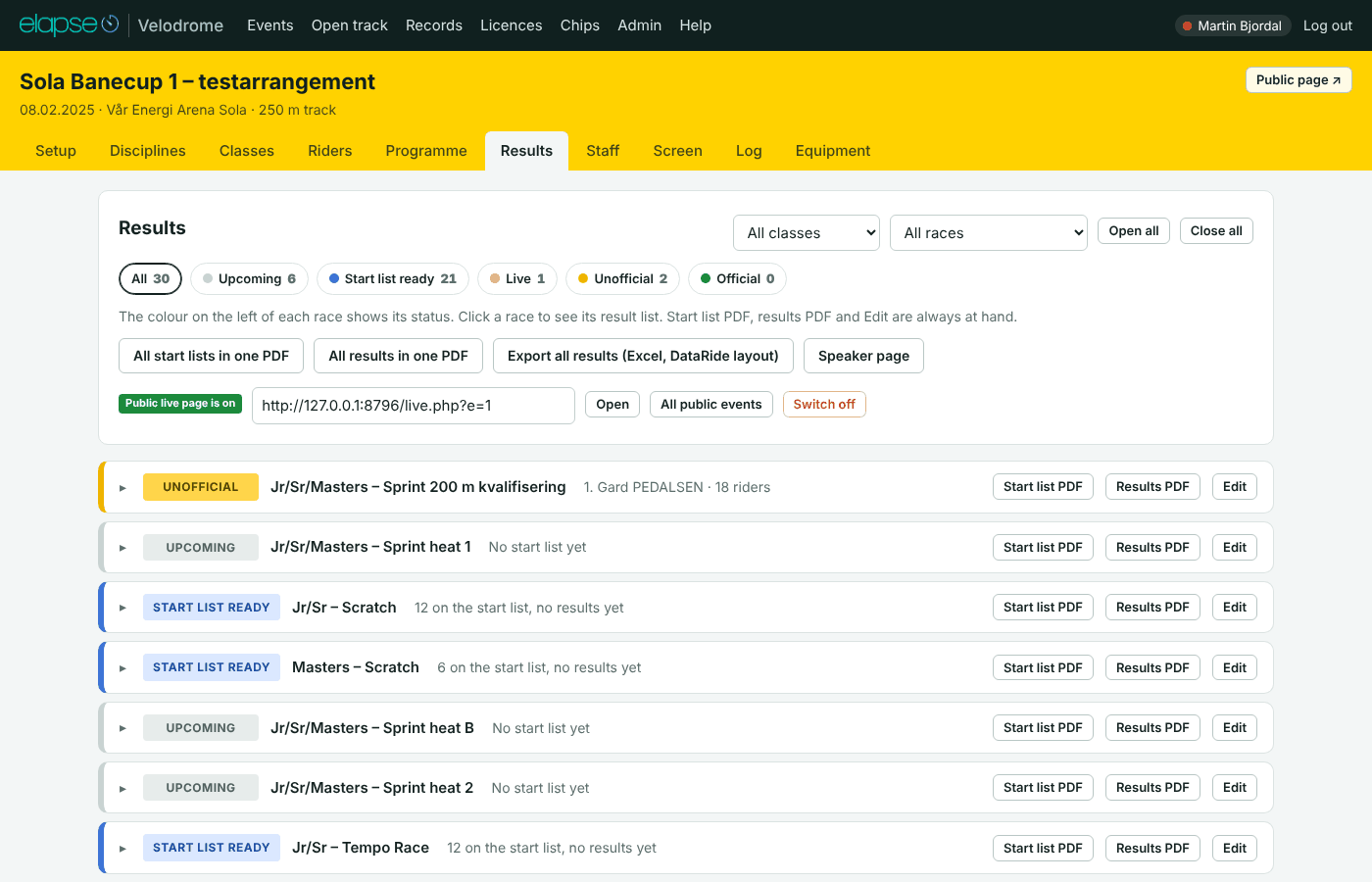
Correct a result by hand #
Open the race and its tab Results (the button Edit results on the Run page, or Edit on the Results tab of the event). The card is called Enter and correct results.
| Field | What it does |
|---|---|
| Time | Timed races, sprint and keirin. Write 10.234 or 1:02.345. |
| Finishing order | Bib numbers with a space between, the winner first: 5 12 3 8. In sprint and keirin: all heats, the winner first in each heat. In team events: the team numbers. |
| Sprint 1, Sprint 2 … | Points races: the bibs that scored in each sprint, in order. |
| Eliminated, in order | Elimination: the bibs in the order they went out, the first out first. |
| Laps +/− | Scratch and points races: laps gained (2) or lost (−1). |
| Points adj. | Points races and omnium: points added to or taken from the rider’s total. |
| Status | DNF, DNS or DSQ. See below. |
| Rank | Overrides the calculated rank. A rank set by hand takes that place, and the other riders fill the places that are left, in the calculated order. Leave it empty for “auto”. |
| Source | Where the result came from: Manual, Photo finish, Track contact or Chip. A row you change becomes Manual unless you pick something else. |
| Note | A short text shown at the end of the rider’s row. |
Press Save results. Every change is logged with your name. The card Calculated result below shows the result as it now stands.
Equal times in a timed race give the same rank. If the commissaires split them, set the Rank by hand.
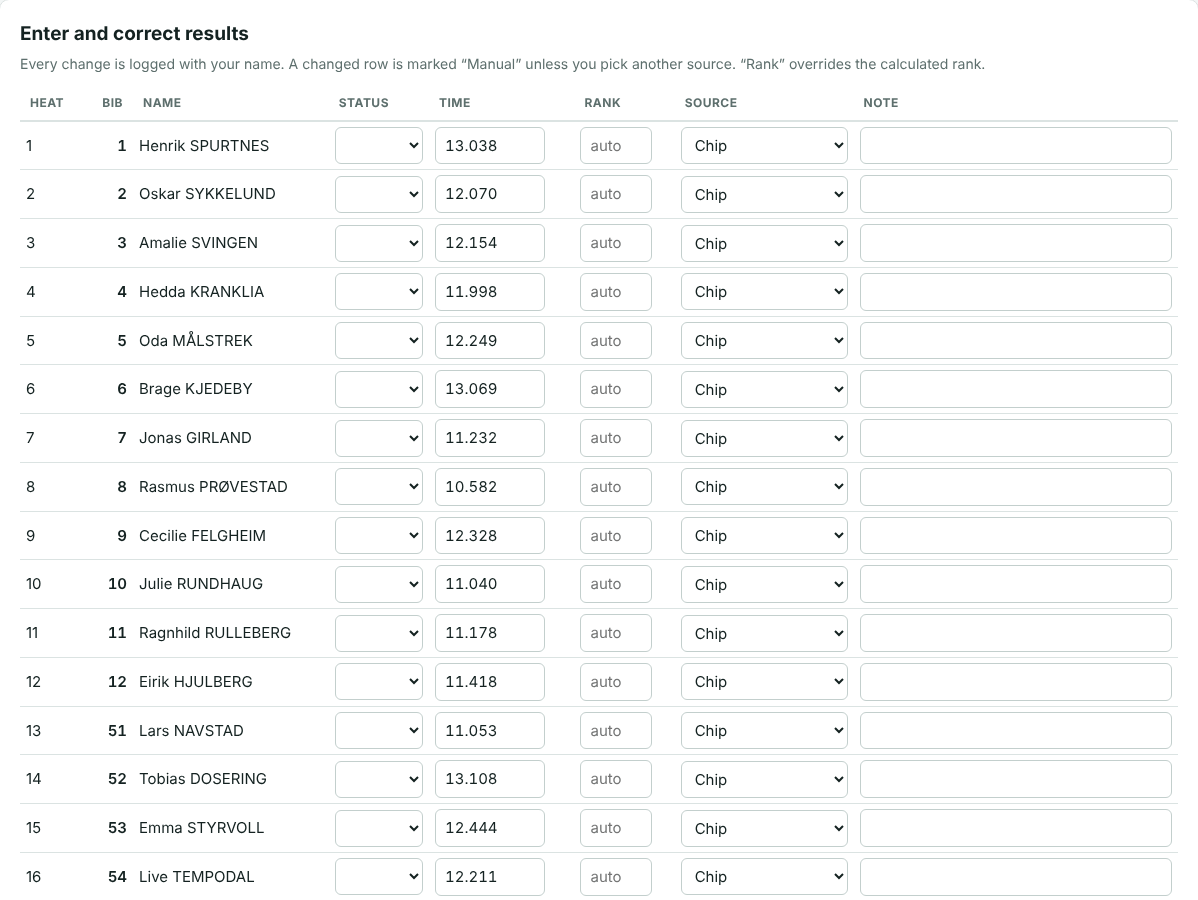
DNS, DNF and DSQ #
- DNS
- Did not start.
- DNF
- Did not finish.
- DSQ
- Disqualified.
- Set it in the Status column under Edit results, or next to the time field on the Run page of a timed race.
- A rider with one of these has no rank and is listed last: DNF first, then DSQ, then DNS.
- In an omnium the rider gets 0 points from that race. Adjust with Points adj. on the omnium if the commissaires decide otherwise.
- In a sprint, a rider whose opponent is DNS, DNF or DSQ goes through on a walkover.
- A rider who is not coming to the event at all: set the rider’s own status to DNS (did not start) or Withdrawn on the Riders tab. The rider is then not offered for new start lists.
Decisions: warnings and relegations #
The tab Decisions on the race page holds the decisions of the commissaires’ panel.
- Choose the Rider, or leave it on General.
- Choose the Code: Note, Warning, Fine, Relegation or Disqualification.
- For a relegation, type the place in To place.
- Pick a Reason from the list or write your own, and press Add decision.
- Disqualification sets the rider to DSQ in this race.
- Relegation with a place sets the rider’s rank. The riders behind move up. Without a place, correct the order yourself under Results.
- Warning: the app counts the warnings of each rider in the event and tells you when it is not the first.
- The decisions are printed under the results on the result list. W and REL are shown next to the rider.
- The list of all decisions of the event is on the Staff tab.
1.27.0 – the commissaires’ standard texts. The decision form has a Standard text list: the track commissaires’ penalty list (38 texts in seven groups – movements on the track, behaviour, advertising, equipment, intervention of staff, absences, race number), in the event’s language, each with the row of the UCI track penalty table it refers to. Choosing one fills the reason as “For riding on the blue band (ref. 5.2)”; the reason stays editable, and a “...” in a text (“For deliberate and flagrant fault against ...”) is selected so you type the name over it. With the rider and the code the communiqué line reads “Rider 99 – Warning – For not holding their line during the final sprint (ref. 5.1)”. Typing still works: the same texts are offered as you type. What a code does to the result is unchanged (above).
Next round #
When a race has a result, its Results tab has the card Next round.
- Any race: “The first … go to …” and “The next … go to …”. Type the numbers and the name of each round, and press Make next round. In races with heats the numbers are per heat. The best riders are spread over the heats of the new race.
- Riders can go to a new race, or be added to a race that already stands in the programme.
- Pursuits and team events have ready-made buttons for the first round and the finals. See Individual Pursuit, Team Pursuit and Team Sprint.
- Sprint has its own card, Sprint tournament. See Sprint.
The new race is an ordinary race with the status “Start list ready”. Check its heats on the start list and move it to its place in the programme.
Track records and personal bests #
- TR marks a time in a timed race that beats the track record of the venue the event is held at, for the same discipline, distance and class.
- NR marks a time that beats the Norwegian record (1.8.0). The big screen shows “New Norwegian record” when the time comes in.
- PB marks a rider’s best time in that discipline and distance across all events. It needs a UCI ID on the rider and no setup.
- All three are shown on the result lists, in the PDFs and on the big screen. The marks say that the time is faster than the list; records are ratified by the federation.
The records are under Records in the top menu. Organisers and Elapse add and change them: discipline, distance, class names, time, holder, club, date, and Applies to: the Norwegian record, or the track record of one venue. When the winner of a race beats the track record, or no track record is registered, the Results tab of the race shows a yellow box with the button Save as track record; it is saved for the venue of the event.
Menn Senior / M Senior / M Elite. It applies to a rider when one of those names is the class name of the race, or the rider’s age class on the rider list (the column that comes from the licence file). So a race for the class “Jr/Sr” still compares a junior with the junior record and a senior with the senior record, as long as the riders have their age class. Load the Norwegian records at the bottom of the Records page puts the federation’s list (as of 07.12.2025: flying 200 m and 250 m, 500 m and 1000 m time trial, pursuit, team sprint, team pursuit) in with one press, and can register the ones set at your own velodrome as its track records at the same time. Records already registered are kept. The Records page groups them by class within the Norwegian records and each venue’s track records (1.11.1), and the loader also registers two older Sola Arena records – Norwegian records when they were set, since beaten elsewhere – as Sola’s track records.Points by rank and points standings #
For a cup or a series, a race can give points for the final rank. Type the list in Points by rank when you add the race, or later under Race settings.
- A list, the winner first:
10 8 6 5 4 3 2 1. Ranks beyond the list give 0. - The word
auto: the last place gives 1 point, and one more per place up to the winner. With 14 starters the winner gets 14. Riders with DNS are not counted. - The result list gets the column Pts, and the rider’s page shows the total.
- The Results tab and the public page show Points standings per class: the sum over all races of the event. Equal totals are split on most wins, then most second places.
These points are separate from the points inside a points race or an omnium.
PDFs, communiqué numbers and “Revised” #
Every PDF is made fresh from the stored data each time you open it, so it always shows the latest result.
| Where | |
|---|---|
| Start list, Results | The race page, the Run page, each row on the Programme, Results and Staff tabs. |
| All start lists in one PDF, All results in one PDF | The Results tab. One race per page, in programme order. |
| Programme (timetable) | The Programme tab: Export programme as PDF. |
| Line-up sheets, Decisions and penalties, Numbers and chips | The Staff tab. |
Communiqué numbers
- With numbering on (Setup › Printouts), start lists and result lists are numbered in the order they are first printed by somebody who is logged in.
- A start list gets its number once the race is “Start list ready”. A result list gets its number once the race is Unofficial or Official. Before that the list is a draft without a number.
- The number stands in the heading (“Communiqué No. 12”) and first in the file name.
- If the list has changed since it was last printed, the next print is marked Revised 1, then Revised 2, and so on. Going from Unofficial to Official alone does not make a revision.
- To use your own number for a race, type it in Communiqué no. (own) under Race settings. It is used on both lists of that race.
- A number is never used again, also when the race is deleted. PDFs opened from the public page never take a number.
- The Staff tab lists the numbers given so far.
Export #
- Export on a race page gives the result of that race as an Excel file.
- Export all results (Excel, DataRide layout) on the Results tab gives one file with one sheet per race that has a result.
The columns are Rank, BIB, UCI ID, Last Name, First Name, Country, Team, Gender, Phase, Heat, Result, IRM and Sort Order. Gender is taken from the class name and is empty when the name does not tell. Look through the file before you upload it to UCI DataRide.
Big screen #
The big screen is a web page that shows what you choose on the Screen tab, or what the timekeeper sends from a race. It needs a link, not a login, and it updates by itself.
In this sectionOpen the big screenMain and timekeeper: who decidesWhat the screen shows by itselfThe choices on the Screen tabPodiumProgramme and break screensLanguage, colours, logos and sponsorsPursuit boards for tablets
Open the big screen #
- On a second display on your own PC: on the Screen tab, under Screen link, press Open on external screen. Chrome or Edge asks once for permission to place windows. Click in the new window, or press F, for full screen.
- On another PC: copy the link from the same card, open it in the browser there and press F11.
- Open in a new tab shows the screen in a tab, and the Preview at the bottom of the card shows it on the page.
Screen of the venue: when the event has a venue, the card also has a link that belongs to the venue. It always shows the event that is on there: the event whose dates include today. The screen PC at the venue then needs its link only once. For a test day, press Show this event at the venue now, and Let the venue follow the date again afterwards.
If the screen cuts the picture along the edges, set Free edge % under Fit to the screen.
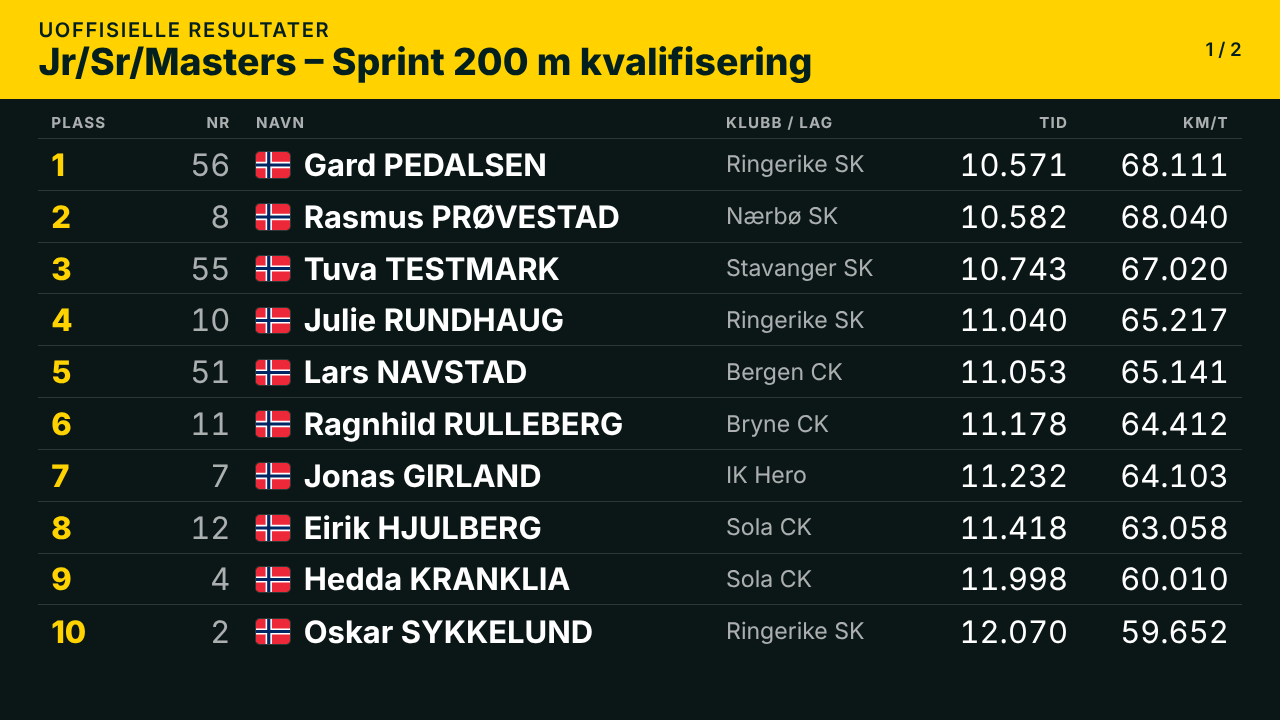
Main and timekeeper: who decides #
Two controls can put something on the screen:
- Main
- The Screen tab. Whatever is chosen here is shown.
- Timekeeper
- The buttons on a race: Start list to screen, Results to screen and Podium to screen on the race page, and Send live view to screen on the Run page.
Main always wins, except when Main is set to Follow timekeeper. That is the normal setting during racing: the timekeeper’s choice then goes straight to the screen.
The box at the top of the Screen tab shows three lines: Main, Timekeeper and On screen now. If the timekeeper sends something while Main shows something else, a yellow message tells them that it will appear when Main is set to follow the timekeeper.
What the screen shows by itself #
The screen does not jump to a new race by itself: somebody sends the race to it. But what it shows of that race follows the race and its status.
| When | The screen shows |
|---|---|
| Live view of a timed race | Who is on track and who is next. The countdown, and then the running clock. Split times and the time of each lap. When a rider finishes: time, speed and rank, and “New track record” or “Personal best”. The leaders so far. |
| Live view of an elimination | “Eliminated” with the rider’s number and name for 15 seconds, then the riders who are left. At the end: the winner. |
| Live view of a points race, tempo race or Madison | The standings after the latest sprint. When points are given, a panel shows who got them, for 10 seconds (the number can be changed). |
| Live view of scratch, sprint and keirin | The result as it stands. |
| A list with several heats | When a heat has three or more riders (keirin, a three-up sprint), each heat gets a page of its own and the pages change every 8 seconds. Heats of two (sprint pairs) share a page. |
| A bunch race that is Live | Laps to go, “Last lap” at 1 and “Finish” at 0. |
| Results of a race | The heading follows the status: “Live standings”, “Provisional results” or “Results”. Long lists are divided into pages that change by themselves. |
| Start list of a bunch race with a line-up | The riders at the fence and the riders in the sprinters’ lane, as two groups. |
| A break countdown reaches zero | The screen goes on to “Follow programme”. |
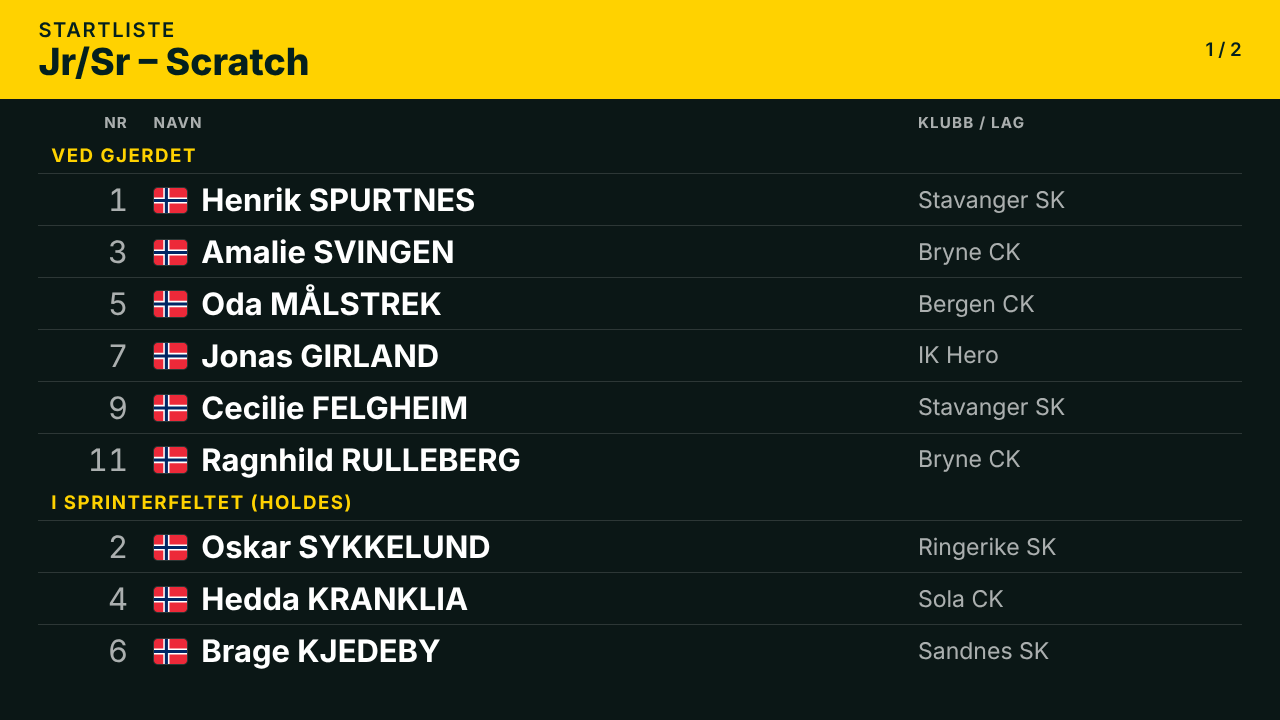
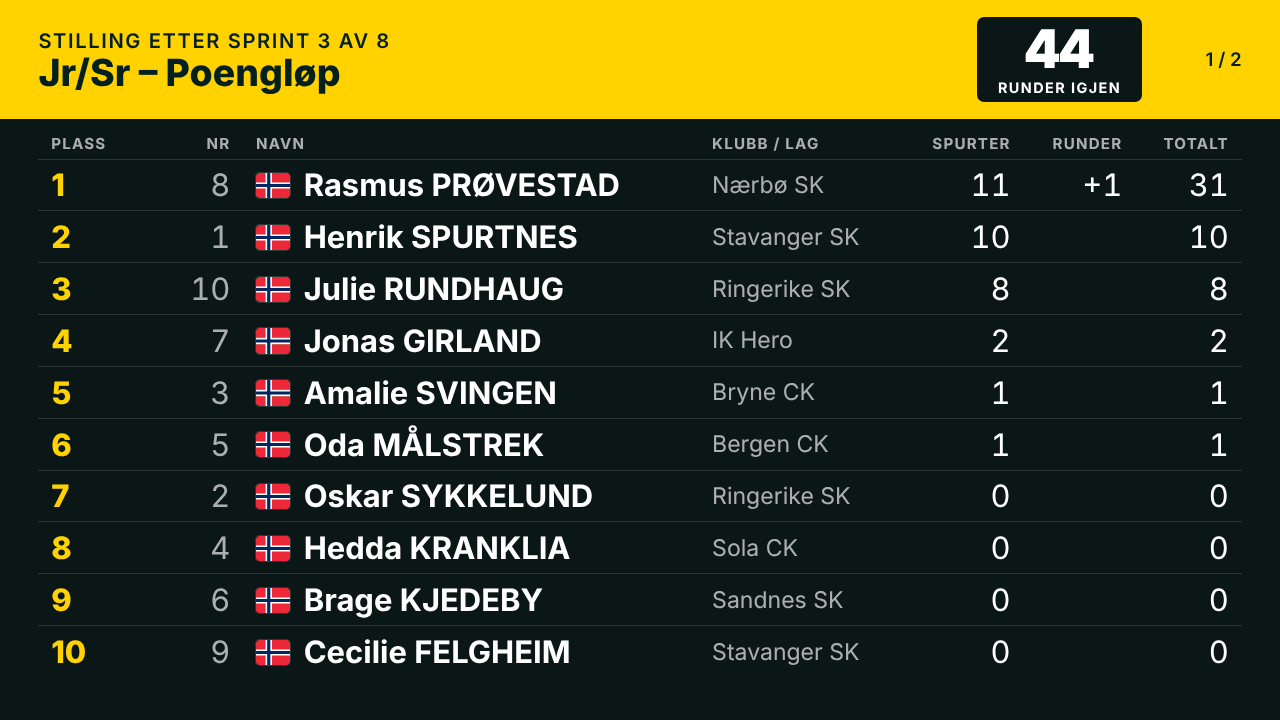
The choices on the Screen tab #
photo.php?e=…&k=…, the screen key). Paste or choose a picture there and Save; the pictures are listed newest first with the time they were taken. 1.17.4: that page only uploads – the pictures appear on the Screen tab by themselves (the list refreshes every few seconds), and it is the Screen tab that chooses which picture goes on the big screen, and when. 1.17.2: the photo-finish PC can use one general link instead, …/photofinish.php (no event in the address): the operator picks the event there – the ones on today first – and goes on to its photo page; the choice holds for the browser session, Another event goes back. Under Admin › Security a code can be set that the general page asks for once per browser; empty = open, like the speaker links.- Follow timekeeper
- Lets the timekeeper’s choice through. Use this during racing.
- Logo
- The event logo.
- Clock
- A big clock with the date.
- Black screen
- Nothing.
- Race
- Choose a race, then Show start list, Show results, Show live race or Show podium. Finished races are listed last and greyed, so the next race is at the top (1.6.0). A race with heats gets a second choice: All heats page by page, or one heat only, for the start list, the live view and the result.
- “Laps to go” changes at
- Under Appearance. Normally the laps to go change when the leader crosses the finish line. Choose a loop on the far side of the track and the next number is shown when the leader passes that loop, half a lap earlier.
- Message
- Type a heading and a text, for example “Welcome” and “Racing resumes at 14:30”, and press Show message.
The button of the choice that is on is coloured. To go back to normal, press Follow timekeeper.
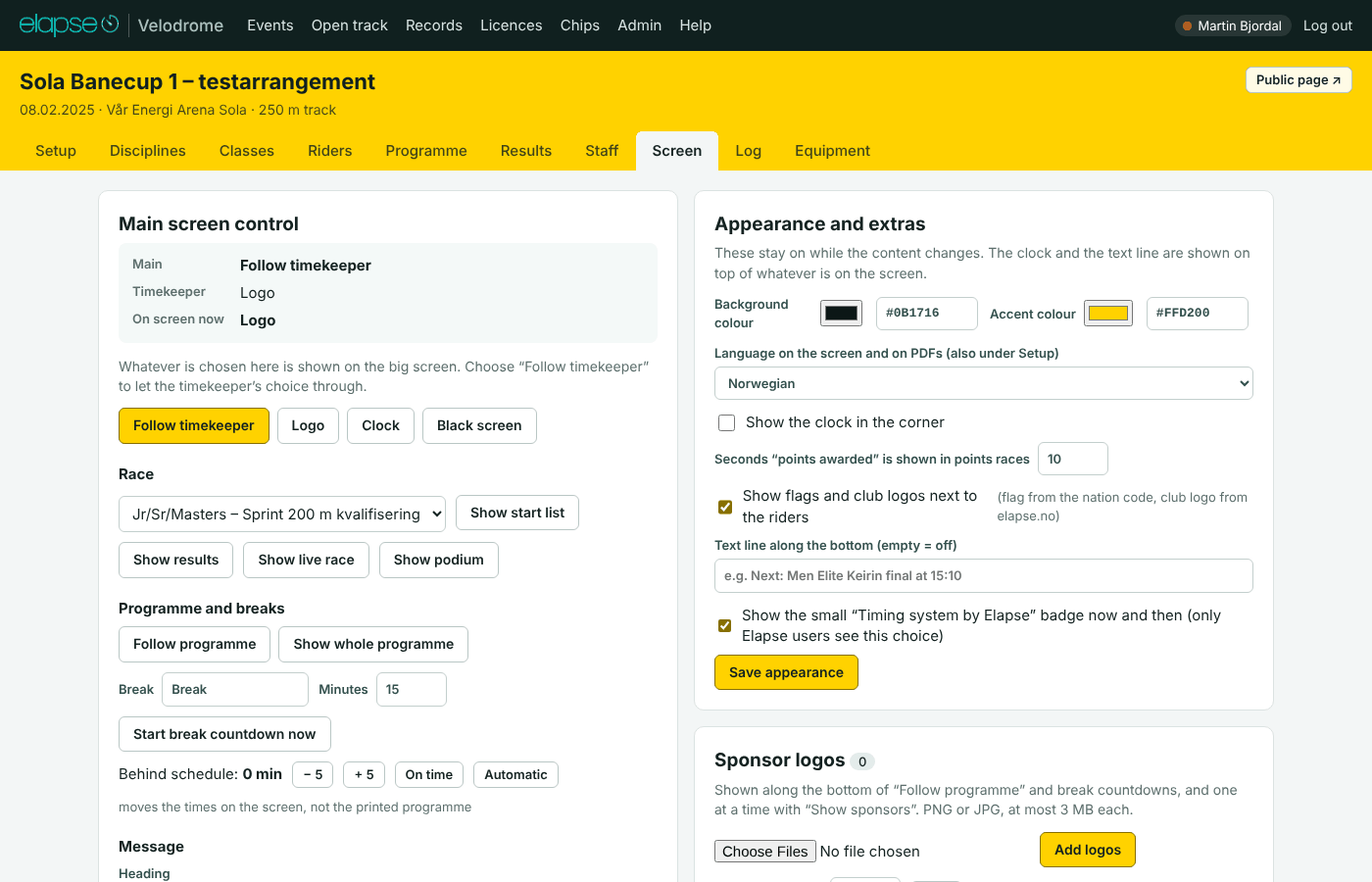
Podium #
The podium shows the top three of a race in gold, silver and bronze, with flag, club and time or points. Three ways to show it:
- Official + podium on the Run page: sets the race official and shows the podium in one press.
- Podium to screen on the race page.
- Show podium on the Screen tab, after choosing the race.
A race that is decided heat by heat (sprint, keirin), or that has no ranked riders yet, shows the result list instead. In a joint race with separate results the podium shows the first class.
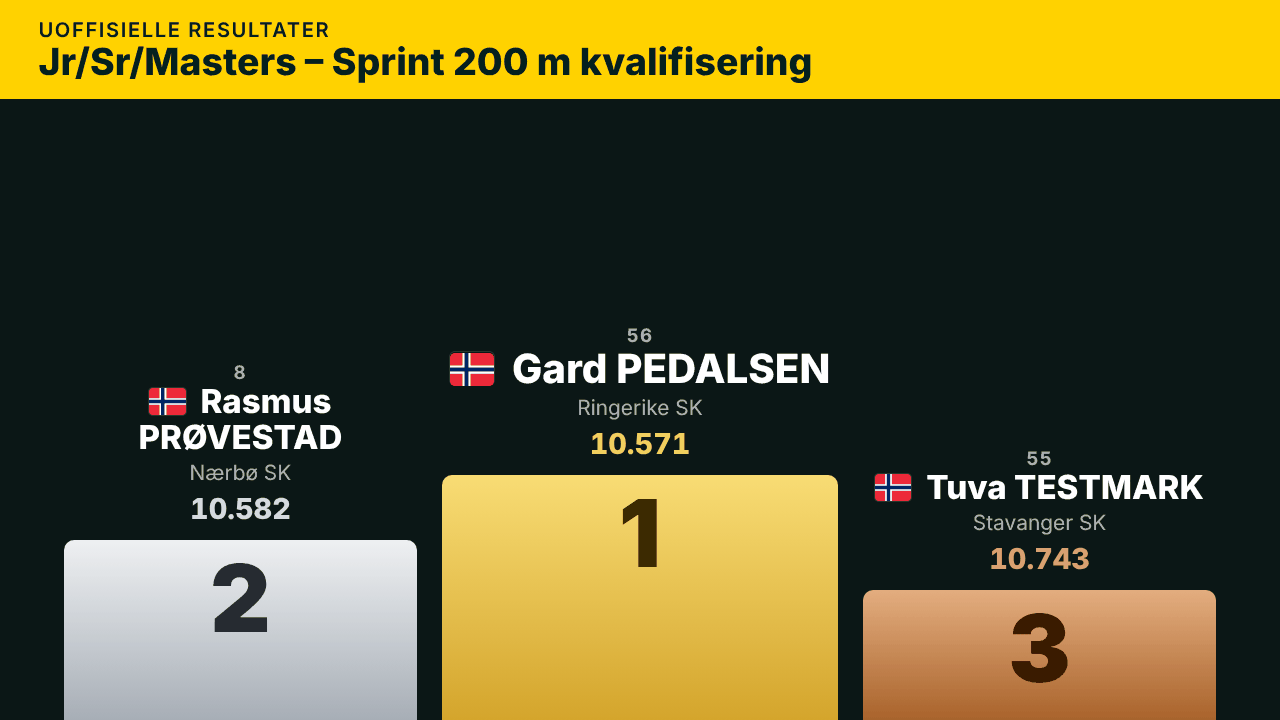
Programme and break screens #
- Follow programme shows what is on now and what comes next, from the times in the programme. A race that is Live is “now”. A race that is Unofficial or Official is done. Otherwise the clock decides.
- Show whole programme shows the timetable of the day.
- Start break countdown now: type the name and the minutes. The screen counts down and says when racing resumes. The same is done with Start on screen on a break in the programme.
- Behind schedule: move the times on the screen with − 5 and + 5, press On time to go back to zero, or Automatic to let the app measure the delay. The printed programme is not changed.
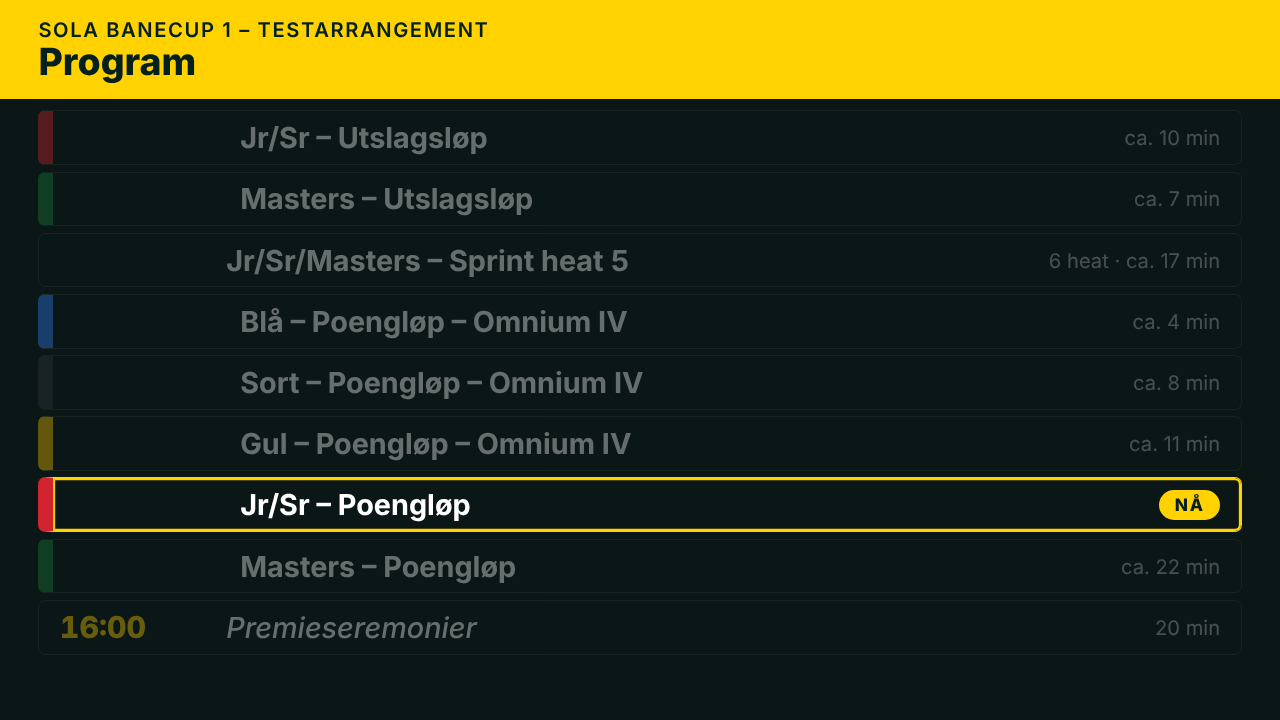
Language, colours, logos and sponsors #
Under Appearance and extras on the Screen tab. Press Save appearance after a change.
- Language on the screen and on PDFs
- English or Norwegian. The same setting as on the Setup tab. Names, class names, your own titles, messages and the text line are shown as typed.
- Background colour, Accent colour
- The colours of the screen. The accent follows the event colour until you choose another.
- Show the clock in the corner
- A small clock on top of whatever the screen shows.
- Text line along the bottom
- A line of text on top of everything, for example the next race. Empty means off.
- Show flags next to the riders
- The flag comes from the rider’s nation code.
- Club logos next to the riders
- As they are puts transparent logos straight on the background, On a white chip is for dark logos that would disappear, Off shows none. The logos come from one folder on the web, set once by Elapse under Admin › Branding: the file name is made from the club name (lower case, æøå as ae/o/a, “Sykleklubb” and “Sykkelklubb” as sk, “Cykleklubb” as ck, “Cycle Club” as cc, “Idrettslag” as il, then letters and digits only), so Stavanger SK looks for
stavangersk.pngand Sola Cykleklubb forsolack.png. A club whose file has another name is listed there asClub name = file. A club without a file simply shows no logo. That page also lists every club in the database with the file it looks for. - Seconds “points awarded” is shown
- How long the points panel stays up in points races.
- Event logo and timer logo are set on the Setup tab.
- Sponsor logos: add PNG or JPG files of at most 3 MB under Sponsor logos and press Add logos. They are shown along the bottom of “Follow programme” and the break countdowns, and one at a time with Show sponsors.
Pursuit boards for tablets #
At the bottom of the Screen tab there are two links: Red line (start position 1) and Green line (start position 2). Open one on a tablet at each pursuit line and hold it up to the rider.
- The board fills the screen with the gap to the opponent at every half lap, in seconds and metres. − means ahead, + means behind.
- It also shows the lap and the last half-lap time. With one rider on the track, the gap is to the best time so far.
- It follows the pursuit, team pursuit or time trial that is live. It needs no login and updates about once a second.
Public pages and speaker page #
Spectators, riders and teams can follow the event on their phones. The speaker has a page of their own. Neither needs a login, and neither can change anything.
In this sectionThe public live pageAll public eventsThe speaker pageLinks for the organiser’s website
The public live page #
- On the Results tab, press Switch on public live page.
- Copy the link that appears and share it, for example as a QR code at the track.
- The button Public page ↗ at the top right of the event opens the page.
The page shows:
- On now and Coming up, from the programme.
- Before the event: the page goes by the date, not only by the clock. Until the first day it says how many days are left (“Starts in 3 days”, “Starts tomorrow”) with the day and the time of the first row, and nothing is marked as on now. On a day of the event, before the first row, it says “Starts in 2 h 10 min”. After the last day the whole programme is shown as finished. This needs From date under Setup: without a date the page can only go by the clock.
- The race that is Live, with the standings as they come, laps to go and the last sprint.
- The whole programme with status. The clock time is shown on the rows marked “public” (see Start times on the public programme), the others show the number of heats and about how long they take. The times follow the minutes behind schedule.
- The points standings, when races give points by rank.
- Every race: its start list once the race is “Start list ready”, and its result once the race is Live, Unofficial or Official.
- Links to the PDFs: start list, results, programme and all results.
The page reloads itself every 10 seconds while a race is live, else every 30 seconds. It uses the language of the event. After the event it stays as the result archive, until you press Switch off.
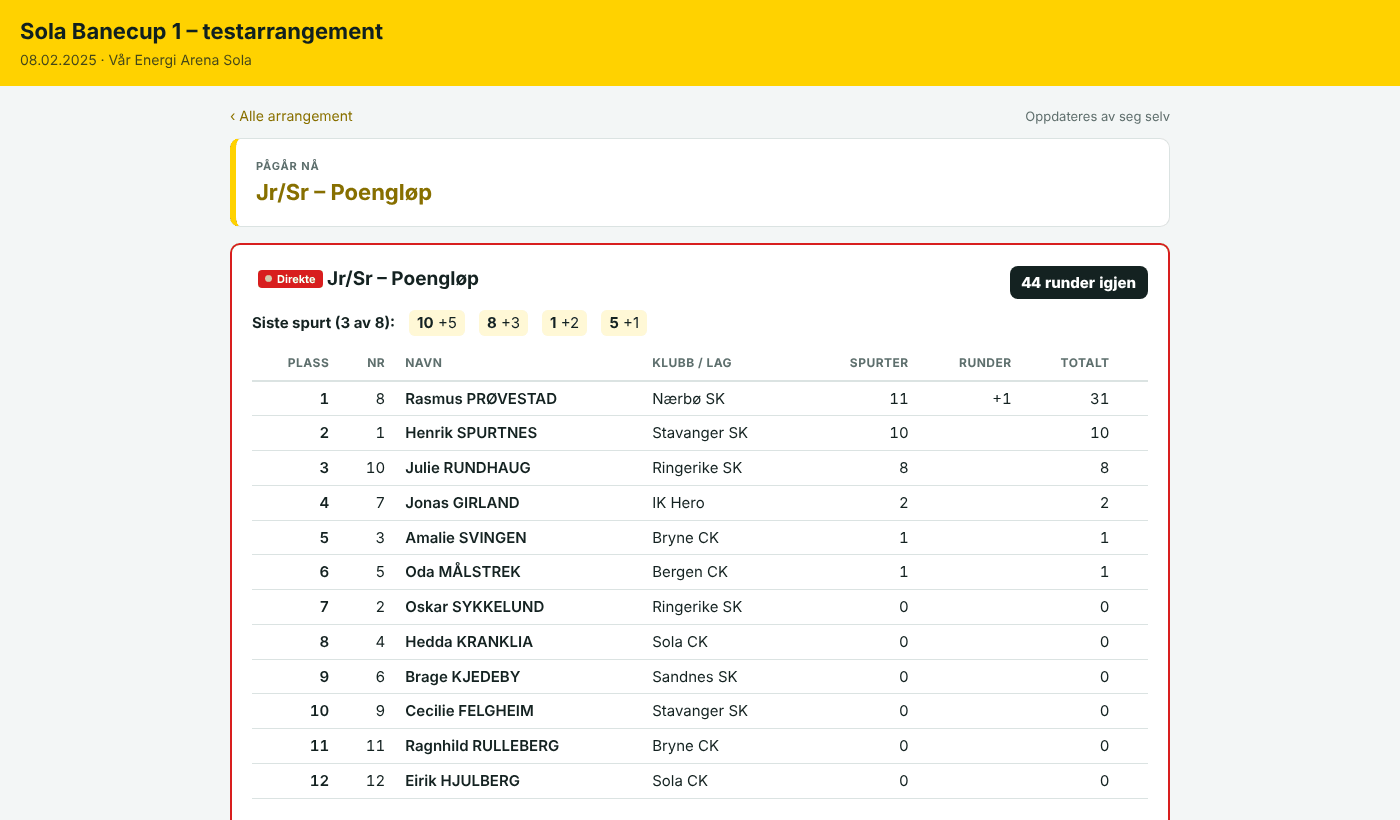
All public events #
All public events, next to the link on the Results tab, opens the list of every event whose public page is switched on, newest first, year by year. An event with a race that is live is marked Live.
The speaker page #
Press Speaker page on the Results tab and give the link to the speaker. Since 1.14.0 it is a page in three columns:
- Programme (left): every row of the day with the programme time, the estimated time when the day is behind or ahead of schedule (the delay from the Screen tab, automatic or set by hand), ON NOW, NEXT with “in 12 min”, and ✓ for the races that are run. Click a race to show it in the middle.
- The race (middle): the one clicked, else the one on now, else the next. Its times, discipline, laps, distance, sprints, heats and the record to beat; laps to go and the standings while it is live, the result when it is finished; and the riders with bib, full name, club and team, nation, age class, UCI ID, UCI rank (on UCI events) and what they have done earlier today (“1. Scratch · 3. Tempo race”). Line-ups show fence and lane, timed races the heats.
- Coming up and latest results (right): the next races with their estimated times, and the top three of the last finished races. Click any of them to open it in the middle.
The page reloads itself every 5 seconds and keeps the race you chose and your place on the page. The clock and “Behind schedule” are at the top. The link holds a key, so do not post it publicly.
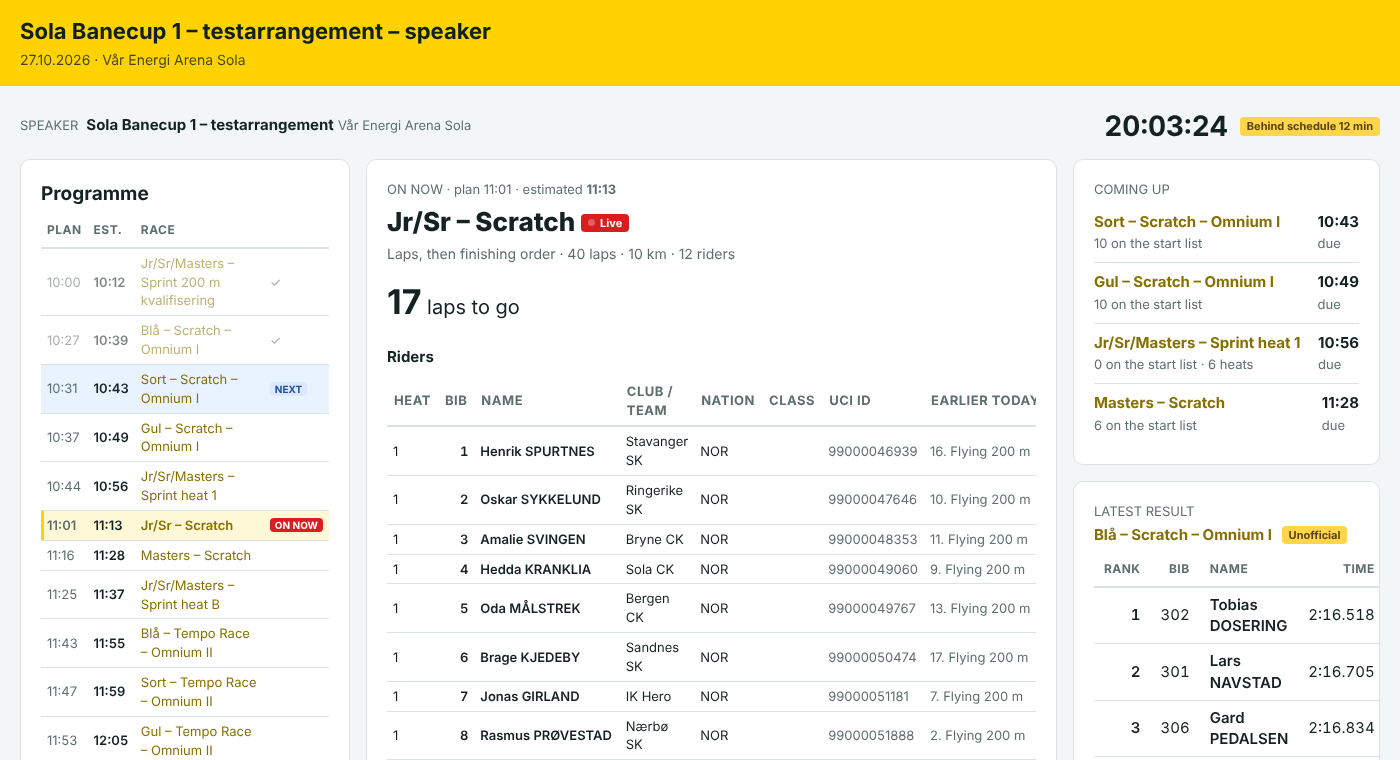
Links for the organiser’s website #
The organiser often has a page of its own (for example on trackcycling.no) with the start lists and results as PDF. Instead of uploading files, give them links: a PDF is made the moment somebody opens the link, so a link pasted on the website before the event shows the final list afterwards, corrections included.
- Switch on the public live page on the Results tab.
- Open Links for the organiser’s website under the buttons, on the Results tab or the Programme tab (1.6.2). There is one link for the live page, the programme PDF (and one per day when the event has several days), all start lists and all results, and for every race a start list link and a results link.
- Click a field to select the link and copy it. Send the links to the organiser once.
- The links work without login as long as the public live page is on.
- A start list opens when the race is Start list ready, a result list when the race is live, unofficial or official. Before that the link says “Not found”.
- The simplest set for a website: the live page, “All start lists” and “All results”.
Control room #
The Control room tab (1.25.0) is the race director’s page: the day at a glance, in big figures, refreshed every 10 seconds. Put it on a wall monitor with Full screen.
- Against the programme: how many minutes behind (or ahead) the day runs, races run of the day’s races, and when the last race is expected to end. Green up to 5 minutes, yellow up to 15, red beyond.
- On track now with laps to go and a button to its Run console; Next with the expected times and “in n min”.
- Equipment: TimerBox and MYLAPS X2 – green when heard from within the last minute, yellow when silent, red when silent for 10 minutes or more; riders without a chip, riders not starting.
- Waiting: provisional results not yet made official (yellow when any), the panel’s decisions of the day, the last result made official.
- Officials of the organisation, the panel and the timing, and links to the programme, the staff sheets, the screen control, the public page and the speaker page.
Officials tab #
The Officials tab (1.24.0) says who holds which role on the event – race director, assistant, secretariat, speaker, the commissaires’ panel (chief commissaire, commissaires, finish judge, starter, secretary), timing, results, photo finish, medical, track safety. The names are suggested from a people list, so a speaker is picked, not typed, the next time.
The roles of the event #
- Add: pick the role, write the name (the field suggests the people who hold that role, the venue’s first) and a note if you like (“day 1”, “afternoon”), press Add. Several at once: “Anne Berg, Ola Dahl”. A role can have any number of names – the jury has several.
- remember (ticked by default): a new name goes on the people list with the role, so it is suggested next time. A name that is already on the list is linked to it, and the role is added to that person if they did not have it.
- Copy the officials of another event – the last one at this venue, say – puts its names here; names already here are not doubled.
- Where they show: the speaker page (card Officials), the end of the programme PDF, one small line with the commissaires’ panel and the timing on every result PDF (as on a UCI result sheet), and – when Show on the public page and in the API is ticked (it is by default) – a card on the public live page and
officialsin the API’s event answer. Untick it to keep the names in-house. - ✕ removes a name from this event only.
- Accreditation cards (PDF) (1.25.0): one credit-card-sized card per official – name, roles, a colour band per group (organisation in the event colour, the panel red, timing dark), the event’s logo, name and dates – ten per A4 page with cut marks, for the laminator.
badges.php?event=…&role=pcpgives one role only. - Team of the day (1.25.0): on the Screen tab the officials can be put on the big screen as a calm slide by group – between races, or at the end of the day.
The people list #
One list for the whole server: a person, the roles they usually hold, their venue (optional), club, a note – and, for managers only, e-mail and phone. Everyone logged in may add a person; managers edit and remove. The list is filtered by venue, and the suggestions on the Officials tab put the event’s venue first, then people without a venue, then the rest. Removing a person never touches events: the name stays on every event it was written on. Use on a row jumps to the add field with the person’s name and first role.
Contact details are for the organiser’s own use (calling the speaker); they are never shown to the public, never in PDFs or the API. They live in the database like the rider list – so they are in the backup, and nowhere else.
Notifications (1.25.0): a person with an e-mail address gets the event notifications – the first official result of the day, “event finished” and the final report – for every event at their venue, and for events they are an official on. Managers switch it off per person (notifications in the form; ✉ off on the row). The Elapse address, the venue organisers and the event’s users get them as before.
Staff tab #
The Staff tab collects the sheets the people around the track need. Everything here is for users who are logged in.
Line-up sheets #
A line-up sheet is for the starter and the people who line the riders up. It has the start order of the race with a box to tick, where each rider stands (at the fence or in the sprinters’ lane, or at the red or green line in pursuits and time trials), and the chip the rider should have.
- The table lists every race with its start time, the number of riders and the state of the line-up: fence / lane set, not set, or the number of heats.
- Line-up sheet on a row opens the sheet of that race.
- All line-up sheets (PDF) gives every sheet in one file. With several days there is also one button per day.
The order itself is set on the start list of each race. See Start lists.
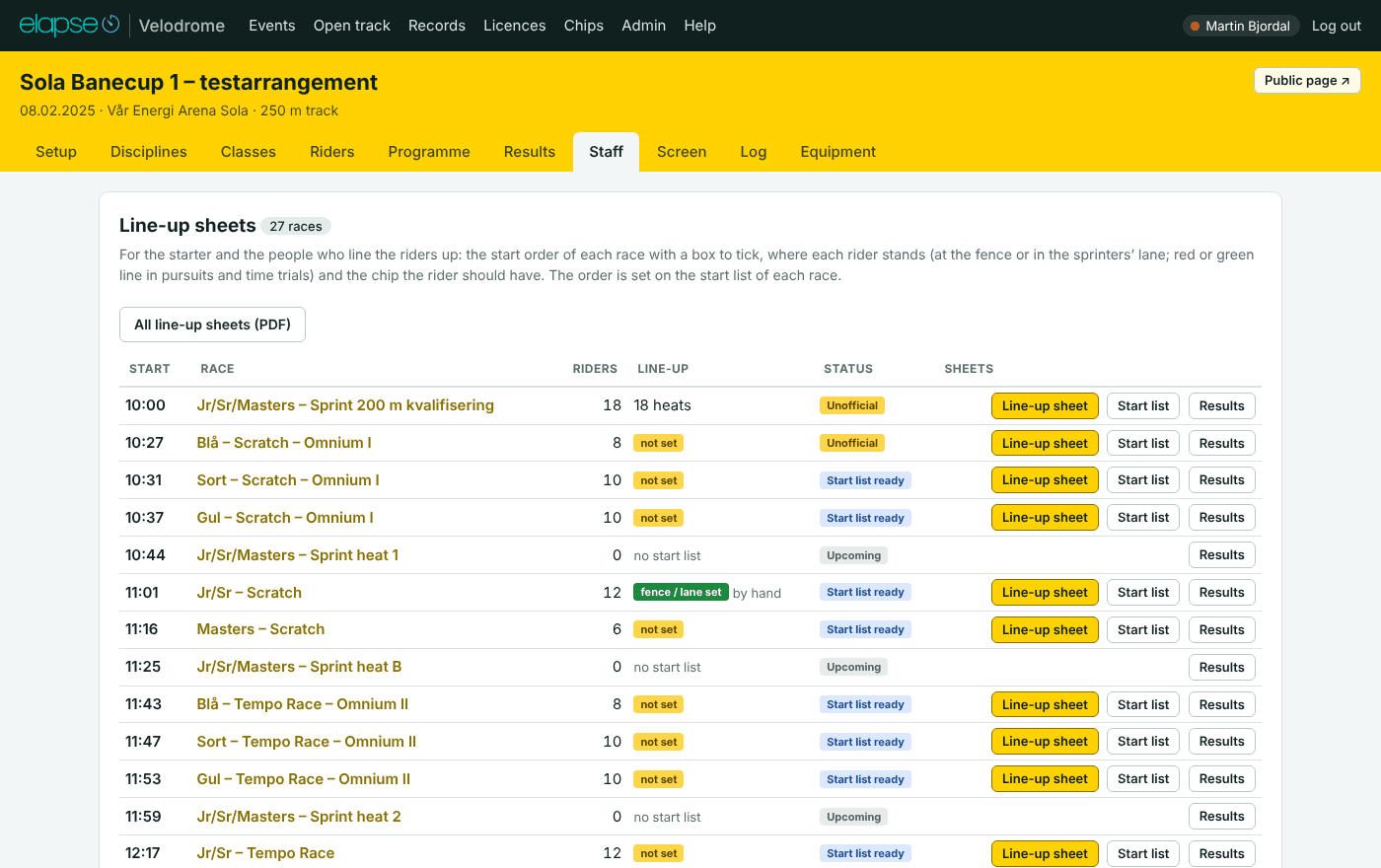
Communiqué overview #
The card Communiqués lists every numbered list: the number, whether it is a start list or a result list, the race, when it was issued and by whom, and Revised 1 when it has been printed again with changes. It also tells you which number comes next.
Start the numbering again (organisers and Elapse) removes the numbers given so far. Lists get new numbers the next time they are printed. Do this after testing, before the event starts, and not during the event.
Decisions, chips list and other sheets #
- Decisions and penalties
- Warnings, relegations, fines and disqualifications, race by race: the list the secretary hands out at the end of the day.
- Numbers and chips
- Every active rider with number, club, class and chip, for handing out numbers and transponders. The card tells you how many riders have no chip yet.
- Timetable
- The programme with start times.
- All start lists, all results
- Every list in programme order in one file.
Open track #
Open track in the top menu counts laps and distance for people who train, when no race is on. Everybody who is logged in can open it.
In this sectionThe roles of the eventThe people list
Counting laps #
- Start the Elapse X2 reader, as for a race. The laps come from the chips.
- Press Switch on. The tag says Counting laps, and a green dot shows next to Open track in the top menu.
- Press Switch off before a race, and on again afterwards.
- A lap is counted from finish line to finish line: two passings of the same chip in a row.
- Riding while counting is off is not counted, and the break between two periods never becomes a lap.
- A rider who leaves the track and comes back later than Longest lap that counts (s) does not get a lap for the break. The standard is 120 seconds.
- The board shows, per rider: laps in this period, total laps, total distance, the last and the best lap time, and when the rider was last seen. It refreshes by itself.
- Lap screen on external screen opens the board for a big screen.
Under Settings, organisers and Elapse choose the Venue whose equipment counts the laps and the longest lap. Reset all totals sets every rider back to zero and cannot be undone.
Riders and their own page #
- Under Add a rider, type the name and the chip number and press Add. Laps for that chip are counted from now on, and what the chip has already ridden shows up at once.
- A chip that is read but belongs to nobody is listed as Unknown chip …. Add a rider with that chip number to give the laps a name.
- QR / link gives the rider a page of their own with laps, kilometres, laps per day and the latest lap times. It needs no login.
- Remove takes a rider off the list. The laps stay on the chip and come back if the rider is added again.
Admin #
The Admin page is Elapse’s: what applies to every event on this server – venues, disciplines, race presets, branding, hardware, users, modules and backups. Organisers see only what their events need. Each tab has a ? that leads here (1.22.2).
Users #
Every user with name, role (Elapse, organiser, venue organiser of one venue), colour, e-mail, whether the account is active, and a new password. 2-step switches the two-step login on for the user (see What protects the results). Users are grouped by role and venue.
Venues #
A venue is a velodrome with its track length, its timing points (MyLaps loops and TimerBox channels, each with its distance before the finish), its own key for the equipment PC and its own link for the big screen and the live page. Each event picks its venue under Setup and gets the track length and timing points from here. When a venue is changed, the events at the venue that are not over yet follow; finished events are left as they were.
Two venues can be used at the same time: passings from a venue’s equipment only reach the race that is reading at that venue, and the venue’s screen link shows the event that is on there that day (a real event before a demo).
Race presets #
Ready-made race setups that are picked when adding a race to any event’s programme: discipline, round, laps or distance, laps between sprints, number of sprints, riders per heat and points by rank. Under Programme › Add race, choosing a class shows the presets made for that class, and a preset fills in every field: the organiser can still change anything before adding the race, and on the race afterwards. The table at the bottom shows, per class and discipline, which presets exist; “n for all” = only presets that fit every class; empty = nothing yet (the organiser then fills in the race by hand). Hover a name to see the setup.
Disciplines #
How each discipline is run and timed here. The settings apply to every event; a single race can still have its own start and stop point under its race settings. Everything worked out from the equipment can be corrected by hand in the Run console.
- Time from → split → time to is the order the rider passes the loops and track contacts. Suggested time decides whether the track contact or the chip is used when both have given a time; with “only”, the other one is still listed in the Run console and can be picked by hand.
- Laps, sprints, eliminations and the finishing order are counted from the chip readings on the laps counted on loop. Team event decides whether riders are grouped in teams on the start list (Madison) or ride alone.
Branding and the logo archive #
The Elapse logo is shown in the top bar and on the small “Timing system by” badge on the big screen: upload one version for dark backgrounds and one for light backgrounds; the built-in logo is used until then. The logo archive holds logos that every organiser can take from on the event’s Setup tab – the federation, UCI, Trackcycling, cups, arenas and clubs. Upload them here once, PNG or JPG (transparent PNG looks best on the big screen), up to 3 MB each. On the event the organiser presses Use to make one the event logo, the timer logo or the PDF background, or to add it as a part of a combined logo. Removing a logo here leaves the events that already use it alone: they got their own copy.
Hardware: countdown clocks and the lap counter #
Countdown clocks. From the TimeTronics manuals: the clocks are driven over a serial line from the timing PC (through the connection box, clock set to LED mode), and it is the countdown clock that releases the start gate at zero. The manuals do not give the bytes; capture them with the Elapse listener (see its README) and paste them here.
The lap counter. The big lap display that is stepped down by hand. Everything on the TimerBox line that is not a TimerBox message reaches the server through the link window, and the Run console shows it beside the chip count – never on the big screen. Read a number out of it in one of two ways: a regular expression with one group on the text of a message (e.g. ^L(\d+) when the counter sends L012), or the TimerBox input the counter’s button is wired to: the count then starts at the race’s laps and goes down one per impulse. Until one of them is set, the Run console shows the raw messages so the format can be seen.
Backup #
Downloads one file with everything: events, riders, start lists, results, users and the audit log (logos are not included); download a copy before and after each race day. A copy by e-mail now and by itself the day before and after each event, and restore from a file – see Automatic backups.
Local copy for the timing PC (1.25.2). When the web host is slow or unreachable on race day, the whole program runs on the timing PC. Download the local copy (Elapse users) gives one zip with the program files of this version, a fresh copy of the database and the uploaded logos. Set up the PC the day before: unzip the package to C:\velodrome, unzip PHP for Windows (Thread Safe, x64) into C:\velodrome\php, copy local\php.ini into it and start local\START-LOCAL.cmd once to see the program open on http://localhost:8080/ (see local\README-LOCAL.md in the package). On the day: download the local copy, unzip it over the folder, start it, point the X2 listener (url in x2.ini), the TimerBox link and the screens at that PC, and run the day there. Afterwards Restore from a file on the server with data\velodrome.sqlite from the PC. Never run both for the same event at once.
1.27.6 – disk space. On a shared host the account’s quota is what fills up, and every site and mailbox under the account shares it; when it is full the host answers 507 Insufficient Storage and the database cannot write. The daily copies are now kept for 5 days (14 before), the before-update and before-restore copies to the newest 3 (they were never removed before – 20 MB each), and Tidy old copies under Backup does the same at once. Photo-finish pictures are scaled to at most 1920 px wide and saved as JPEG when they come in (a 12 MB screenshot becomes a few hundred kB). Server health shows what the data folder uses, by kind.
Feeds #
1.25.4. What every equipment PC sends in, per venue: whether the X2 reader and the TimerBox link are heard from, the last post (passings, stored, time it took), the last hour and the last day (posts, passings, stored, dropped, errors, average time per post), the race that reads passings at the venue with how many passings it has collected, and a bar per five minutes for the last two hours (grey = heartbeats only, red = errors). A reader at a venue nobody is racing at – a test race left on “Read passings”, a club training in the evening – fills the database and costs the server for everyone; here you see it and can do two things from afar: Stop reading (the race’s “Stop” in the Run console) and Pause feed. A paused feed answers the reader 200 with paused: true and keeps nothing, so the reader does not pile up and resend; the Run console at that venue shows “X2 paused by Elapse”. Pause all feeds does it for every venue. Resume before a race: what came while paused is gone. Elapse users only.
1.26.1 – the counting costs less, and a flood is pointed out. The counts are collected in a small file and written to the database every ten seconds, in one go (until 1.26.0 every post from a reader made two writes of its own, and a paused venue whose readers kept posting took the write lock ten times a second for bookkeeping – that was behind “database is locked” on pages at the other venue). The numbers on this tab can therefore be a few seconds behind. One reader program posts about twelve times a minute when the track is quiet; when a venue shows far more than that, the tab says many posts – several reader programs, or a test tool, are sending at once, and the extra ones should be stopped on the equipment PCs. A reader of 1.26.1 or later waits ten seconds between posts while its venue is paused.
1.26.2 – Block feed. The harder switch beside Pause: the equipment at that venue is answered 403 before anything is read or written – nothing stored, nothing counted, no cost to the server. The reader keeps its passings and tries again every 10 s. For equipment that must stay out, such as tests from another venue against the live server; the keys stay as they are, so unblocking needs nothing on the equipment PC. The Audit log notes who blocked and unblocked.
1.26.3 – the emergency brake by FTP. When the server is so busy that Admin cannot be reached: upload a text file BLOCK-FEEDS.txt to the program folder (next to api.php) with one scope per line – v3 for venue 3, e12 for an event with its own setup – or the word all. api.php answers those 403 before the program or the database is loaded, so a flood from that equipment costs nothing from then on. Admin › Feeds shows “blocked by BLOCK-FEEDS.txt”; remove the file or the line to let the equipment in again. The file is not part of the update package and is never overwritten by one.
1.27.2 – the equipment is answered fast. A request from a reader or the TimerBox waits 1.5 s for the database at most (a page waits 5 s and tries again four times). When the database is busy, the reader gets 503 busy, send again as a short JSON answer – it keeps its passings and sends them again two seconds later (a reader of 1.27.2 says so in its window; older readers log “no contact” and send again after a second – nothing is lost either way). Why: on a shared host every waiting request is a PHP process the host cannot give to any other site under the same account. On 11–12 November the readers’ waiting requests filled every process, and all of elapse.no stood still, not only Velodrome.
1.27.3 – a cap on passings per race. Every post from the equipment makes the program recompute the reading race from all its passings – fast for a race (a 40 km points race is a few thousand), slow when a race has read for a whole day of training (17 000 at one venue). At 12 000 passings the program stops reading on that race, says so in the Run console and the log, and the equipment is answered normally. Press “Race started: count from now” (the old passings are set aside) or use a new race, then Read passings again. Reading also stops by itself after six hours (1.11.0).
Log #
1.26.4. The whole audit log in one place: every event and everything logged outside an event – logins, API keys, backups and the local copy, venues and their keys, users, feeds paused or blocked, records, the chip and licence registers, updates. Filter on part of a user’s name, part of an action (“Deleted”, “Logged in”, “key”) and a period; the list of users shows who has entries in the last 90 days. With a user filtered, a line above the table counts their entries per action – click one to narrow further. Each row links to the event’s own Log tab.
What the log does not hold: page views, result lookups, PDF and start-list downloads, API reads, and what the public page or the screen showed. It notes changes and logins. Failed logins of the last 24 hours are under Security; logins themselves are entries (“Logged in”) here and there. The log is kept for good – it is not trimmed.
Security #
The security check (the data folder blocked, HTTPS, program files against the manifest), the error log, the photo-finish code and the version list – see The security check, program files and the error log.
Server health (1.25.2). The card at the top of the tab shows what to look at when the server is slow or says “database is locked”: the database size and journal mode (WAL, where readers and writers do not block each other), how long one read and one write took, how many lock waits there were in the last 24 hours, whether PHP can finish a page before the after-work (webhooks) runs, webhook deliveries waiting and keys failing, and free disk. A lock wait is not an error any more: the statement waits up to 5 seconds and then tries four more times with pauses before giving up; each wait is noted in the error log with the page it happened on.
1.27.7 – if you switch the PHP version in the host’s control panel (a way to restart stuck PHP processes), make sure these extensions are on for the version you land on: pdo_sqlite, sqlite3, gd, mbstring, fileinfo, zip, curl. Without pdo_sqlite every page says “could not find driver”.
1.27.8 – session files. Every request used to start a PHP session, and a reader keeps no cookies, so every post from the equipment left a session file on the host – tens of thousands a day, which count against the account’s quota as surely as megabytes do. Key-based requests start none now, and Server health shows the session files with Delete old session files. If the folder cannot be read from here, the host’s file manager can delete old sess_* files (often in tmp under the account).
Usage and the season report #
Season report (1.23.1). Pick a venue and a period – a season is October to February, and the quick buttons give the seasons that have events – and the card lists every event of the venue whose first day is in the period: dates, organiser, riders, races, races with results, the add-ons activated (by whom; “off” when switched off again, still charged) and the modules used, and the sum to charge per event and in all. PDF gives the same as a document for the invoice (events, add-ons and modules per event, a summary per module with the venue’s included modules and the prices); CSV one line per event and module for a spreadsheet. Demo events are listed but never charged. Prices are the ones set under Admin › Modules when the report is made.
Every event on this server, by venue: riders, races, races with results and chip passings. The last column points out what can mean that one event has been reused for several: dates moved more than once, the event renamed, riders imported after results were official, or many riders deleted. The change log of the event (Log tab) shows who did what. A new event costs nothing, so a venue with few events and many flags is worth a conversation.
Show #
For the events that are a show – lights, sound and an audience to entertain. Ticked events get the extras on the big screen (rider presentation, winner celebration, LAST LAP); every other event stays exactly as it is. The organiser sees a “Show mode” tag on the Screen tab, and the button Present riders next to the start list.
Modules #
The base – events, riders, programme, timing, results, PDFs, the public page, the big screen and the speaker page – is always there. The extras are modules a venue pays for per event. With the switch off (standard) nothing changes: every feature is open for every event, and only the use is counted. With the switch on, an event gets the modules its venue has (ticked here, with an optional last day), the add-ons activated on the event, or its own choice of modules under its Setup tab (Elapse users); an event without a venue has everything. A feature that is not included is shown greyed with a note – nothing disappears. If anything goes wrong, switch it off and everything is as it was.
Invoice basis: how many times each module was used on each event – a DataRide file made, the licence check run, a photo or sponsors on the screen, the statistics opened, the report sent, the API called – counted whether the switch is on or off. To charge = the price of every module used that is not included for the venue; “venue” = covered by the venue’s modules.
Backups, updates and safety #
local in the program has START-LOCAL.cmd and README-LOCAL.md: how to run the whole program on the timing PC with PHP for Windows when the web host cannot be reached – set it up and try it before the event, put the newest copy of the database in data, point the X2 listener and the screens at that PC, and restore the file to the server afterwards.Everything you type is kept in one database on the server. This section tells how it is looked after. Most of it is done by Elapse under Admin.
In this sectionLine-up sheetsCommuniqué overviewDecisions, chips list and other sheets
Updates never touch your data #
- An update replaces the program files only. The events, riders, results, users, logos and backups are in the
datafolder, which is not part of an update and is never replaced. - When a new version needs a change in the database, a copy of the database is saved first. The change only ever adds things, and it is done in one step: if it fails, the database is left exactly as it was.
- The version number is at the bottom of every page.
data/ untouched. A damaged download or an older version is refused before anything changes. Copying the folder over by FTP still works exactly the same – this is the same thing with one button. If the page says the web server may not write to the program folder, or that the upload limit is too small for the zip, use FTP.Automatic backups #
- Every day: one copy of the whole database is made on the first visit of the day. The copies of the latest 14 days are kept on the server, in
data/backups. - Before an update of the database: one extra copy, kept in the same folder.
- By hand: Elapse opens Admin › Backup and presses Download backup now, or downloads one of the daily copies in the list.
The copies on the server protect against mistakes in the data, not against the server itself failing. Download a backup before and after each race day. Organisers can also download the event to a file. Logos are not part of the database backup, but they are in the event file.
The security check, program files and the error log #
Admin › Security (Elapse) shows a list of checks:
- Encrypted connection (https)
- Should say OK. Without https, passwords can be read on the network, and the TimerBox link does not work.
- Program files
- Complete means that every file of the version is on the server and unchanged. Not complete or Mixed versions means that an update was only partly uploaded: upload the whole update again. Below it the latest errors are listed.
- Database closed to the web
- Should say OK. The page tries to fetch the database file the way an outsider would.
- Wrong passwords
- Five wrong passwords for a user name pause that login for 15 minutes.
- Copies
- How many daily copies there are, and the date of the latest.
If a page fails, it says This page could not be shown, with the time. Nothing was changed by the failure. Somebody who is logged in also sees the error text: copy it and send it to Elapse. The error is written to the error log of the installation (data/errors.log), and the latest ones are shown under Program files.
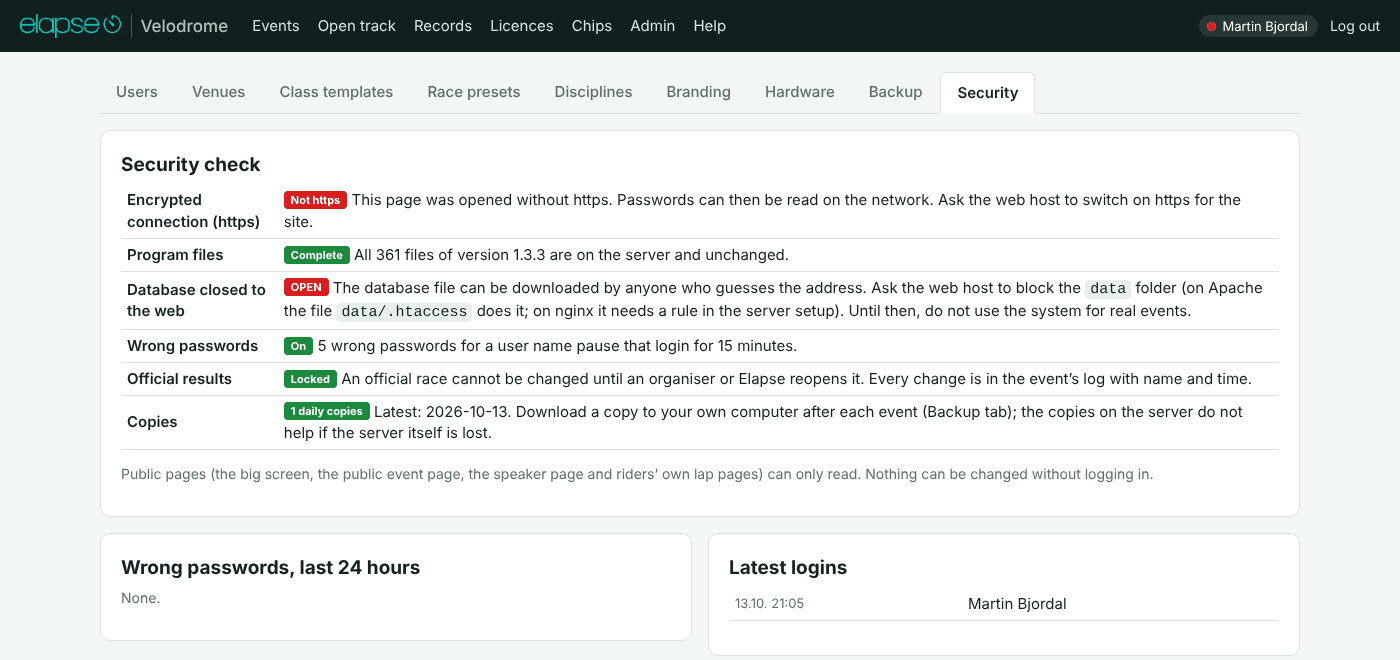
What protects the results #
- Nothing can be changed without logging in. The big screen, the public page, the speaker page and the riders’ own lap pages can only read.
- An official race is locked until an organiser or Elapse reopens it.
- Every change is in the Log tab of the event, with name and time.
- What you enter by hand is never overwritten by the chip passings.
- The licence register, the chip register and the staff sheets hold personal data and are only shown to users who are logged in.
Addresses without .php #
The pages can be opened as …/elapse-velodrome/programme?event=1 instead of programme.php?event=1. That needs the file .htaccess in the program folder and a web server that reads it. The app notices by itself when the server does it and then writes every link without .php; when the server stops doing it, the links go back to .php within 15 minutes. Admin › Security shows the state. The .php addresses always work, so a bookmark with .php is never wrong.
What’s new #
Every version of Elapse Velodrome and what it brought. The date in the last column is when the version was taken into use on this server. Version 1.28.0 is in use now.
1.21.4: after an update, a small note in the bottom corner of the pages tells you the version and what changed, with a link here. It stays out of the way – close it with ✕, and it is not shown again for that version in that browser.
Versions #
Show: – new features, things that work better or look nicer, and faults repaired. “In use here from” is when the version was installed on this server.
- Newserver/install.sh, server/Caddyfile, server/README-SERVER.md (Norwegian). The Caddyfile: clean addresses, the apiv1 path form, data/ and the program’s own folders closed to the web – tested against the program tree.
- ImprovedSTART-LOCAL.cmd keeps its window open when PHP stops at once, and says what to do (missing VC++ runtime, port in use).
- FixedX2 and TimerBox “seen” → data/cache files (touch), zero database writes for heartbeats and polls.
- FixedLocal copy / XAMPP: links without .php only when this host proved it can open them. Copying the server database to a PC made every link “not found” after login.
- ImprovedA post from the equipment tries a locked write once (1.5 s) and gets 503; the reader sends again in 2 s.
- FixedEvery request started a PHP session; readers keep no cookies, so every post made a new session file (tens of thousands a day from one venue, hundreds of thousands from a flood) and PHP’s cleanup rarely ran. Key-based requests (gateway, screen, pursuit boards) now start none; the cleanup runs one request in a hundred.
- NewServer health: the session files (count, old ones, size) and “Delete old session files”.
- ImprovedOn a host where a commit costs ~75 ms, every write that can be spared is spared: one transaction per recompute, one per presence ping (every 12 s, was 5), no blind DELETE on every poll, no immediate retry of the backup checks.
- FixedBefore-update and before-restore copies (20 MB each) were kept for ever; now the newest 3. Daily copies: 5 days, not 14. “Tidy old copies” under Backup.
- ImprovedPhoto-finish pictures are scaled to 1920 px and saved as JPEG when they come in.
- ImprovedServer health: the data folder by kind (database, copies, uploads, logs) and a note on the account quota.
- FixedThe laps-to-go and result recompute after a batch of passings ran inside the gateway’s write transaction – with “Read passings” on through a whole session it held the write lock for as long as the recompute took, on every post. It now runs after the commit.
- FixedOpening the database (the very first statement of a connection) is tried up to six times before giving up; such waits are counted under Server health.
- ImprovedThe error page after a lock (a page only looked at) reloads itself after 4 seconds – the speaker and the public page come back without anybody pressing anything.
- ImprovedTick a photo-finish picture to put it on the big screen; the one on screen is marked.
- Fixed“Save and show” without a chosen file said “choose a file” as an error – it now points to the list.
- ImprovedThe points box on the screen (a sprint, a lap gained or lost) lets the list behind show through.
- FixedLogo mode with the show profile on: the timing company’s logo sat half a logo to the left and too big. It is small, bottom centre.
- NewA race stops reading passings at 12 000 (Run console and log say so); “Race started: count from now” clears it.
- ImprovedGateway requests: busy timeout 1.5 s, one short retry, a JSON 503 with Retry-After instead of the error page. Pages wait as before.
- ImprovedThe X2 listener understands 503: keeps the batch and sends it again after 2 s (new listener/elapse-x2.ps1; older listeners manage too).
- NewRun › Elimination: “Next elimination: lap N” with −1 lap / +1 lap / This lap; the hint, the red columns and the screen follow.
- New“Last over the line” for the newest laps, elimination lap or not.
- ImprovedA tap or “No elimination” on an unexpected lap continues the count from that lap instead of the fixed multiples.
- NewRace › Decisions: a Standard text list in the event’s language fills the reason; a “...” in the text is selected for the name. The same texts are suggested while typing.
- ImprovedNorwegian for a relegation is “Nedplassering” (was “Deklassering”) on the screen, the public page and the PDFs.
- FixedThe PDF text helper L() accepts null and prints nothing, instead of “Argument #1 must be of type string, null given” on the public programme PDF.
- NewAdmin › Log (Elapse): every entry, newest first, filtered by part of a user’s name, part of an action and a period; a count per action for the filtered user; links to each event’s Log tab. Entries made outside events (logins, keys, backups, venues, users, feeds) were shown nowhere before.
- NewBLOCK-FEEDS.txt: one scope per line (v3, e12) or all; checked at the top of api.php with no database. Admin › Feeds shows a feed blocked this way.
- NewBlock feed / Unblock feed per venue: 403 to the equipment, nothing stored or counted, no cost to the server; the reader keeps its passings and tries again every 10 s. The keys stay as they are. Noted in the audit log.
- FixedOpening the database no longer asks SQLite to switch to WAL on every connection (it only reads the mode), and the busy timeout is set before the first statement – 363 pages a day died on that line before they had run a query.
- FixedThe demo event’s daily date move looks before it writes: the UPDATE took the write lock on every request even when there was nothing to do.
- ImprovedFeeds: the counts go to a spool file and to the database every 10 s in one transaction; the X2 heartbeat is noted every 4 s instead of 2; the tab points out a venue with far more posts than one reader makes.
- ImprovedThe X2 listener waits 10 s between posts while its venue is paused (needs the new listener/elapse-x2.ps1 on the equipment PC).
- ImprovedProgramme: the standard time for the flying 200 m is 2:00 per rider (was 1:30).
- NewSecond class on the rider: the rider is offered for the races of both classes (Add rider, automatic start lists, expected riders in the programme), counted in both on the Classes tab, shown as “A + B” on the Riders tab, and the points scored in the second class’s races go to that class in the standings.
- NewImport: an optional “Second class” column (also “Class 2”, “Klasse 2”, “Felt 2”). The class must exist in the event.
- ImprovedA joint race split by class puts a rider in the group of the class they ride it for; splitting a joint race in two and copying an event carry the second class along.
- NewAdmin › Feeds (Elapse): per venue the X2 reader and TimerBox link state, the last post, totals for the last hour and 24 h (posts, passings, stored, dropped, errors, ms per post), the race reading passings with its passing count, and a bar per 5 minutes for 2 hours.
- NewPause feed / Resume feed per venue and Pause all feeds: a paused reader gets 200 with paused: true and nothing is stored; the Run console shows “X2 paused by Elapse”. Stop reading: ends the race reading passings at the venue from Admin.
- FixedPassings from the listener: the whole batch is stored in one transaction (one disk sync instead of one per passing), and the duplicate check uses a new index on (race, chip, time) instead of reading every passing of the race. A batch of 300 on a race with 20 000 passings: 0.5 s → 0.03 s here, far more on a slow host.
- ImprovedSQLite runs with synchronous = NORMAL in WAL mode: safe against a crash of the program, one disk sync less per write.
- Fixed“database is locked” (PDOException in lib/db.php) on a busy or slow host: a statement now waits up to 5 s and then retries four times with pauses before the error goes through; each wait is logged with the page.
- FixedWebhooks: on a host without fastcgi_finish_request the deliveries (up to 10 s per receiver that does not answer) are only made from the screen / console / API polls, never while a person waits for a page; the change scan runs every 5 s instead of 3.
- ImprovedAdmin › Security: the program-file check (hashing every file) is kept for 10 minutes instead of running on every visit; a Server health card shows database size and journal mode, read/write time, lock waits in 24 h, PHP mode, webhooks waiting and free disk.
- FixedControl room: the “Run console” and “Next” links opened “Race not found” (wrong parameter since 1.25.0).
- NewAdmin › Backup: “Download the local copy” – one zip with the program files of this version, a fresh database and the logos, ready for local\START-LOCAL.cmd on the timing PC (Elapse users).
- FixedProgramme PDF: a joint race with many classes no longer squeezes the class into the Round column – the Class column is wider, the short class names are used when the full ones do not fit, and the row takes two lines when even those do not.
- ImprovedControl room: the “behind schedule” buttons (− 5, + 5, On time, Automatic) sit under the programme tile.
- NewAdd-ons: a price summary at the top – Basic per event (Admin › Modules), the add-ons charged, the modules included for the venue, the total.
- ImprovedSetup: the Elapse-only “Modules” section is gone; modules are activated on Add-ons with their price. An old “chosen here” value can be cleared on Add-ons.
- ImprovedDisciplines tab: toggle switches instead of tick boxes – the same setting underneath, nothing changes for events already set up.
- NewAccreditation cards (PDF) from the Officials tab: one credit-card-sized card per official with name, roles, colour band per group, the event’s logo, name and dates; ten per A4 page with cut marks.
- NewBig screen: “Team of the day” – the officials by group as a calm slide (Screen tab).
- NewControl room tab: against the programme (minutes behind, races run, expected end), on track now with laps to go, next with times, equipment (TimerBox / X2 heard from), provisional results waiting, decisions, officials, links. Refreshes every 10 seconds; full screen for a wall monitor.
- NewSpeaker page: storylines per race – who leads the omnium before this race and by how much, the points standings of the class, who in the field won earlier today, a rematch, the flying 200 m times in a sprint or keirin heat, the Longest Lap record.
- NewPublic page: the day as a time line – every race as a block on a clock line, grey / on / next, a moving “now” marker and the delay; a block opens the race.
- ImprovedNotifications: people on the people list with an e-mail address get the first-official-result, finished and report e-mails of every event at their venue (and of events they are officials on); managers switch it off per person.
- NewOfficials tab: roles with names (several per role), a note per name, “remember” puts new names on the people list, copy the officials of another event, ✕ removes.
- NewPeople list: name, usual roles, venue, club, note (contact details for managers); filtered by venue; suggestions put the event’s venue first. Removing a person leaves the names on the events.
- NewThe officials show on the speaker page, at the end of the programme PDF, as one small line (commissaires’ panel and timing) on result PDFs, on the public live page and in the API’s event answer – the last two only while “Show on the public page” is ticked.
- ImprovedThe event’s pages in here take the venue colour (Admin › Venues) automatically; the event colour (Setup) only colours the big screen, the public page and the PDFs. Replaces the 1.23.2 switch; event colours set in 1.23.2 stay as they are.
- NewSetup › Event colour › “Follow the venue’s colour”: the venue colour is the event colour and the big-screen accent, now and whenever the venue colour changes. New events at a venue follow from the start; the NM profile keeps its red.
- ImprovedAdmin › Venues: “Colour on the event list” is now the venue colour, with “apply to all events” to make every event of the venue follow it at once.
- ImprovedAn add-on is charged for the event from the moment it is activated, also when it is switched off again later; the Add-ons tab says so before activating and before switching off, and shows “Switched off … – on the invoice”.
- NewSeason report per venue under Admin › Usage: venue and period (a season is October–February, quick buttons for the seasons that have events), every event with riders, races, results, add-ons (by whom, switched off), modules used and NOK per event; totals per module; PDF and CSV (report.php).
- ImprovedAdmin › Modules › Use per event also lists events whose add-ons were activated but never used, with the same invoice rule.
- NewResult webhooks: an API key can carry a webhook URL and signing secret(s) (Admin › API). Elapse POSTs a small signed note – race.result, race.startlist, race.deleted, event.updated – when something changes, with retries (1 min … 6 h), a “Send test webhook” button and the last deliveries listed per key. Spec: Trackcycling, 6 November 2026.
- NewAPI: advances / advances_to on heats and qualifying rounds – Q (on placing) or R (repechage) and the race the rider goes to – when the next round is made in Elapse.
- NewAPI: rank_across_heats / ranked_by_heat on a race, round_type (qualifying, repechage, semifinal, final…) and heat_types (final_gold, final_bronze, final_a, final_b, repechage, heat) beside heat_names.
- NewAPI: rider_id (Elapse’s id in the event) on every row and member; licence_no from the register for a key with the licence option.
- NewClasses: gender (W/M/X), category and “no placings” per class on the Classes tab and in class templates; guessed from the name when empty; in the API as class_gender, class_category, class_hide_ranks.
- NewAPI: confirmed_at and status_at (ISO 8601 with offset), pdf links on every race, planned_at / estimated_at on the programme, timezone on the event, laps gained/lost on result rows, the longestlap discipline code in the help.
- NewThe version number in the footer of every page opens the version history.
- ImprovedThe version history is a list of cards per version, every change marked New, Improved or Fixed, with a filter on the kind.
- Improved“Unofficial” is called “Provisional” (Norwegian: Foreløpig) on buttons, tags and PDF headings; the status itself is unchanged.
- ImprovedShorter explanations on the pages; a ? after headings and after the open tab opens the help on that topic in a new tab.
- NewA new Admin chapter in the help: venues, race presets, disciplines, branding, hardware, usage, show, modules, backup, users.
- NewThe omnium’s card (Results tab, public page, race page) shows its four races as a strip – numeral, discipline, status and the PDF of each – above the total.
- NewCommuniqué archive: every issued list and revision kept as its PDF, open from the Staff tab, the Results tab and the public page.
- NewOmnium I–IV in one PDF.
- NewSplit times on the speaker page.
- NewA red alert in the Run console when the X2 or the TimerBox falls silent.
- NewTwo-step login (a code by e-mail, browser remembered 30 days), per user under Admin › Users.
- NewResult PDF of a race in an omnium: the omnium standings after that race (later races left out).
- FixedA list that nearly fits is squeezed onto one page; the signature line no longer ends up alone on a new page.
- ImprovedOpen track is beta: only Elapse switches the lap counting on and off.
- NewDemo events (Setup): on today every day, the dates roll forward by themselves, marked Demo.
- NewA small note in the corner after an update, with what changed and a link to What’s new.
- ImprovedLongest Lap: after the shot everybody rides one full lap more – the finish is the second crossing of the line after the shot (race settings › After the shot can switch to “first over the line”).
- ImprovedThe screen shows the distance to the finish and who leads the sprint; the lap time is the slow lap to the line.
- NewLongest Lap: “Test: simulate live” in the Run console plays a made-up heat in real time on the big screen, the shot included; riders close together are laid out in groups (three across, then a step behind) so every number can be read; the metres of “would win now” follow live.
- FixedLongest Lap: a race with nobody on the start list shows the empty track and “waiting for the start” instead of a blank screen; riders close together are drawn side by side across the track.
- NewNew discipline Longest Lap: the riders drawn on a map of the track from the loop passings, “would win now”, the time on track, the SHOT tap in the Run console (or a start impulse), the time from the shot and the position at the shot in the result, EARLY for riders over the line before the shot, the venue’s longest lap as a record.
- NewBunch races: elapsed time and average speed on the result list, the public page and the API.
- NewPoints race sprints as a table, tempo sprints as a grid.
- NewOmnium races show the omnium points of each place.
- NewEliminations: the passings only hint who was last, the commissaires decide and you tap; “no elimination this lap” is counted in the final report.
- NewAdd-ons tab on every event: the paid modules with their price, activated by the organiser with one press and charged only if used; Elapse gets an e-mail and the invoice basis under Admin › Modules, where the prices are set.
- NewAPI: keys for one event, class= filter, fields= selection, format=csv, every list of an event in one call, the key as a header, and the path form apiv1/<event>/<what>/<race>.
- NewHelp › Technical data has the full API documentation: calls, answers and errors, every field, an example, limits.
- ImprovedCommissaires’ sheet of a bunch race with a line-up: the place in the file (fence, sprinters’ lane) as a small grey figure before the bib.
- FixedAPI: the race object on a start list or result now carries the number of entries like the event’s race list does.
- NewThe API has a developer document of its own (ask Elapse).
- NewA public read API (apiv1.php) with keys from Admin › API: events, programme, start lists, results and live standings of public events as JSON – cached, with ETag and a limit per key.
- ImprovedThe commissaires’ sheet of a bunch race is split into the fence and the sprinters’ lane like the start list.
- NewModules can be chosen per event under Setup (Elapse users).
- NewModules per venue (DataRide, UCI, Screen Plus, Statistics and reports, API) with a master switch under Admin › Modules – off as standard, so nothing changes until Elapse turns it on – and use counted per event.
- NewA Photo finish button in the Race row of the Screen tab puts the newest picture up.
- NewBackup: a copy by e-mail now and by itself the day before and after each event, restore from a file, and a local fallback (the folder local) that runs the whole program on the timing PC when the host is down.
- FixedSprint in best of three with ride rows: only the ride that is ridden is “on now”; between the rides the programme, the screen and the speaker page go by the clock or another live race.
- ImprovedThe photo-finish page only uploads – the Screen tab picks the picture for the big screen, and its list refreshes by itself.
- FixedDataRide keirin: one total with no heat column.
- NewStaff tab: a final report by e-mail with the statistics and every result list as one PDF, to extra addresses typed on the event (the PCP, the chief commissaire).
- NewOmnium: a decision of the commissaires’ panel (warning, relegation, fine, note) given on one race is printed on the start lists of the races after it, with the race it came from, and the omnium’s result list carries the decisions of all its races.
- NewOne general link for the photo-finish PC, …/photofinish.php: pick the event there (the ones on today first) and go on to its photo page, no key in the address.
- NewAdmin › Security can set a code the page asks for once per browser.
- NewA photo-finish page of its own, without login (link on the Screen tab): paste or choose a picture, show it on the big screen, the pictures listed newest first with the time.
- FixedDataRide: the keirin results file is one classification for all the heats (final for gold 1–6, the next final 7–12, then the earlier rounds).
- FixedLaps down per rider on the big screen and the Run console: a rider who has not crossed since the leader is on the same lap, not −1; a lapped rider shows −1 the moment the leader crosses.
- NewRiders tab warns when two riders share a chip.
- NewA free slot under every heat on the order board.
- NewPublic page: a heading per day, the live race before the omnium standings, the omnium unofficial between its races.
- NewFlying 200 m: nothing counts before START, so the passings can stay on through the warm-up; short names in the leaders list.
- NewE-mail on user accounts: the people in the event get the notification e-mails too.
- NewLaps to go follows the leader faster, with the leader’s speed under it.
- NewPhoto finish on the big screen from a pasted screenshot or an image file.
- NewThe speaker page follows a new live race by itself.
- NewProgramme tab: a race of an omnium can be dropped afterwards with the ✕ on its row (your password) – the omnium becomes the sum of the races that remain, numbered I, II, III again.
- ImprovedAt least two races stay, and a race with results cannot be dropped.
- ImprovedNo need to set the omnium up again.
- NewStaff tab: a Statistics card with the riders per nation (with flags) and per class, and the number of riders, nations, clubs and classes.
- NewDataRide tab: tick which classes go to DataRide (the others are left out), and the people in the event are shown on that tab too (a script error hid them).
- ImprovedThe timing-source choice per race from 1.16.2 is taken away again: the discipline’s setting under Admin › Disciplines decides, as before.
- NewA timed race can choose its own timing source under Race settings – track contacts first, chips first, or only one of them – instead of the discipline’s standard; the flying 200 m on the contacts, a pursuit on the chips, as you like.
- FixedThe big lap counter is set by the TimerBox link (N004 + laps, as VelodromeTiming does) every time the laps to go change – nothing to step by hand.
- FixedPublic start list and result PDF links always open: a list that is not ready yet says so instead of asking for login.
- FixedDataRide start list file in DataRide’s own layout with the race code.
- NewDataRide tab on UCI races and championships: the competition and event codes, and start lists and results per discipline as the four-sheet file DataRide takes (final classification, or round by round).
- NewThe staff programme PDFs print every start time, also per day.
- FixedCommissaires’ sheets: a bunch race with more riders than fit on one page continues on the next page row by row, with the table head again – before, every cell of the row that hit the bottom got a page of its own.
- Improved“Start 5” instead of “Heat 5” in timed races ridden one at a time (flying 200 m, time trials).
- NewThe commissaires’ sheet of the flying 200 m gets a 100 m column.
- FixedLicence check: a foreign rider with a valid UCI ID is in order.
- FixedA club written as “ia” or “I/A” in an entry file is treated as no club.
- FixedOn the big screen with flags on, a rider without a nation gets a blank flag so the names line up.
- NewRiders tab: “Fill in UCI IDs from the UCI ranking” gives foreign (and other ranked) riders without a UCI ID their ID and nation by name from the uploaded UCI ranking; names that match two riders are listed for a choice by hand.
- ImprovedRiders tab: deleting one rider asks OK / Cancel instead of your password.
- NewNew “Delete all” button that removes every rider of the event, with their start list entries and results – that one asks for your own password.
- NewUCI races: the Programme tab checks the rest times of the UCI guide (p.103) – 30 min between the events of an omnium, 10 min between sprint rounds, 60 min between pursuit and time trial rounds – and lists every gap that is too short.
- ImprovedNothing is moved by itself.
- ImprovedThe Setup tick is now called “UCI race”.
- NewScreen tab: a preview monitor beside the big screen – with “Preview first” the buttons change only the preview, and “Push to the big screen” sends it; the buttons tidied into Race, Programme and breaks, Message and Standby, the settings folded up.
- NewSpeaker page in three columns: the programme with planned and estimated times, the chosen race with laps to go, standings, riders’ club, team, nation, class, UCI ID and rank and what they did earlier today, coming up and latest results.
- FixedLicences page: the UCI ranking card shows the uploaded ranking as two lines instead of a table that did not fit the card.
- NewUCI races: upload the UCI individual track ranking on the Licences page and tick “UCI ranking” on the event.
- NewThe start lists then show each rider’s rank, the timed qualifying can be ordered with the lowest ranked first, and the bunch races (the first race of an omnium) lined up with the best at the fence – all changeable by hand.
- FixedLogin: five wrong passwords pause a user name only from the address they came from (30 from one address, or 50 for one name from anywhere, pause it for all), so nobody can lock a timekeeper out during a race.
- NewA new password logs that user out of every other browser.
- NewA Track counter box on the Run console for the hand-operated lap counter at the track: shows what the counter sends (raw frames until the rule is set under Admin › Hardware), beside the laps left from the chips – for the timekeeper only, never on the big screen.
- NewStart order board for sprint and keirin: a name on each heat (Final for gold, Final for bronze, 5–6…), “Name the finals” with one press, and arrows that move a whole heat earlier or later – so the Run console shows who rides next.
- ImprovedRecords grouped by class (Kvinner Junior, Menn Senior…) within national and track records; two older Sola records join the Sola track records when the Norwegian list is loaded.
- NewSprint: finals straight from the qualifying – the fastest to the final for gold, the rest in named finals for the places after – and a Sprint tournaments card on the programme.
- NewThe floppy for unsaved changes on every page: saves on a press, when you change tab or leave.
- NewAn e-mail to Elapse when the last race of the programme is official: races, riders, passings, and every result list as one PDF.
- NewGap to the winner instead of the time on the big screen (Screen tab).
- NewNorwegian championship profile on the event (Setup › Championship): NM colours, the federation’s logo and “Norgesmester”.
- NewAn e-mail to Elapse with the result PDF when the first race of a day is official (Admin › Branding › Notifications).
- NewShow mode per event (Admin › Show): rider presentation, winner celebration with confetti, LAST LAP flash and a livelier background on the big screen – only on the events ticked.
- NewRace presets say which track their laps belong to; on another track the distance is kept and the laps recomputed.
- ImprovedRace presets as collapsed lines that open on a press; the classes in a dropdown with ticks, grouped by class template.
- NewRace presets per class: the classes are ticked from the class templates, the preset holds the laps between sprints, Copy for another class, and a table of who has what.
- ImprovedUnder Add race, ticking a class shows its presets with what they hold.
- ImprovedThe top menu stays in view on the help page; the event list can be filtered on venue (remembered while you are logged in).
- NewLogo archive under Admin › Branding: logos uploaded once by Elapse, taken into any event with “Use” (event logo, timer logo, PDF background or a part of the combined logo).
- NewNorwegian records (NR) beside the track records (TR), matched on the class of the race or the age class of the rider; the federation’s list loaded with one button.
- NewThe programme saves as you go, with a floppy at the top right while something is unsaved.
- NewDeleting asks for your password; only Elapse deletes events.
- NewBack button in front of the page heading.
- NewOmnium standings as cards on the programme.
- NewUsers grouped by role and venue; a colour per venue on the event list; one-timekeeper notice on Equipment.
- NewAdmin › Usage (events and riders per venue, signs of reuse) and Admin › Update (install a new version from its zip).
- FixedThe combined event logo is drawn in the browser, so the server needs no image library; the help page shows when it was last updated.
- NewEvent logos shared across the events of a venue, downloadable, and several logos combined into one lockup.
- NewCommissaires’ sheets with space for times, sprint sheet with rides 1–3. Omnium standings public and official by themselves, DNS rule.
- NewSprint ride 3 only in the timetable when needed.
- NewRank across heats, heat names (Gold final), queue numbers and holders on the start list, short names and club logos instead of flags on the screen.
- NewPoints race and finishing order proposed and confirmed before they go to the screen.
- NewFlying 200 m / sprint: who is on track proposed from the loops, Start button.
- NewSprint tournament with final and ride on the screen.
- NewVersion history.
- NewThe links box also on the Programme tab, with a programme link per day.
- NewFlying 200 m: clock on the screen from the 200 m impulse, 100 m split from track contact or chip, kept and shown on the result list and PDF.
- FixedAfter day 1 at Sola: the finish ends the count, no automatic laps, laps to go corrected by hand, half a lap earlier, sprints shown when complete, “No elimination”, one heat on the screen, live positions, green winner and points, result next to the elimination tiles, times on all in scratch and keirin, omnium with three races, back button.
- FixedTimeTronics names on the input lamps; a flicker (one message without an event) explained and logged.
- NewTrack contacts read from the port log: channels 1–8 on the inputs, an impulse counter per input, the TimeTronics standard layout with one button.
- ImprovedHelp updated, new chapter Technical data.
- ImprovedClub logos on the screen: as they are, on a white chip, or off.
- NewClub logos from one folder by club name; keirin with a page per heat on the screen.
- Improved“Eliminasjon” instead of “Utslagsløp”.
- NewStandard times from the reference table; links for the organiser’s website.
- FixedClean addresses only while the server proves it does them.
- NewAddresses without .php; help in Norwegian and English with screenshots (1.4.1–1.4.3: fixes for a 403 on /help).
- ImprovedThe public page goes by the date: “Starts in 3 days”.
- ImprovedProgramme PDF with a page per day; help on sprint rides 2 and 3.
- ImprovedTrophies on the screen for rides won in a sprint best of three.
- NewSprint best of 1 or 3 switched in the programme row; rides 2 and 3 as rows of their own.
- NewStart lists follow the entries; public programme with the clock on marked rows; rename and status in the programme table.
- NewAge class on the rider; Bib, Firstname, Lastname; help page.
- FixedError page instead of a white page; check of the program files (manifest).
- NewFirst version for use at a race: communiqué numbers, line-up at the fence and in the sprinters’ lane, Staff tab, decisions of the commissaires’ panel.
Technical data #
apiv1.php, with a key made under Admin › API: ?key=…&what=events, event&event=ID, programme&event=ID, startlist&race=ID, results&race=ID, live&event=ID. Read only, GET only, nothing beyond what the public page shows (no chips, licences or birth dates). Every answer is cached a few seconds on the server, carries an ETag (a request with the same If-None-Match gets 304 without any work) and a Cache-Control; a key has a limit of calls per minute (429 when passed) and can be for one venue’s events only. The “API access” module gates it when the modules are enforced. The Admin › API page has the full list of calls and what they give.The numbers behind the system: how fast a passing travels, how often each page refreshes, and the limits that decide what counts as a lap. For the curious, and for when something looks late.
In this sectionCounting lapsRiders and their own page
From the loop to the screen #
| Step | Time | What decides it |
|---|---|---|
| Chip over the loop → the MYLAPS X2 server | about 0.3 s | The X2 system itself. Measured at Vår Energi Arena Sola. |
| X2 server → the Elapse X2 reader | at once | The reader holds an open connection to the X2 server and gets each passing as it happens. |
| The reader → the Elapse Velodrome server | up to 1 s | The reader sends what it has once a second, up to 300 passings at a time. With nothing to send it reports in every 5 s, which is what “X2 connected” means. |
| The server → the Run page | up to 1.5 s | The Run page asks the server for new passings every 1.5 s. |
| The server → the big screen | up to 1.5 s | The screen asks every 1.5 s. Pages of a long list change every 8 s. |
| The server → the public live page | 10 s while a race is live, 30 s otherwise | The page reloads itself at that interval. |
| TimerBox → the link window | at once | The TimerBox reports every input change the moment it happens, and its clock every 100 ms, at 9600 baud over USB. |
So a chip passing is on the Run page and the big screen about 1 to 3 seconds after the rider crossed the line. The time of the passing itself is exact: the reader stamps every passing with the X2 clock and tells the server how long it held it, so the delay never ends up in the result. Results typed or tapped by hand reach the screen within 1.5 s.
Limits that decide what counts #
| Rule | Value | Why |
|---|---|---|
| Shortest possible lap | the track length at 90 km/h (10 s on a 250 m track) | A second read of the same chip sooner than this is the same visit to the line, not a new lap. This is also what makes a rider standing still on the line count once. |
| Same chip on the same loop | within 3 s | Counted as one passing (a chip is often read several times while it is near the loop). |
| Crossings right after the start signal | within 5 s | Belong to the start, not to a lap, in races started with the TimerBox start signal. |
| Passings just before “Read passings” was pressed | 1 s | Still count, so a press a moment late does not lose a rider. |
| Track contact bounce | 300 ms | A second impulse from the same contact within this time is the same wheel. A hand on the contact closes it for 170 to 240 ms (port log 16.10.2026). |
| Laps gained and lost | by hand only | From 1.6.0 the passings never give or take a lap; the Run console does. The replay judges sprints and the finish with the laps entered. |
| After the finish | one crossing per rider | When the first rider completes the distance, every other rider is placed at his next crossing; later crossings (cool-down) are not counted. |
| Reading passings switches itself off | after 6 hours | So a race forgotten in the “reading” state does not swallow the next day’s passings. |
| “Eliminated” fills the screen | 15 s | Then the riders who are left are shown. |
| “Points awarded” panel | 10 s (can be changed on the Screen tab) |
Users, presence and login #
- Every page tells the server every 5 s that its user is there and what the user has open; a “working on this” mark expires 30 s after the last sign of life.
- The same user can be logged in in any number of windows, browsers and computers at the same time. The TimerBox link window is the one thing that exists once per venue per browser.
- 5 wrong passwords in a row pause that user name for 15 minutes.
- The server keeps everything in one SQLite database file,
data/velodrome.sqlite, with a daily copy and a copy before every update indata/backups/. An event file (.evz) is a zip with the event’s tables as JSON plus its images.
The public read API #
rider_id, advances / advances_to (who went on from a heat, Q or R, and to which race), round_type, heat_types, rank_across_heats / ranked_by_heat, gender, category and “no placings” on the classes, confirmed_at, PDF links, planned_at / estimated_at as ISO 8601 and the longestlap discipline code; licence numbers for a key with that option.Other systems – a federation website, a club page, a TV graphics box – can read the programme, start lists, results and live standings of public events (the public page switched on) as JSON. Read only, GET only, nothing beyond what the public page shows. Keys are made under Admin › API (Elapse users). 1.18.1.
Getting started. Everything is one address with a key and a what parameter: https://<site>/elapse-velodrome/apiv1.php?key=ev_…&what=events. The key is ev_ + 32 characters; it can be limited to one velodrome’s events and switched off at any time. Keep it on the server side of your system – CORS is open, so a browser page can call the API directly, but then the key is in the page source. Ids of events and races never change.
| what | Parameters | Gives | Cached |
|---|---|---|---|
events | – | The public events: id, name, dates, venue, track length, language, championship, state (upcoming, today, live, finished), link to the public page | 15 s |
event | event=ID | One event with its classes and its races (id, title, discipline, round, class, status, laps, distance, omnium) | 15 s |
programme | event=ID | The running order with planned and estimated times, the minutes behind schedule, what is on now, each item’s state | 10 s |
startlist | race=ID | The start list: bib, name, club/team, heat, position, fence or sprinters’ lane, the riders of a team | 60 s (10 s live) |
results | race=ID | The results, or the live standings while the race is on: rank, time, points, the columns of the list, laps to go | 60 s (3 s live) |
live | event=ID | Every race that is live now, each with its standings as results gives them | 2 s |
A race of an omnium is a race of its own (omnium_id points at the omnium); the omnium itself (is_omnium) gives the overall standings under results. A sprint tournament is its rounds as separate races.
Extras (1.19.0). startlist and results with event=ID instead of race= give every list of the event in one answer ({event_id, races: [...]}). class= (a class name, short name or id) keeps only that class’s races on event, programme and the whole-event lists. fields=rank,bib,name keeps only those fields on every row. format=csv gives the same answer as a CSV file (UTF-8 with BOM; the first rider’s names, nation and UCI ID as columns; the list’s extra cells under their column names). The key can also be sent as the header X-Api-Key, and the same calls exist in path form: apiv1/events, apiv1/7/programme, apiv1/7/results, apiv1/7/results/202. A key can be made for one event only (Admin › API), to hand to that event’s organiser.
Answers. Always JSON in one envelope: {"ok": true, "generated": "2026-11-01T09:35:25+01:00", "data": …}; generated is when the answer was computed (Europe/Oslo) and can be a few seconds old because of the server cache. On an error: {"ok": false, "error": "…"} with 400 (unknown what), 401 (no or wrong key), 403 (the key is for another venue, or the API module is not included for the event), 404 (no such public event or race, start list not ready, no results yet), 405 (not GET) or 429 (too many calls – wait the Retry-After seconds). Two headers save calls: ETag – send it back as If-None-Match and get 304 Not Modified with no body when nothing changed; Cache-Control: max-age=N – how many seconds the answer is good for.
Fields.
- Event:
id,name,date_from,date_to(YYYY-MM-DD),venue,venue_id,track_length(m),language(no/en),timezone(1.23.0,Europe/Oslo),championship(nmor null),uci,state,demo,public_page; ineventalsoclasses[{id, name, short,gender(W/M/X),category(Elite, Junior, M40, 13…),hide_ranks}] andraces. Gender and category are set on the Classes tab; left empty they are guessed from the class name. - Race:
id,title,title_local(the event’s language),discipline(sprint200,sprint,keirin,scratch,points,tempo,elimination,pursuit,teampursuit,timetrial,teamsprint,madison,longestlap,omnium),discipline_name,round,round_type(1.23.0:qualifying,first_round,repechage,quarterfinal,semifinal,final,heatsor null, read from the round’s text),class,class_id,class_gender,class_category,class_hide_ranks,status(planned,startlist,live,unofficial= provisional,official),status_atandconfirmed_at(1.23.0: ISO 8601 with offset;confirmed_atonly when official),laps,distance_m,omnium_id,is_omnium,rank_across_heats(1.23.0: false in a sprint or keirin round whose ranks start again in every heat),entries,pdf(1.23.0: relative links to the start list, result and omnium PDFs; a public event’s PDFs open without login). - Start list row:
rider_id(1.23.0: Elapse’s id of the rider in this event – the same in every round, also for riders without a UCI ID),bib,name(as printed,Henrik SPURTNES),club_team,heat,pos(in the heat; with a line-up the order from the finish line within the line),line(fence,laneor null),status(DNS, DNF, DSQ, REL or null),seed,advancesandadvances_to(1.23.0, see below),is_team,members[{rider_id, bib, first_name, last_name, club, team, nation, uci_id,licence_noonly for keys with the licence option}].heat_namesmaps a heat number to its name (“Final for gold”);heat_types(1.23.0) the same number to a machine-readable type:final_gold,final_bronze,final_a,final_b,final_c,final,repechage,heat– read from the names (“Final for gold”, “Final 1–6”, “A Final”, “Repechage”…) and the round. - Result row: as the start list plus
rank(string, null without a rank),rank_n,time_ms,time(as printed),points,laps(1.23.0: laps gained + / lost − in a scratch or points race),cells(the extra columns as printed, matchingcolumns),flags(NR,TR,PB,OVL,EARLY,W,REL).resultsalso carriesstatus,has_results,ranked_by_heat(1.23.0: true = the ranks start again in every heat),heat_names,heat_types,laps_left,elapsedandavg_kmh. The column titles incolumnsare always the English ones (“Time”, “Laps”, “Total”, “Ride 1-2-3”), whatever the event’s language. - Who went on (1.23.0): when the next round is made from a result (Advance, By hand, the sprint finals, the ladder, the pursuit finals), every rider who goes on gets
advances=Q(on placing) orR(to a repechage) andadvances_to= the id of the race they ride next, on the start list and the result of the round they came from.q(fastest loser on time) is reserved: Elapse picks on placing, so it is not produced yet. Rounds made before 1.23.0 have null. - Programme item:
type(race,ride,break,day),race_id,ride,title,day,date,planned,estimated(HH:MM),planned_at,estimated_at(1.23.0: ISO 8601 with offset, e.g.2026-10-16T18:30:00+02:00),minutes,state(done,now,next,wait),status,show_time; the answer also hasnow,delay_minutes,dayanddays.
Example. curl -i "https://www.elapse.no/elapse-velodrome/apiv1.php?key=ev_YOURKEY&what=results&race=12" – then the same with -H 'If-None-Match: "<the ETag>"' answers 304 while nothing has changed. A page that follows a live race asks what=live every 2–3 seconds with the ETag; a club page fetches programme once a minute.
Limits. 120 calls per key per minute, of which at most 60 live; over that 429 with Retry-After: 30. Asking faster than the cache time gives the same answer. Show unofficial results as unofficial – they can change until the race is set official.
Not in the API: nothing personal beyond the public result list (no chips, birth dates, e-mail addresses, decisions of the commissaires’ panel), nothing from events whose public page is off, no open-track boards, no writing. Licence numbers are the one exception, and only for a key where Elapse has ticked Include licence numbers (a federation system that needs them): then licence_no comes from the licence register, for the riders the register check matched, else null. Questions and keys: post@elapse.no. The API is the “API access” module; a velodrome without it gets 403.
Result webhooks #
1.23.0. Instead of asking the API every few seconds, a site can be told when a result changes. An API key gets a webhook URL and a signing secret under Admin › API (the receiving site generates both). From then on Elapse POSTs a small signed note to that URL whenever a race’s result is saved as provisional or official, corrected afterwards, withdrawn or deleted, whenever a start list is saved or changed, and whenever the event’s races change or its public page is switched off. The note names the race; the site then reads it through the API as before – so the API stays the only result format, a webhook can never disagree with it, and a missed webhook is caught up by reading. Only events the key can read, and only while the event’s public page is on; live standings send nothing.
The note. POST with Content-Type: application/json and a body like {"id": "whk_01M6…", "type": "race.result", "created": "2026-10-31T13:27:41+01:00", "api_version": "1.23.0", "event": 7, "race": 227, "status": "official", "updated_at": "2026-10-31T13:27:39+01:00"}. type is race.result, race.startlist, race.deleted (a published result withdrawn or its race deleted), event.updated (races added, removed, renamed, moved; the public page switched off) or ping (the test button). status is provisional or official (null for race.deleted and the event types). race is null for event.updated and ping; event is 0 for a ping. updated_at is when the change was first seen, so a receiver can skip a note older than what it has. Fields may be added later.
Signature. The header Elapse-Signature: t=1793912861,v1=5257a8… carries a Unix time and HMAC_SHA256(secret, t + "." + raw body) as lowercase hex – the scheme Stripe uses, so standard verification code works. The receiver recomputes it over the raw bytes before parsing and accepts when a v1 matches and t is within five minutes of its clock. While a key has two secrets (rotation), the header carries one v1 per secret; switch the receiver to the new one, then remove the old. https only; redirects are not followed.
Delivery. Delivered = any 2xx within 10 seconds. Anything else is retried after 1 minute, 5 minutes, 30 minutes, 2 hours and 6 hours (six attempts in all), with the same id and body and a fresh t. Order is not guaranteed; the receiver reads the current state anyway. Answer fast and work afterwards. A 410 Gone switches the URL off at once; a URL that has failed every attempt for 3 days is switched off too, and Admin › API says so. Several saves within a few seconds give one note. Deliveries are made right after the page that found the change has been sent, so they cost the person working in Elapse nothing; the last 200 per key (time, type, state, attempt, answer) are listed under Settings on the key.
Testing. Send test webhook sends a ping and shows the answer and the time it took. After that, test end to end on a demo event: a provisional then an official result (two race.result), a corrected place (one more), the final drawn after the heats (race.startlist, and advances on the heats), a deleted race (race.deleted), the public page switched off (event.updated, then silence).
How Elapse finds the changes. Results are saved in many places (the Run console, the race page, the automatic results from the passings, the photo-finish, the pursuit board, imports), so a change detector runs on every request, at most every 3 seconds: it fingerprints every race of the public events of the last 45 days (status, finishing order, times, sprints, laps, decisions, start list) and sends a note when one differs. A correction to an event older than 45 days sends nothing; the receiver reads it when it wants.
Troubleshooting #
Find what you see in the left column. The text in italics is what the page or the program says.
In this sectionUsersVenuesRace presetsDisciplinesBranding and the logo archiveHardware: countdown clocks and the lap counterBackupFeedsLogSecurityUsage and the season reportShowModules
TimerBox and start clock #
| What you see | What to check |
|---|---|
| No TimerBox heard in the link window | The wrong port was chosen, the TimerBox has no power, or another program has the port. Close VelodromeTiming and any port monitor, check the USB cable, and press Connect to TimerBox again. |
| Could not open the port … Another program has it in the log | Another program is using the port, or the cable is out. Close the other program. Only one program can use the port. |
| This browser cannot talk to serial ports | Use Chrome or Edge on a PC, and open the site with https. It does not work on a tablet or a phone, or in other browsers. |
| The TimerBox link for this venue is already running in another window | Find the other link window and use it. Close this one. |
| Nothing happens when you press Open the TimerBox link, or The browser blocked the window | Allow pop-ups for the site in the browser and try again. |
| TimerBox not connected on the Run page | The link window is closed, or it is open in a browser on another PC that has lost the internet. Open the link window on the PC with the TimerBox. Until then the countdown runs on the web page and the big screen only. |
| TimerBox silent or Connection lost | The link tries again by itself. Check the power and the USB cable of the TimerBox. |
| You pressed START COUNTDOWN, but the clock at the track did not start | Check the tag TimerBox connected. Press Abort / reset clock and start again: a command only waits a few seconds for the link. Try Start countdown on the clock under Equipment › Test. Check that the clock at the track is set to be driven from the timing PC. |
| A time is marked Start taken from the countdown (approximate) or no start signal, countdown used | No start signal came from the TimerBox. Check the link, and which input the start signal comes on under Equipment › Inputs. Take the time from the timing at the track, or use the chip time with care. |
Chips and the X2 reader #
| What you see | What to check |
|---|---|
| X2 not connected on the Run page | The Elapse X2 window is not running, has not connected to the X2 server, or the PC has no internet. Look in the Elapse X2 window: it says in plain words what is wrong. |
| The reader says could not connect, or Nothing answers at … from this PC | The PC is not on the network of the X2 server. Connect it to that network, with the internet at the same time. If the network is right, the X2 server address is wrong: correct it on the Equipment tab and download the folder again. |
| The reader says Wrong user name or password for the X2 server | Start the reader again and type the password again. Check X2 user on the Equipment tab. |
| The reader says Elapse Velodrome refused the passings (403). Check venue and key in x2.ini | The folder was made for another venue, or the key has been changed. Download the folder again from the Equipment tab of an event at this venue. |
| The reader says No contact with Elapse Velodrome, with “404” or “Not Found” in the message | The address url in x2.ini does not lead to the site. Download the folder again from the Equipment tab: the address is then filled in as you have it in the browser. |
| The reader says Elapse Velodrome did not get the passings (405) | The address in x2.ini is one that sends on to another, for example without “www” when the site uses it. Use the address exactly as the site has it in the browser: download the folder again. |
| The reader shows sent … with "race_stored":0, or (no race is reading passings now) | The passings arrive, but no race is reading. On the Run page of the race, press Read passings, the “count from now” button or START COUNTDOWN. See Reading periods. An official race takes no passings. |
| MylapsSDK.dll is missing in this folder | Ask Elapse to upload the library under Admin › Hardware, then download the folder again. Or copy the file into the folder by hand. |
| MylapsSDK.dll could not be loaded | Install “Microsoft Visual C++ Redistributable 2015-2022 (x64)” from Microsoft and start again. |
| Chip not on this start list in the list of passings | The chip is read, but no rider in this race has it. Check Chip and Spare chip on the rider, written the way MYLAPS shows it. It may also be a rider from another race warming up. |
| A rider gets no laps or no time | The rider has no chip typed in, the wrong chip, or the chip was not read. In a bunch race, use + missed or + now. In a timed race, type the time. |
| Passings from a loop … that is not set up | The X2 server has a loop the venue does not know. Elapse fills in the loop for the timing point under Admin › Venues, or you add the loop’s name to Loops that are not used on the Equipment tab. |
| The laps are one too many or one too few | Look at the box the first crossing is the start, not a lap. If reading started too early, press Race started: count from now at the real start: the earlier passings are set aside. |
| The sprints of a points race are not set by themselves | The race needs both Laps and Number of sprints under Race settings. A yellow tag on the Run page says so. |
Pages, results and the big screen #
| What you see | What to check |
|---|---|
| A blank page, or This page could not be shown | Reload the page once. If it comes back, copy the error text and send it to Elapse. If the page says The program files on the server are not complete, the last update was only partly uploaded: Elapse uploads the whole update again and checks Admin › Security › Program files. Your data is not touched by this. |
| Too many wrong attempts. Wait 15 minutes and try again | Wait, or ask Elapse to set a new password. |
| An event is missing from your list | You have no access to it. An organiser ticks you under Setup › Access. |
| This race is official and locked | An organiser or Elapse presses Reopen on the Run page. Correct, and set the race official again. |
| … also has this open. Whoever saves last overwrites the other | Somebody else is working on the same rider or race. Agree who saves. |
| Not saved, not a valid time | Write the time as 10.234 or 1:02.345. |
| The big screen does not show what the timekeeper sent | Main is showing something else. On the Screen tab, press Follow timekeeper. |
| The big screen says Screen link is not valid | A new link has been made. Copy the link again from the Screen tab. |
| The big screen stands still | The screen PC has lost the internet. It goes on by itself when the internet is back. Reload the page if it does not. |
| The public page says This page is not open | The public page is switched off. Switch it on under the Results tab. |
| A start list or result list has no communiqué number | The race is still “Upcoming” (start list) or not yet Unofficial (results), or the numbering is off under Setup › Printouts. |
| The programme has no start times | Fill in Programme starts and save. |
| A rider is not offered for a start list | The rider is in another class than the race, already on the list, or has the status DNS or Withdrawn on the Riders tab. |
| Import: No name column found | The first row of the file must hold the column names, for example Firstname and Lastname. Download the template to see the layout. |
| Import: Old Excel files (.xls) are not supported | Save the file as .xlsx or CSV and upload it again. |
Glossary #
The words used in the app and on this page.
In this sectionUpdates never touch your dataAutomatic backupsThe security check, program files and the error logWhat protects the resultsAddresses without .php
- Bib
- The rider’s number. Norwegian: startnummer.
- Class
- The field a rider races in. Decides which races the rider can be put in.
- Age class
- A text on the rider, for example M15-16, shown on start lists and results.
- Discipline
- A kind of race: scratch, keirin, pursuit and so on. Norwegian: øvelse.
- Race
- One row in the programme: a discipline for a class, in one round.
- Round
- A stage of a competition: qualifying, first round, semi-finals, final. Each round is its own race.
- Heat
- One start inside a race. A flying 200 m has one heat per rider, a keirin one heat per group.
- Ride
- One run of a sprint heat. Best of three means up to three rides.
- Walkover
- A rider alone in a sprint heat goes through without riding.
- Bunch race
- A race where all riders start together: scratch, points race, tempo race, elimination, Madison.
- Line-up
- Where the riders stand at a bunch start: at the fence or in the sprinters’ lane.
- Sprinters’ lane
- The lane along the inside of the track. At a bunch start, half the riders are held there by their coaches.
- Communiqué
- An official, numbered sheet from the commissaires’ panel. Here: every start list and result list.
- Revised
- A communiqué that was printed again after its content changed.
- Commissaire
- A race official (judge). The commissaires’ panel decides the results.
- Chip
- The MYLAPS transponder on the rider’s bike. Norwegian: brikke.
- Loop
- A wire in the track that reads the chips when they pass. There is one at each timing point.
- Passing
- One reading of a chip at a loop, or one impulse from a track contact or the start signal, with its time.
- Timing point
- A line on the track where time is taken: Finish, 200 m line, 100 m line, Pursuit red, Pursuit green.
- Reading
- A race is reading when the passings are stored on it. One race at a time at a venue.
- Track contact
- A contact strip across the track that gives an impulse to the TimerBox when a wheel passes.
- TimerBox
- The TimeTronics box at the track that drives the start clock and takes in the start signal and the track contacts.
- TimerBox link
- The browser window that connects Elapse Velodrome to the TimerBox.
- Start gate
- The machine that holds the bike at the start of pursuits and time trials and lets go at zero.
- X2
- The MYLAPS X2 server, which reads the chips. Elapse X2 is the program that passes its readings on.
- Venue
- A velodrome with its track length, timing points and equipment, set up by Elapse.
- Split time
- The time at a point on the way, for example every half lap in a pursuit.
- Neutralised
- A rider who is out of a bunch race for some laps after a mishap, without losing the place.
- DNS, DNF, DSQ
- Did not start, did not finish, disqualified.
- W
- Warning, shown next to the rider on the result list.
- REL
- Relegated: moved down in the result by the commissaires.
- OVL
- Caught by the opponent in a pursuit.
- TR
- Track record.
- PB
- Personal best.
- Main and timekeeper
- The two controls of the big screen: the Screen tab and the buttons on a race.
- Open track
- Lap counting for training, outside the races.